Lesson 62 of 63
Journey F, part 7: The administrator runs an access review and revokes one access
What you will be able to do
Access that was right when it was granted goes stale. An access review lists every role in a chosen part of the organisation, so that a reviewer keeps or revokes each one, on the record. In this part the administrator reviews the online region, keeps the regional manager's roles, and revokes the contractor's, whose work has ended.
Before you start
- Parts 1 to 3 are done: the region exists and people hold roles in it.
- You are signed in as an organisation administrator.
Steps
- 1
Open Access control on Access reviews
In Access control select the Access reviews tab. A review, also called a recertification, lists every role grant in a chosen part of the organisation so that a reviewer can keep or revoke each one.
- 2
Select Start a review and name it
Select Start a review. A name is suggested from the quarter and the year. Replace it with one that says what is being reviewed.
- Select Start a review
- Type Name *:
UAE Online access review, October 2026
- 3
Choose the scope
Under Scope choose UAE Online. The review covers that unit, the units beneath it and the companies placed in them. Reviewer is you, and Due is two weeks ahead; both can be changed.
- Select Whole organisation
- Type Search units and entities…:
UAE - Choose UAE OnlineUAE-ONLINE · Region
- 4
Leave automatic revocation off and start
Leave Revoke anything left unreviewed after the due date switched off. With it on, the review closes by itself on the due date and every undecided grant is revoked. Select Start review. A message says how many grants there are to check, and the review opens.
- Select Start review
- 5
Read the list of grants
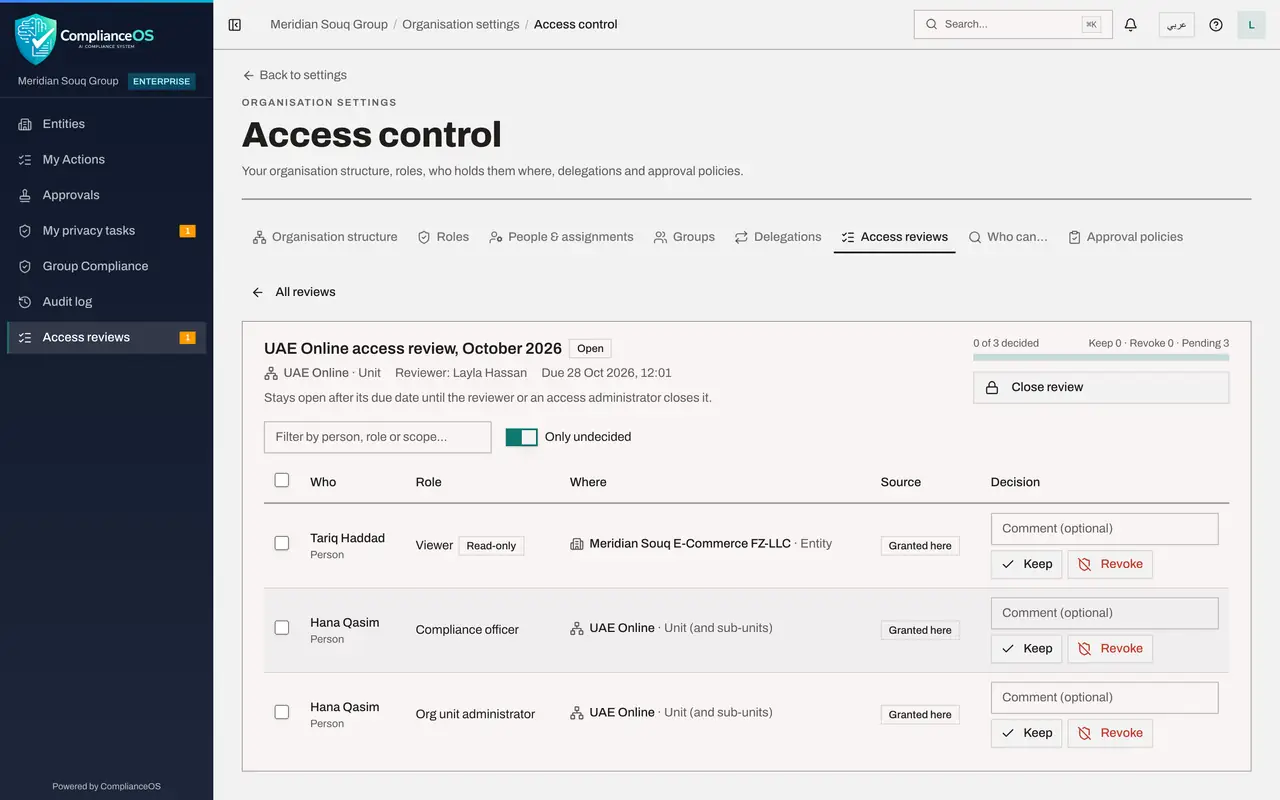
Each row is one grant inside the scope: who holds it, the role, where it applies and how it was given. Every row has a comment box and the buttons Keep and Revoke.
- 6
Revoke the contractor's access
Tariq Haddad was invited as a read-only viewer of the e-commerce company, and his contract has ended. Type his name in the filter box, then select Revoke on his row.
- Type Filter by person, role or scope…:
Tariq - Select Revoke
- Type Filter by person, role or scope…:
- 7
Give the reason and select Revoke now
The confirmation says he loses the role immediately and that this is recorded in the review and in the audit log. Type the reason and select Revoke now. The message Access revoked appears.
- Type Comment:
Contract ended on 30 September; access no longer needed - Select Revoke now
- Type Comment:
- 8
Keep the remaining grants together
Clear the filter. The grants that are left belong to the regional manager and are still needed. Tick the box in the table header to select every row shown, then select the Keep selected button.
- Select Select all shown
- Select Keep 2 selected
- 9
Select Close review and confirm
The list reads Everything here has been decided. Select Close review, and Close review again in the window. Closing records the result for good.
- Select Close review
- Select Close review
- 10
Find the closed review
Select All reviews at the top left, then switch on Show closed reviews. The review is kept as a permanent record with the date it was closed and its totals of kept and revoked. Opening it shows every grant with its decision. This is what you show an auditor who asks how access is checked.
- Select All reviews
How to check it worked
The review is closed, with its totals of kept and revoked, and Tariq Haddad no longer holds a role.
Common mistakes
- Reviewing the whole organisation when you mean one region. Choose the scope that matches the question you are asking.
- Switching on automatic revocation without meaning to. With it on, every grant left undecided after the due date is revoked.
- Trying to decide your own access. A reviewer's own grants are held for a second reviewer.
Check your understanding
1. What happens when you select Revoke on a grant in a review?
- A.A request is sent to the person
- B.The person loses the role immediately, and it is recorded in the review and the audit log
- C.Nothing until the review closes
Show answer
Answer: B. The person loses the role immediately, and it is recorded in the review and the audit log
The confirmation says so before you select Revoke now.
2. What is kept after a review is closed?
- A.Nothing
- B.A permanent record of every grant and the decision made on it
- C.Only the revoked grants
Show answer
Answer: B. A permanent record of every grant and the decision made on it
Closed reviews stay in the list, with their totals; opening one shows each decision. This is what you show an auditor.