Lesson 28 of 63
Journey C, part 7: An employee reads the policy and checks her own record
What you will be able to do
This part is seen from an employee's side. Aisha Farouk has no compliance role; she has the self-service access every employee can be given. She signs in, finds the policy waiting under My privacy tasks, reads and acknowledges it, and then looks at her own employee record as HR holds it. She also finds out what she cannot open.
Before you start
- Part 6 is done: the policy is published and the campaign is launched.
- You are signed in as an employee whose login is linked to her employee record.
Steps
- 1
Open My privacy tasks
After signing in, select My privacy tasks in the left menu. One task is waiting: the acceptable use policy, with the date it is due.
- Select My privacy tasks1
- 2
Select Read
Select Read on the task. The policy opens with its version number at the top. Read it through. The buttons at the top switch between English and Arabic.
- Select Read
- 3
Tick the confirmation and select Confirm
At the bottom, tick the box that says you have read and understood the policy, then select Confirm. The page records that you acknowledged this version, with the date and time.
- Select Confirm
- 4
Check that nothing is left to do
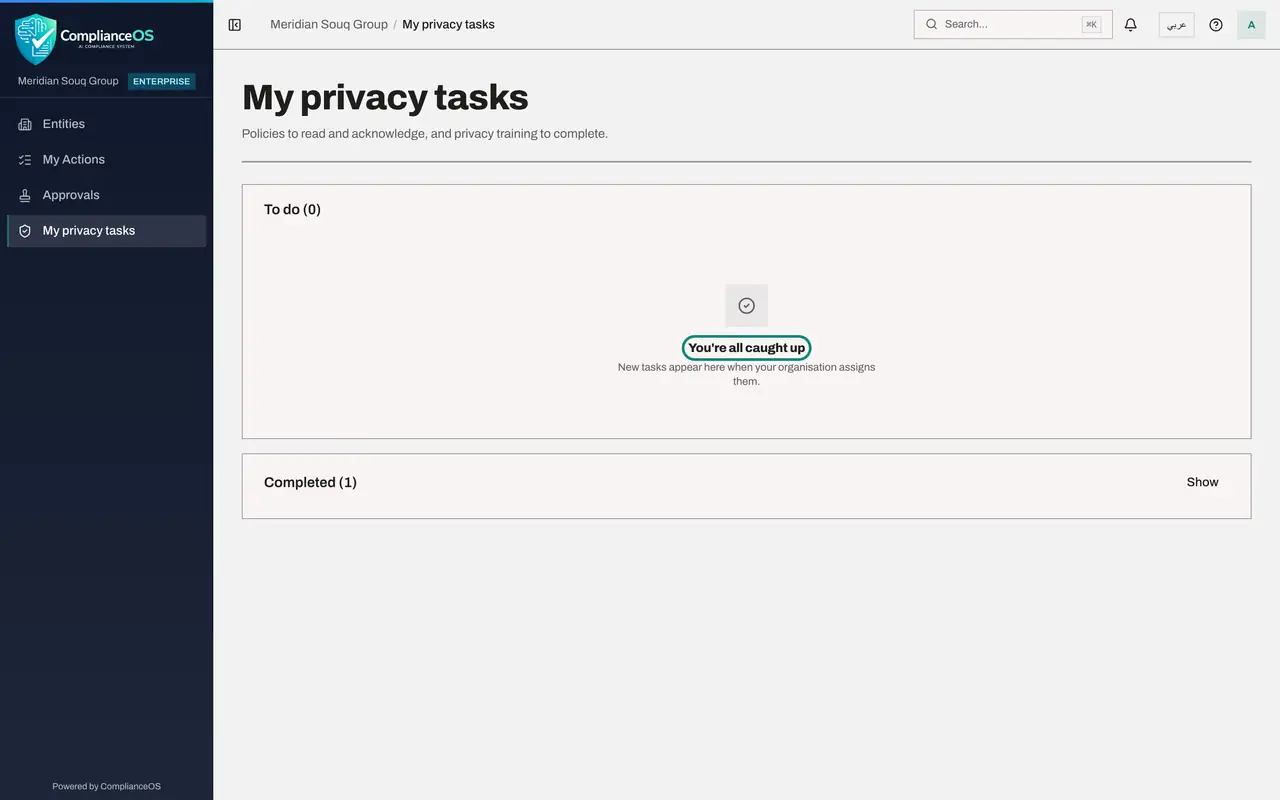
Go back to My privacy tasks. It says You're all caught up. The Data Protection Officer's campaign page now counts your acknowledgement.
- Select My privacy tasks
- 5
Open your own employee record
Select Entities, open the company's dashboard, and select Workforce under People. For an employee the page is headed My employee record. A card shows your name, employment date, basic salary, employee number and WPS status, as HR holds them.
- 6
Select Open my record
Select Open my record. The full record opens with the same tabs HR sees for you: Profile, Gratuity, Documents and WPS. You can read all of it. If anything is wrong, ask HR to correct it; you cannot change the record yourself.
- Select Open my record
- 7
See what an employee cannot open
Try another module: open Data Protection for the company. The page says Module access required, and names the permission you do not hold. Self-service access reaches your own record and your own tasks, and nothing else.
How to check it worked
My privacy tasks says You're all caught up, and My employee record shows your own details and nobody else's.
Common mistakes
- Ticking the confirmation without reading. The acknowledgement is recorded against your name with the version you were shown.
- Looking for colleagues' records. Self-service shows your own record only.
- Trying to correct your own record. You can see it; ask HR to change anything that is wrong.
Check your understanding
1. Where does an employee find a policy she has been asked to read?
- A.In the Policy library
- B.Under My privacy tasks
- C.In her e-mail only
Show answer
Answer: B. Under My privacy tasks
Each assignment appears under My privacy tasks, with Read for a policy and Start for a training module.
2. What can an employee with self-service access see in Workforce?
- A.Everyone's records
- B.Her own record, as held by HR
- C.Nothing
Show answer
Answer: B. Her own record, as held by HR
The page is headed My employee record and says to ask HR to correct anything that is wrong.