Lesson 17 of 63
Journey B, part 6: The tax manager prepares the VAT return and submits it for sign-off
What you will be able to do
The quarter from July to September 2026 has ended, and its VAT return is due on 28 October. Everything the return needs is already in Tax: the sale from this journey and the purchase from Journey A. In this part the tax manager checks those rows, sets the company's emirate, agrees the workpaper to the return, computes the return, and submits it for the finance manager's sign-off.
Before you start
- Parts 1 to 5 are done: the sale is recorded in Tax, posted to the ledger and paid, and the sign-off rule is saved.
- You are signed in as the tax manager.
Steps
- 1
Check the quarter's transactions
Open Tax Intelligence. Two rows belong to the quarter. The sale you recorded, MST-2026-0147, for 100,000 dirhams. And the supplier bill from Journey A for 80,000, which arrived from Accounting already classified.
- 2
Set the company's emirate
Select Setup, then VAT Config. The VAT return asks for sales by emirate, so the company's emirate must be set. In Emirate choose Dubai, then select Save configuration. You do this once.
- Select Setup
- Select VAT Config
- Select Select…
- Choose Dubai
- Select Save configuration
- 3
Open the workpaper
Select More, then VAT Workpaper. This working paper lists every transaction behind every box of the return. Under Tax period, select 2026-Q3, then Generate Workpaper.
- Select More
- Select 2026-Q3
- Select Generate Workpaper
- 4
Agree the workpaper to the return
Read the table Agreement with the VAT return. For each box it shows the total of the transactions listed, the figure on the return, and the difference. Box 1, standard rated supplies, is 100,000. Box 9, standard rated expenses, is 80,000. Every difference is zero, so the return is fully supported. Download Excel gives the same workpaper to an auditor.
- 5
Open Returns and choose the quarter
Select Back to Tax, then Returns. The VAT Return section opens with the filing frequency, Quarterly. Under Quick select, choose Q3. Period Start and Period End fill in as 1 July and 30 September 2026.
- Select Returns
- Select Q3
- 6
Compute the return
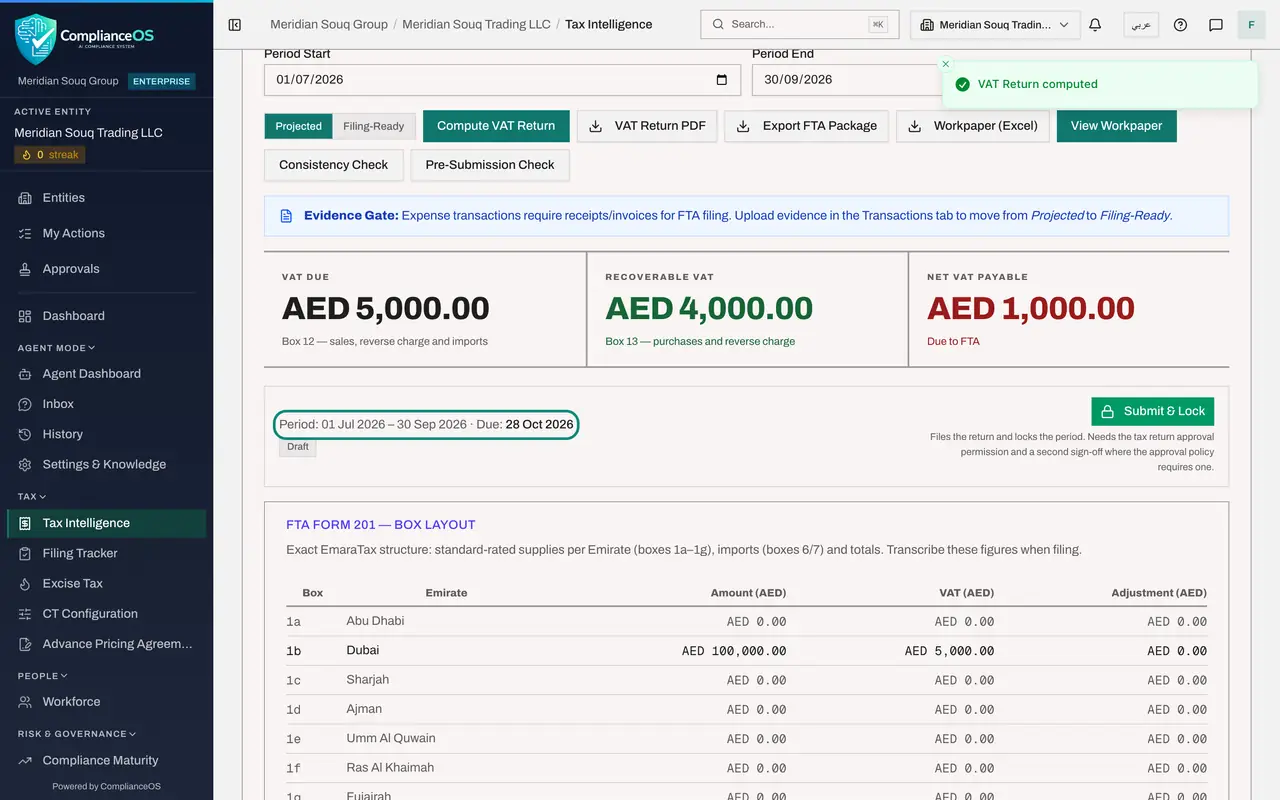
Select Compute VAT Return. Three figures appear. Tax due on the sale, 5,000 dirhams. Recoverable tax on the purchase, 4,000. Net amount payable, 1,000. The line underneath gives the period and the due date, 28 October 2026, and the status Draft.
- Select Compute VAT Return
- 7
Read the return form
Scroll down to FTA Form 201, Box Layout. FTA is the Federal Tax Authority. This is the return exactly as it is keyed into the authority's EmaraTax portal. Box 1b, Dubai, holds the sales, because you set the emirate. Box 9 holds the purchase. Box 14 is the tax payable, 1,000.
- 8
Select Submit and Lock
Scroll back to the status line and select Submit and Lock. The window explains that filing is a sign-off under your organisation's approval policy. Supporting documents is required.
- Select Submit & Lock
- 9
Attach the computed return and add a comment
Under Supporting documents, choose the file that shows what you are asking to have signed, here VAT-201-Q3-2026-computed-return.pdf. Leave the FTA filing reference empty: the return has not been submitted to the authority yet. In Comment, write a line for the person who signs next.
- Upload Supporting documents *:
VAT-201-Q3-2026-computed-return.pdf - Type Comment:
Q3 2026 return agreed to the workpaper. Ready for finance sign-off.
- Upload Supporting documents *:
- 10
Confirm, and give your reason as the preparer
Select Confirm, File and Lock. Because you computed this return, the window now asks for a Self-approval justification and reminds you that it is flagged in the audit log. Type the reason.
- Select Confirm, File & Lock
- Type Self-approval justification *:
I prepared this return. The finance manager gives the second sign-off.…
- 11
Confirm again and read the approval progress
Select Confirm, File and Lock again. The return is still a Draft. Approval progress shows one of two steps complete: step one, approved by you and marked Self-approved with justification; step two, Finance sign-off, is the current step. The return now waits in the finance manager's Approvals inbox. Nothing is filed until he signs.
- Select Confirm, File & Lock
How to check it worked
The return for 1 July to 30 September 2026 shows 5,000 dirhams of VAT due, 4,000 recoverable and 1,000 payable, and Approval progress shows one of two steps complete, waiting on Finance sign-off.
Common mistakes
- Changing a transaction in Tax after the return is computed. Compute the return again, and agree the workpaper again, before you submit.
- Filing with sales unallocated to an emirate. The return form asks for sales by emirate, so set the company's emirate first.
- Skipping the workpaper. The workpaper is how you prove that the listed transactions add up to each box before anyone signs.
Check your understanding
1. The sale was 100,000 dirhams before VAT. What does box 1 of the return show for it?
- A.100,000 of standard rated supplies, with 5,000 of VAT
- B.105,000
- C.5,000 only
Show answer
Answer: A. 100,000 of standard rated supplies, with 5,000 of VAT
Box 1 holds the net value of standard rated supplies and the VAT on them: 100,000 and 5,000.
2. You select Confirm, File and Lock as the preparer. What happens under this organisation's rule?
- A.The return is filed at once
- B.You are asked for a written reason, your step is recorded, and the return waits for the second sign-off
- C.Nothing; preparers cannot use the button
Show answer
Answer: B. You are asked for a written reason, your step is recorded, and the return waits for the second sign-off
The rule has two steps and a different person for each. The return is filed only when the second person signs.