Lesson 32 of 63
Journey C, part 11: The assigned officer picks the request up from My Actions and answers it
What you will be able to do
The former employee's request was assigned to Yusuf Rahman. In this part he finds it in My Actions, opens it, records that he checked who she is, marks it in progress, and, once HR has supplied the copy of her records, closes it with a note of what was sent. The request then leaves his list.
Before you start
- Part 10 is done: the request is logged and assigned to you.
- You are signed in as the Data Protection Officer it was assigned to.
Steps
- 1
Select My Actions
Select My Actions in the left menu. It opens on Assigned to me. The request your colleague assigned is listed with the type DSR, the module it comes from, its status Received, its priority and its due date. Under the title it says Assigned to you.
- Select My Actions
- 2
Select Open on the request
Select Open at the end of the line. Data Protection opens for the company the request belongs to, with the request itself on screen: who asked, for what, when it is due, and that her identity is not verified yet.
- Select Open
- 3
Select Update and set the status to In progress
Select Update at the bottom of the window. In Status choose In progress, which tells the team that someone has started work.
- Select Update
- Select Received
- Choose In progress
- 4
Record the identity check
You called her on the mobile number in her employee record and she confirmed her Emirates ID number. In Identity verified at, enter when you did that. In Verification method, say how. Do this before any personal data is shared.
- Type Identity verified at:
2026-10-14T11:04 - Type Verification method:
Called back on the mobile number in her employee record; Emirates ID n…
- Type Identity verified at:
- 5
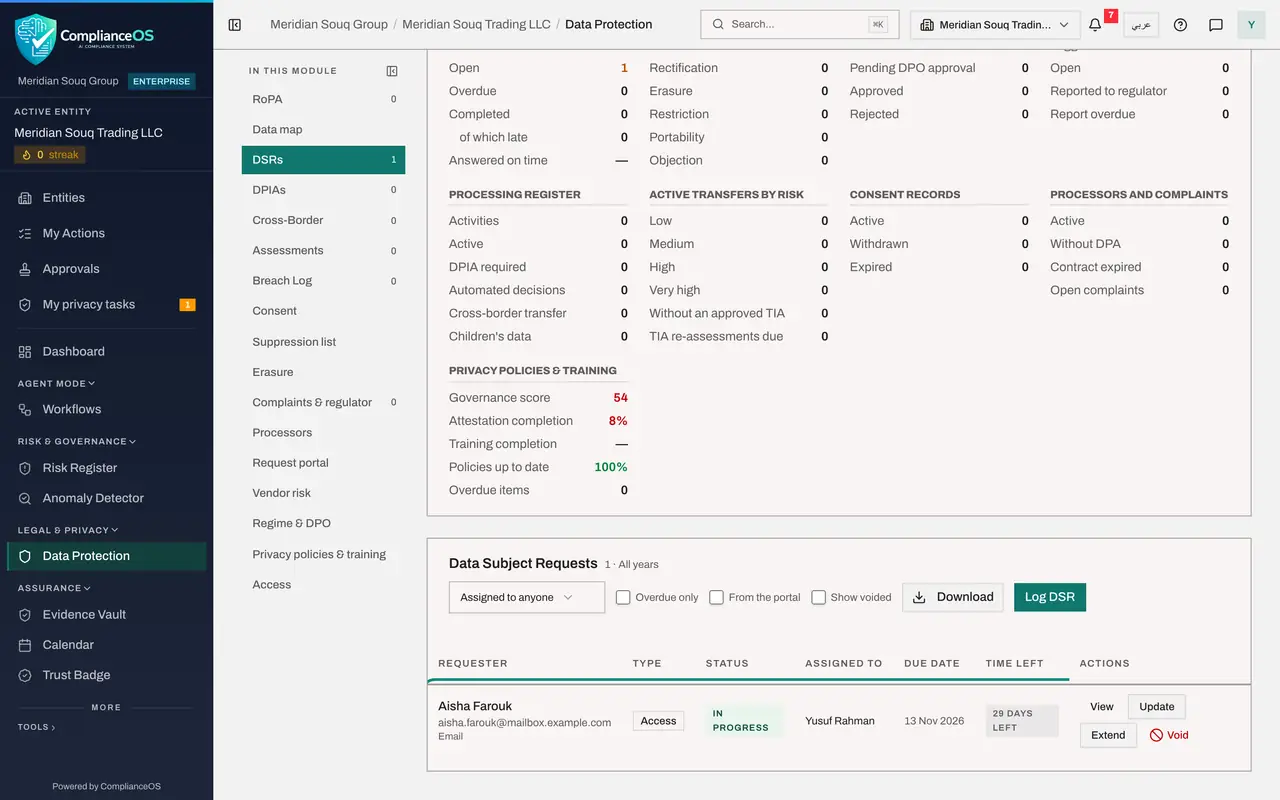
Select Save Changes
Select Save Changes. A message confirms the update and the request shows In progress in the list.
- Select Save Changes
- 6
Select Update again to close the request
HR has prepared a copy of her employee record, her salary payments and her gratuity calculation, and you have sent it to her by secure e-mail. Select Update again. In Status choose Completed.
- Select Update
- Select In progress
- Choose Completed
- 7
Write the response notes
In Response notes, write what you sent, how and when. These notes are your record of the answer.
- Type Response notes:
Copy of employee record, salary payment history and final gratuity cal…
- Type Response notes:
- 8
Select Save Changes
Select Save Changes. The status becomes Completed and Time left shows Closed. A notice to the requester is created; on this training system e-mail is switched off, so it is marked as not sent.
- Select Save Changes
- 9
Check My Actions
Select My Actions again. The request has left your list, because it is closed, and Completed, seven days, counts it as finished this week.
- Select My Actions
How to check it worked
The request shows Completed in the DSRs list, with your response notes on the record, and it is no longer in My Actions.
Common mistakes
- Sending personal data before checking identity. Record when and how you confirmed who the requester is, first.
- Closing the request with no notes. The response notes are your proof of what was sent, how and when.
- Expecting the e-mail to the requester to go out on this training system. E-mail is switched off here; the notice is created and marked as not sent.
Check your understanding
1. A request has been assigned to you. Where do you look first?
- A.My Actions, which opens on Assigned to me
- B.The audit log
- C.Organisation settings
Show answer
Answer: A. My Actions, which opens on Assigned to me
My Actions gathers the work assigned to you by name from every module: requests, sanctions reviews, contract reviews, risk treatments and audit requests.
2. When does the request leave My Actions?
- A.When you open it
- B.When it is completed or rejected
- C.After thirty days
Show answer
Answer: B. When it is completed or rejected
My Actions lists open work. Completing the request closes it, and Completed, seven days, counts it.