Lesson 14 of 63
Journey B, part 3: The finance manager approves the sale entry
What you will be able to do
The accountant prepared a journal entry for the sale; it is not in the ledger yet. In this part the finance manager finds it in his Approvals inbox, opens it in Accounting, checks it and approves it, and sees the sale arrive in the books as revenue and a receivable.
Before you start
- Part 2 is done: the sale entry is Pending approval.
- You are signed in as the finance manager, who did not prepare the entry.
Steps
- 1
See the entry in the Approvals inbox
Select Approvals in the left menu. Under To decide is a request headed Post a journal entry: the sale posted from Tax, with its amount and the step it is waiting on. Open record takes you to the entry in Accounting.
- 2
Open the Approval Queue
The same entry waits inside Accounting. Select Accounting, then Journals, then Approval Queue. Only entries their preparer has submitted are listed. The row has an eye to view the entry and a green tick to approve it.
- Select Journals
- Select Approval Queue
- 3
Open the sale and check it
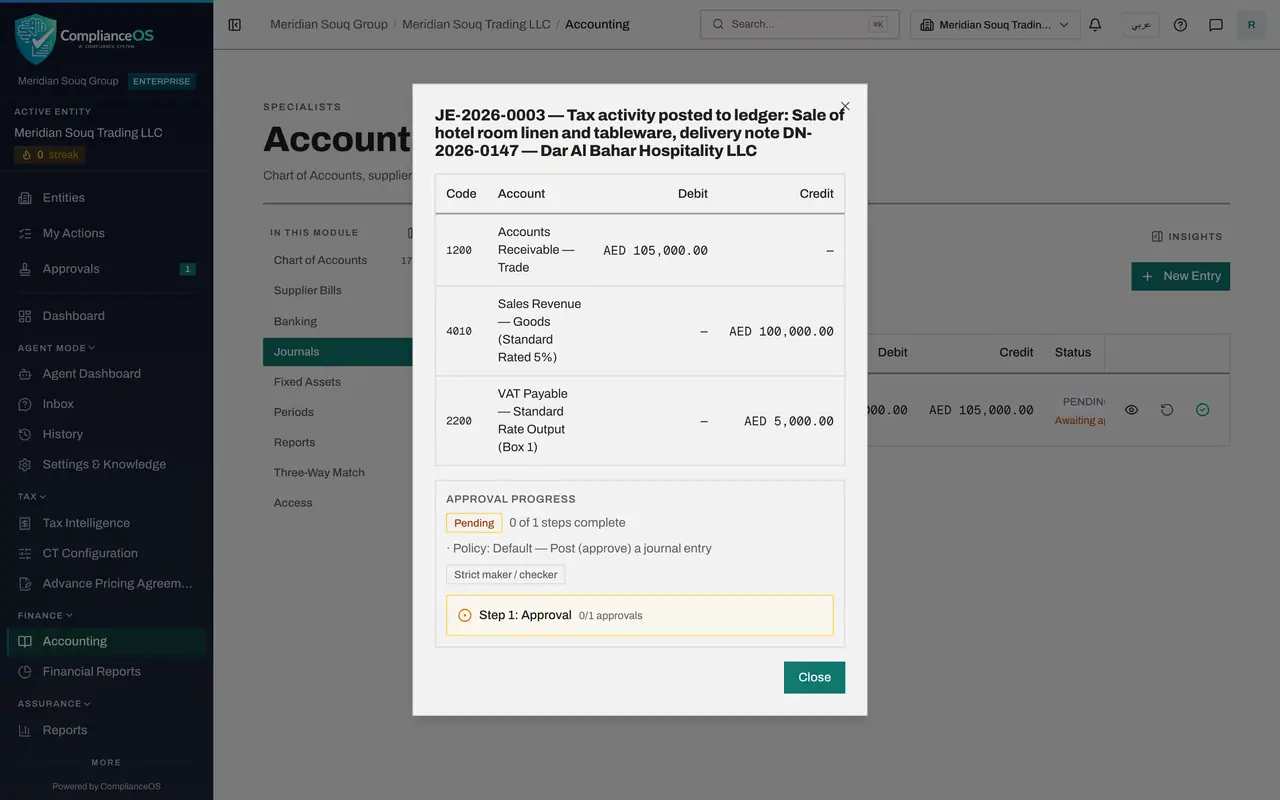
Select the eye on the sale. Accounts Receivable is debited 105,000; Sales Revenue is credited 100,000 and output VAT 5,000. That agrees with the sale recorded in Tax. Select Close.
- Select View
- 4
Approve the sale
Close the entry and select the green tick at the end of its row. The window Approve and post names the entry and its amount. Type what you checked in Comment and select Approve. The entry leaves the queue.
- Select Close
- Select Approve entry JE-2026-0003
- Type Comment:
Agreed to the sale in Tax and the delivery note. - Select Approve
- 5
See the entry posted
Select All Entries. The sale is listed with the status Posted, beside the bill and the payment from Journey A.
- Select All Entries
- 6
Check the trial balance
In the left menu select Financial Reports and select Generate. Accounts Receivable shows 105,000: the customer owes the sale and its VAT. Sales Revenue shows 100,000 and the VAT payable account 5,000. Next, the accountant matches the customer's payment to this receivable.
- Select Financial Reports
- Select Generate
How to check it worked
The sale entry shows Posted in Journals, and the trial balance shows Accounts Receivable at 105,000.
Common mistakes
- Approving from the description alone. Open the entry and read the accounts and the sides.
- Looking in only one place. A submitted journal entry waits in Accounting, under Journals, Approval Queue, and it is listed in the Approvals inbox in the left menu as well.
- Approving an entry you prepared. The preparer has no approve button; a second person posts.
Check your understanding
1. When does a submitted journal entry reach the ledger?
- A.When it is created
- B.When it is submitted
- C.When every required approval step is approved
Show answer
Answer: C. When every required approval step is approved
The Approve and post window says so: the entry posts once every required step is approved.
2. After the sale is posted, why does Accounts Receivable show 105,000?
- A.Because the customer paid twice
- B.Because the customer owes the sale price plus VAT until the payment is matched
- C.Because of the bank fee
Show answer
Answer: B. Because the customer owes the sale price plus VAT until the payment is matched
The sale debits the receivable with 100,000 plus 5,000 of VAT. The payment clears it in the next part.