Lesson 59 of 63
Journey F, part 4: The administrator sets an approval rule and what each company's score counts
What you will be able to do
Two settings decide how the group is governed and how it is measured. An approval rule says who must sign what, and how quickly. The score basis says which modules count toward each company's compliance score. In this part the administrator gives journal approvals a time limit, and switches on the modules that apply to the e-commerce company, so that its score is no longer blank.
Before you start
- You are signed in as an organisation administrator with full access.
- You know which areas of compliance apply to each company.
Steps
- 1
Open Approval policies
In Access control, select the Approval policies tab. Every action that can be made to wait for a second person is listed. File a VAT or CT return shows 1 saved: that is the two-step rule set in Journey B. Grant a role shows 1 saved as well: the second-administrator rule you have just seen at work.
- 2
Select Post a journal entry
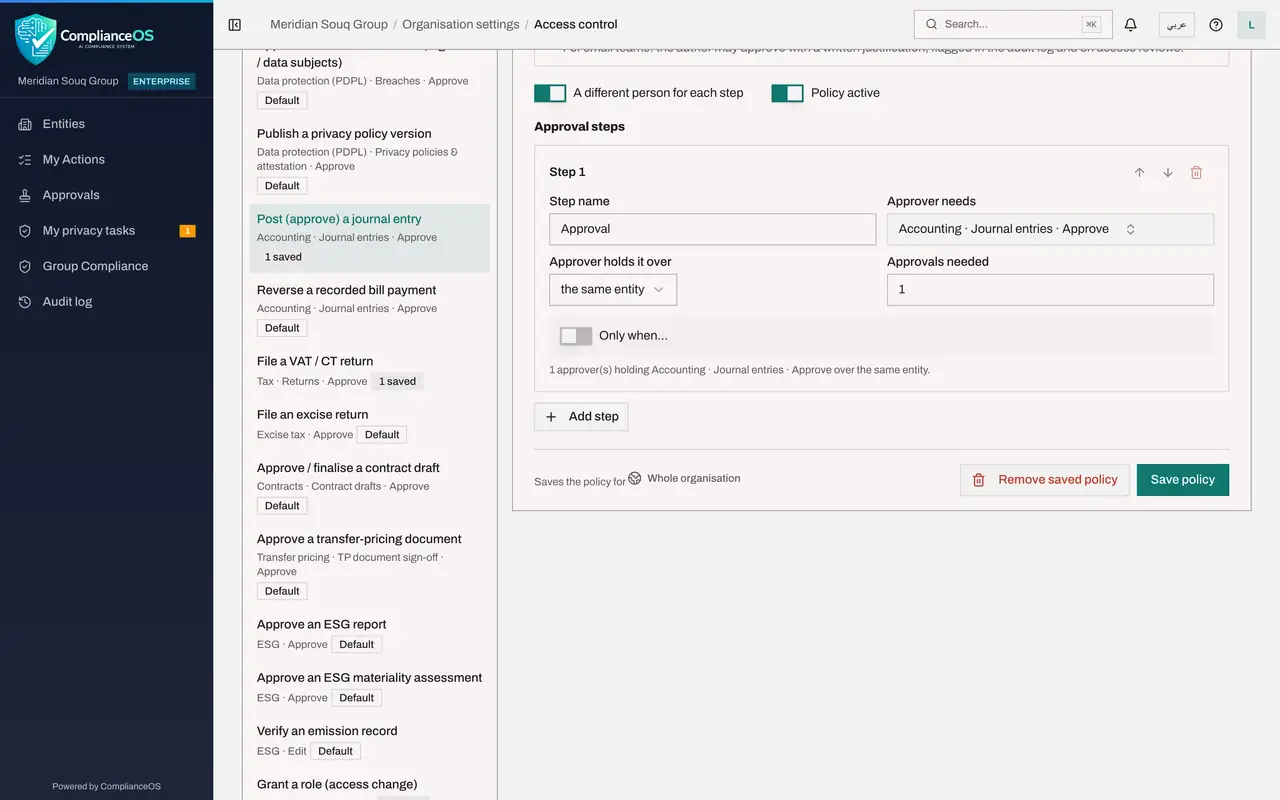
Select Post, approve, a journal entry. By default it needs one approver who holds the journal approval permission on the same company, with strict maker and checker: nobody posts a journal they wrote.
- 3
Set a time limit
In SLA, hours, type 48. SLA stands for service level agreement; here it is the time allowed for the decision. Leave the single step and strict maker and checker as they are.
- Type SLA (hours):
48
- Type SLA (hours):
- 4
Select Save policy
Scroll down and select Save policy. The rule is saved for the whole organisation, and the action shows 1 saved in the list.
- Select Save policy
- 5
Open the e-commerce company's dashboard
Now the score. Select Entities and open Meridian Souq E-Commerce FZ-LLC. Its dashboard has almost nothing on it yet. Scroll to the line that says what the score is based on: no module is in use, so the company is not scored.
- 6
Select Modules and risk levels
Select Modules and risk levels. The window lists every module with whether it holds data. A module counts toward this company's score when it holds data or you switch it on here.
- Select Modules and risk levels
- 7
Switch on the modules that apply
This company sells online to consumers. Tick Tax Intelligence, Contracts and Data Protection. They will count as zero percent until work starts, which is the true position. Under Risk levels, the three boxes set the score at which a result is low, medium or high risk; leave them.
- 8
Select Save
Select Save. The line on the dashboard now says the score is based on 3 of 7 modules, and the company has a score. It is low, and red, because the work has not started. That is what the group's view will now show.
- Select Save
How to check it worked
Approval policies shows 1 saved beside Post a journal entry, and the e-commerce company's dashboard says its score is based on the modules you switched on.
Common mistakes
- Leaving a new company with no modules switched on. It shows as Not scored, and the group score quietly ignores it.
- Switching on only the modules that already look good. A module that applies counts as zero percent until work starts; that is the honest picture.
- Changing the risk levels to make the colours greener. The thresholds are shared by everyone reading the score.
Check your understanding
1. When does a module count toward a company's score?
- A.Always
- B.When it holds data, or when you switch it on for that company
- C.Only when it is at 100 percent
Show answer
Answer: B. When it holds data, or when you switch it on for that company
The window says so. A module switched on with nothing recorded counts as zero percent until work starts.
2. What does the SLA on an approval policy set?
- A.The number of approvers
- B.The hours within which the approval should be decided
- C.The size of the journal
Show answer
Answer: B. The hours within which the approval should be decided
SLA stands for service level agreement: here, the time allowed for the decision.