Lesson 1 of 63
Journey A, part 1: Legal uploads the supply contract
What you will be able to do
This is the first of six journeys that follow one piece of business through every module and person it touches. Journey A follows a new supplier, Najm Al Sahra Fulfilment, from first contact to a paid invoice. It starts with legal counsel uploading the signed supply contract, so that its dates, its obligations and the two parties are on record for everyone who comes next.
Before you start
- You are signed in as legal counsel.
- You have the signed contract as a PDF or Word file.
Steps
- 1
Open Contracts
In the left menu, under Legal and Privacy, select Contracts. The screen is headed Contract Intelligence. The tiles count the contracts on file. This company is new, so every tile shows zero and the list says No contracts yet.
- 2
Choose the contract file
Select the dashed box, or the Upload contract button, and choose the signed contract. Here it is Meridian-Najm-Al-Sahra-Fulfilment-Agreement.pdf. The upload starts as soon as you choose the file and the box shows Processing contract. There is nothing else to fill in.
- Upload Choose a file:
Meridian-Najm-Al-Sahra-Fulfilment-Agreement.pdf
- Upload Choose a file:
- 3
Wait for the analysis
Stay on the screen. The document is read, its key terms are picked out, the parties are screened against the sanctions lists, and the contract is scored for risk. This usually takes under a minute. When it ends, the contract's own page opens by itself, tagged Complete and Active.
- 4
Check the key details
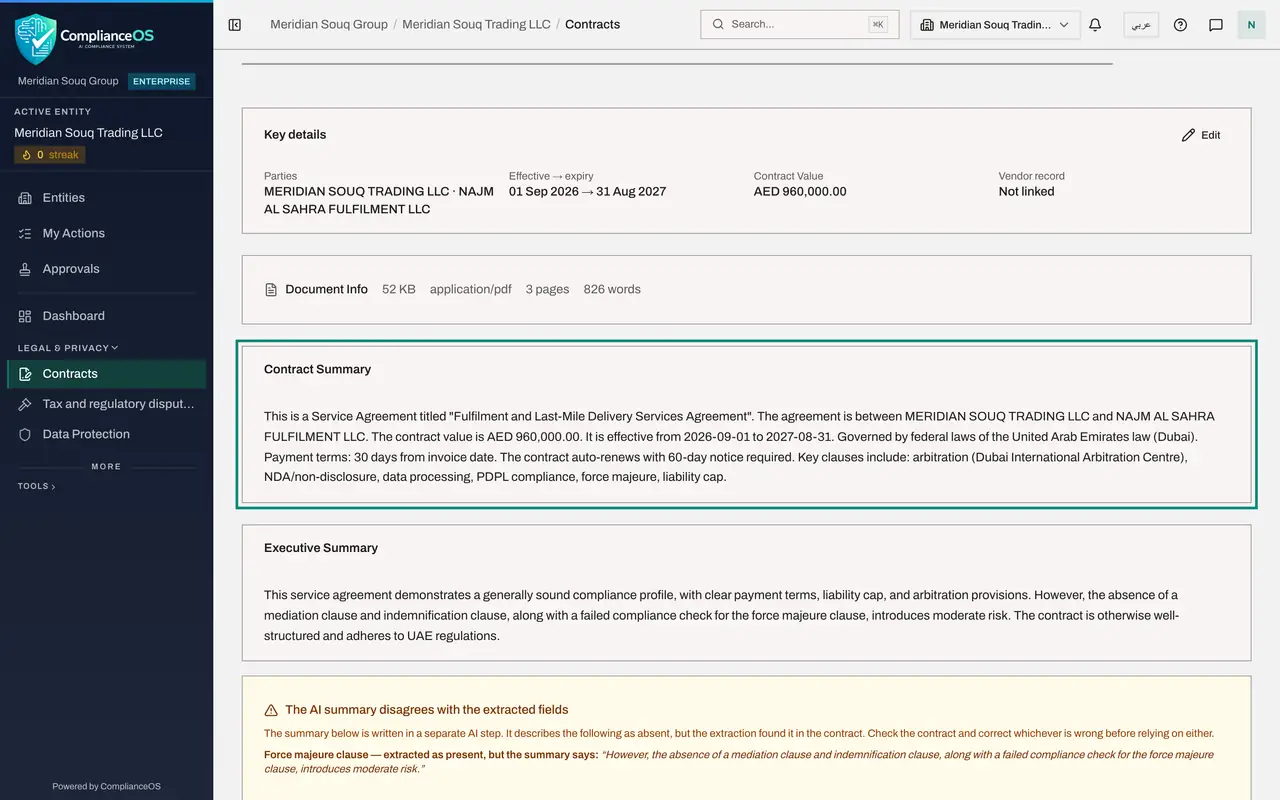
Key details shows the two parties, the start and end dates and the contract value. Check them against the paper contract. Vendor record says Not linked: the supplier does not exist in the vendor directory yet. The Data Protection Officer creates that record later in this journey, and the contract is linked to it then.
- 5
Read the summary and the risk score
The score at the top is the contract's risk out of one hundred; lower is safer. The Contract Summary says in a few lines what the contract is, who it is between, its value, its dates and how it renews. If it describes a different agreement, you uploaded the wrong file.
- 6
Check the dates that drive the reminders
Scroll down to the Extraction tab. The Duration panel shows the effective date, the expiry date, whether the contract renews by itself, and how many days' notice stops the renewal. Here the contract ends on 31 August 2027 and needs sixty days' notice. These dates feed the expiry warnings and the calendar.
- 7
Open the compliance checks
Select the Compliance Checks tab. Each check is marked Pass, Fail or Not applicable, with the law it refers to. A Fail is a prompt to read that clause yourself. The checks are written by artificial intelligence and can be wrong, so treat them as a reading list, not a verdict.
- Select Compliance Checks1
- 8
Open the obligations
Select Deep Analysis. The Obligations list shows every duty the contract creates, who owes it, and its due date where the contract gives one. Find the insurance certificate, due by 30 November 2026. An obligation with a date becomes a deadline in the Compliance Calendar. When it has been met, select Mark done.
- Select Deep Analysis
- 9
Assign the review
Select the Review tab. In Review assigned to, choose the person who should confirm the analysis. Here that is the compliance officer, Mariam Aziz. A message confirms the assignment. People marked cannot record a review yet can be asked, but need permission to edit contracts first.
- Select Review
- Select Assign reviewer
- Choose Mariam Aziz
- 10
Find the contract in the list
Select Contracts in the left menu. The contract is now in the list under its file name, with its type, its risk score and the time left until it expires. The parties are NAJM AL SAHRA FULFILMENT LLC and Meridian Souq Trading. Next, the anti-money-laundering officer looks at how those two names were screened.
- Select Contracts
How to check it worked
The contract is in the Contracts list with a risk score, its obligations are listed under Deep Analysis, and the review is assigned to the compliance officer. In the next part the anti-money-laundering officer finds both parties already screened.
Common mistakes
- Uploading a draft instead of the signed version. The dates and obligations that reach the calendar come from the file you upload.
- Trusting the analysis without reading it. The summary and the extracted fields are written by artificial intelligence in separate passes; where they disagree the page tells you, and a person must decide.
- Typing the supplier into the contract and expecting a supplier record to exist. The contract only names the parties; the supplier record is created later, in the vendor directory.
Check your understanding
1. You upload a contract. What happens to the two parties named in it?
- A.Nothing until someone screens them by hand
- B.They are checked against the sanctions lists automatically during the analysis
- C.They are added to the vendor directory
Show answer
Answer: B. They are checked against the sanctions lists automatically during the analysis
The analysis screens each party's name against the sanctions lists. The results are on the Screening tab of the anti-money-laundering module.
2. Where do the contract's dated obligations go?
- A.They stay inside the contract only
- B.They are e-mailed to the supplier
- C.They appear as deadlines in the Compliance Calendar
Show answer
Answer: C. They appear as deadlines in the Compliance Calendar
An obligation with a due date becomes a deadline in the Compliance Calendar, and the expiry date joins it when deadlines are synchronised.