Lesson 36 of 63
Journey D, part 3: A second Data Protection Officer approves the notices
What you will be able to do
Nothing leaves the company about a breach on one person's say. In this part the second Data Protection Officer finds both notices in his Approvals inbox, checks the regulator's notice and approves it, and then approves the customer notice, which first requires him to confirm that the Arabic text is complete.
Before you start
- Part 2 is done: both notices are Awaiting approval.
- You are signed in as the second Data Protection Officer, who did not draft them.
Steps
- 1
Open Approvals
Select Approvals in the left menu. Two requests are waiting: Breach notification to the regulator, and Breach notice to affected data subjects. Each shows the severity of the breach.
- Select Approvals2
- 2
Select Open record
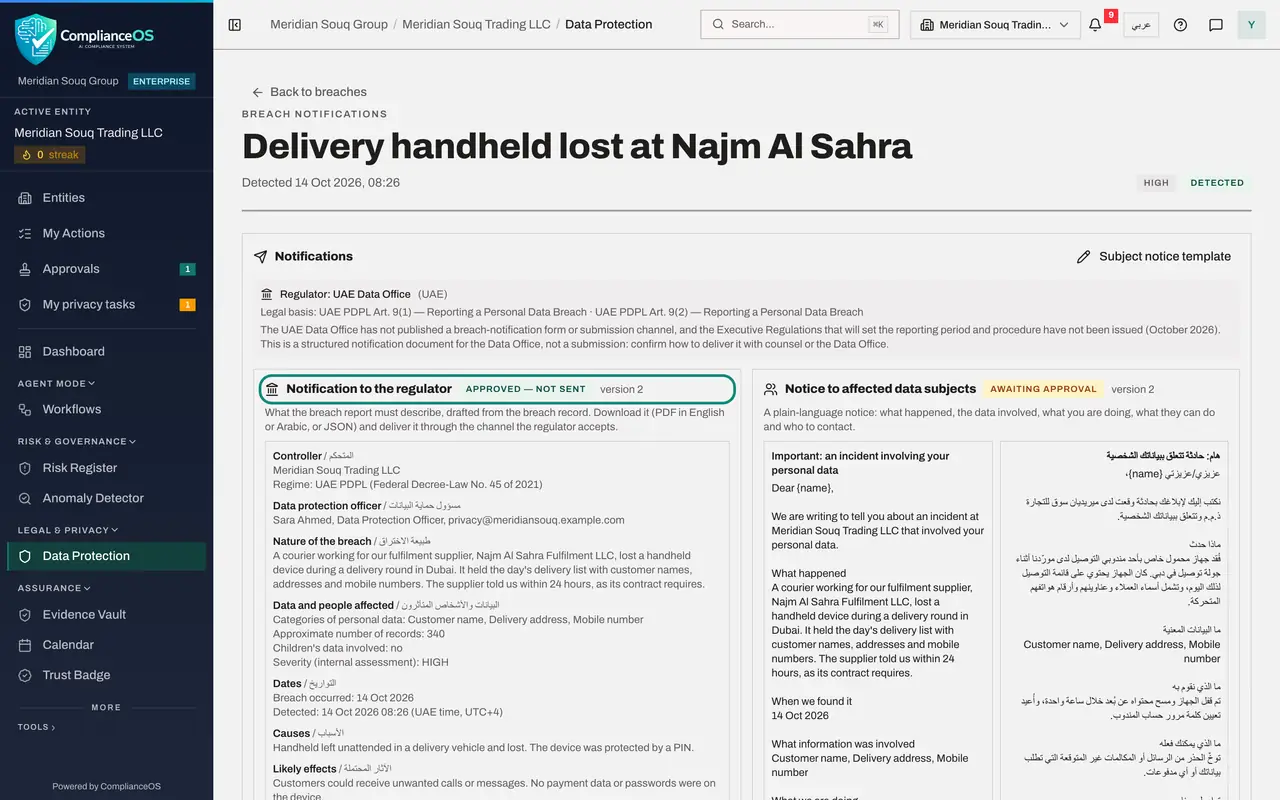
Select Open record on the first request. It takes you straight to the breach's notifications page. Both notices show Awaiting approval, and for you each has two buttons: Approve and Return for changes.
- Select Open record
- 3
Read the regulator's notice and select Approve
Read the notification to the regulator section by section and check the facts against what you know of the incident. When you are satisfied, select Approve under it.
- Select Approve
- 4
Add a comment and confirm
Add a short comment, which is kept with your decision. Then select Approve in the window. The notice changes to Approved, not sent.
- Type Comment:
Facts checked against the supplier's incident report. Approved to send… - Select Approve
- Type Comment:
- 5
Read the Arabic check on the customer notice
On the notice to affected data subjects, read the English and the Arabic text. Under them, the check lists one passage of the Arabic that is still in Latin script: the line of data categories the drafter kept in English.
- 6
Select Approve on the customer notice
Select Approve under the notice. This time the window repeats the passage and shows a tick box: I confirm the Arabic text is complete. Approve in the window stays greyed out until the box is ticked.
- Select Approve
- 7
Tick the confirmation and approve
Tick I confirm the Arabic text is complete. Your confirmation is recorded in the notice's history with your name, the time and the passages listed. Add a comment and select Approve.
- Select I confirm the Arabic text is complete
- Type Comment:
The data categories stay in English, as on the customer account page. - Select Approve
- 8
See the confirmation on the notice
The check under the text now ends with Confirmed as complete, with your name and the time. Without that confirmation the notice could not be marked as sent. Both notices are ready; the drafter sends them in the next part.
How to check it worked
Both notices show Approved, not sent, and the Arabic check on the customer notice ends with Confirmed as complete, with your name and the time.
Common mistakes
- Approving the customer notice without reading the Arabic. Your confirmation is recorded with your name against the passages listed.
- Editing the notice yourself to fix a small thing. If it needs changing, select Return for changes and say what; the drafter edits and resubmits.
- Approving late. The regulator's deadline keeps running while a notice waits in your inbox.
Check your understanding
1. Why is the Approve button in the window greyed out for the customer notice at first?
- A.The notice is too long
- B.You must first tick I confirm the Arabic text is complete
- C.Only an administrator can approve
Show answer
Answer: B. You must first tick I confirm the Arabic text is complete
A passage of the Arabic text is still in Latin script. The approver has to confirm that this is intended before approving.
2. A fact in the regulator's notice is wrong. What do you do?
- A.Approve and fix it later
- B.Select Return for changes and say what needs to change
- C.Delete the notice
Show answer
Answer: B. Select Return for changes and say what needs to change
Return for changes sends the notice back to the drafter with your reason.