Lesson 12 of 63
Journey B, part 1: The tax manager records a sale and classifies it
What you will be able to do
Journey B follows a sale from the moment it is recorded for tax to a filed VAT return and a closed quarter. The company bills its customers from its own sales system. In this part the tax manager records one sale in Tax Intelligence by hand, has it classified, and approves the AI's suggestion. Sales can also arrive by import; the steps after this one are the same.
Before you start
- Journey A is done: the supplier's bill is in Tax as a purchase.
- You are signed in as the tax manager and have the sale's details: customer, date, amount before VAT and your own invoice number.
Steps
- 1
Open Tax Intelligence
In the left menu, under Tax, select Tax Intelligence. Transactions lists what Tax knows so far: the supplier's bill from Journey A. Above the list, Import brings in a file from a sales system, and Add Transaction records one by hand.
- 2
Select Add Transaction and type the amount
Select Add Transaction. Type stays on Income, because this is a sale. In Amount, type the net amount before VAT: 100000.
- Select Add Transaction
- Type AED 0.00:
100000
- 3
Fill in the date, the description and the customer
Set Date to the day of the supply, 15 September 2026. In Description say what was sold. In Vendor or Customer type the customer's name, Dar Al Bahar Hospitality LLC. In Invoice Number type the number from your own sales system, here MST-2026-0147.
- Type Date *:
2026-09-15 - Type Description *:
Sale of hotel room linen and tableware, delivery note DN-2026-0147 - Type Vendor/Customer:
Dar Al Bahar Hospitality LLC - Type Invoice Number:
MST-2026-0147
- Type Date *:
- 4
Select Add Transaction
Select Add Transaction at the bottom. The sale joins the list. Its source is Manual, its classification is Unclassified and its status is Awaiting Review. Nothing counts towards a return until it is classified.
- Select Add Transaction
- 5
Select Classify
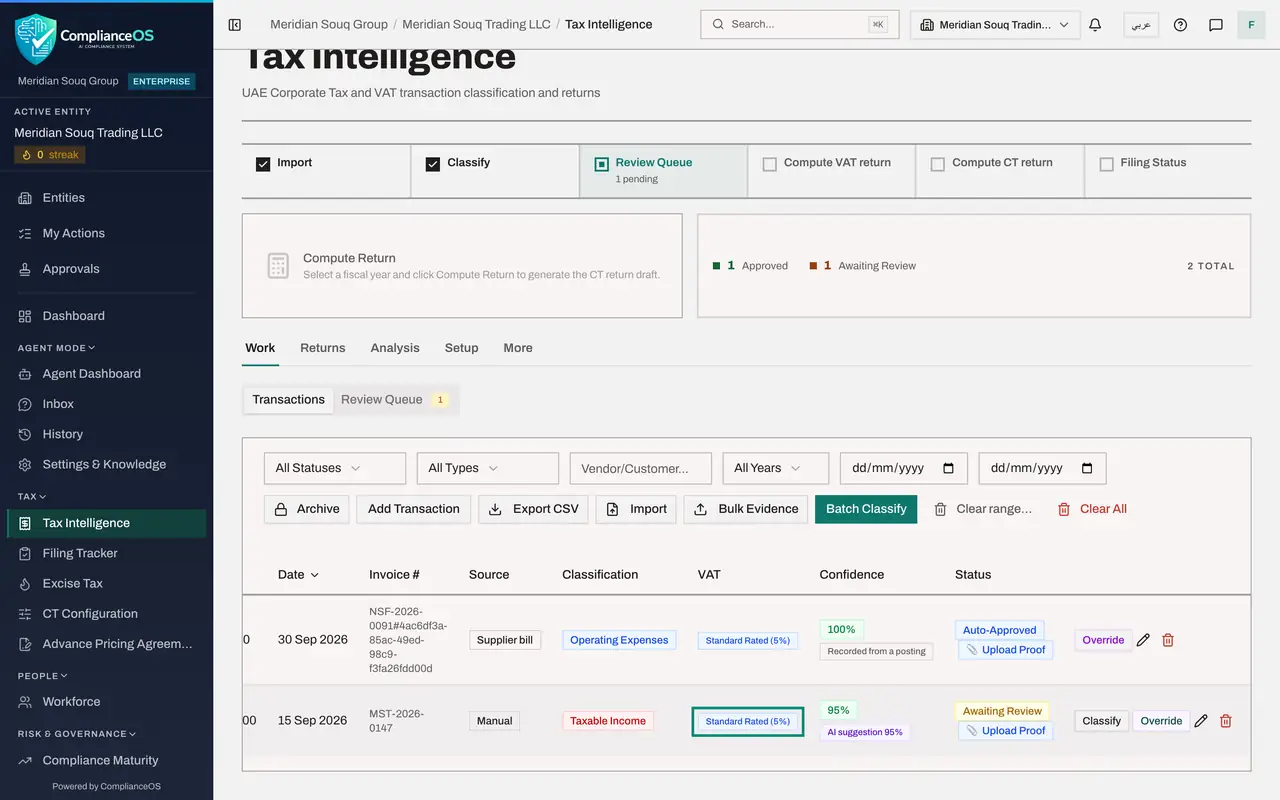
Select Classify at the end of the row. The classifier reads the description, the customer and the company's set-up. After a few moments the row shows Taxable Income, with the VAT treatment Standard Rated, five percent, a confidence and, under it, the badge AI suggestion. The status is Awaiting Review: a suggestion made by the AI always waits for a person to approve it, however high its confidence.
- Select Classify
- 6
Open the Review Queue
Scroll back to the top and select the Review Queue tab. The sale waits there as a card: the customer, the amount, the date, the suggested category and VAT treatment with the badge AI suggestion, and the AI's reasoning. A row awaiting review cannot be posted to the ledger or filed in a return, so approve it now.
- Select Review Queue1
- 7
Read the suggestion and select Approve
Read the suggestion. A sale of goods to a customer in the UAE is standard rated at five percent, so the AI is right. Select Approve on the card. A message confirms Transaction reviewed, the card leaves the queue, and the decision is recorded with your name as the reviewer.
- Select Approve
- 8
See the sale approved
Select the Transactions tab. The sale now shows the status Approved, and the badge under its confidence names the person who decided: Approved by Fatima Noor. Approved means a person decided; Auto-Approved is kept for rows decided by a rule or recorded from a posting, such as the supplier's bill from Journey A.
- Select Transactions
- 9
Check the strip
Scroll back to the top. On the strip, Review Queue is ticked: nothing is waiting for a person. On the sale, VAT at five percent is 5,000 dirhams, against 4,000 on the purchase. The sale is known to Tax and approved, but it is not in the books yet. Next, the accountant posts it to the ledger.
How to check it worked
The sale is listed in Transactions as Taxable Income, Standard Rated, with the status Approved, and the Review Queue has nothing waiting.
Common mistakes
- Typing the amount with VAT included. The amount is the net amount; VAT is worked out from the classification.
- Using the date the customer paid. Use the date of the supply, which decides the tax period.
- Leaving the customer or the invoice number empty. They are how the row is found again and agreed to your sales system.
Check your understanding
1. Which amount do you type when adding a transaction?
- A.The amount including VAT
- B.The net amount before VAT
- C.The VAT only
Show answer
Answer: B. The net amount before VAT
The form says: enter the net amount before VAT. VAT is calculated separately from the classification.
2. What does Classify do to a new transaction?
- A.It files the VAT return
- B.It gives the transaction a suggested corporate tax category and VAT treatment, with a confidence, for a person to approve
- C.It posts it to the ledger
Show answer
Answer: B. It gives the transaction a suggested corporate tax category and VAT treatment, with a confidence, for a person to approve
After Classify the row shows Taxable Income and Standard Rated five percent as an AI suggestion, which waits in the Review Queue until a person approves it. Posting to the ledger is a separate step, in the next part.