Lesson 45 of 63
Journey E, part 1: The compliance officer starts an audit and uploads the checklist
What you will be able to do
Journey E looks at the earlier journeys from the outside: an audit. The compliance officer runs an internal review of the third quarter that tests three things you have already seen happen: the September salaries, the VAT return and the breach notification. In this part she starts the audit in the Audit Hub and uploads two documents, the control standard and her checklist, for the system to turn into requests for evidence.
Before you start
- Journeys A to D are done, so the records the audit will ask about exist.
- You are signed in as the compliance officer.
- You have the control standard and your audit checklist as files.
Steps
- 1
Open the Audit Hub
In the left menu, under Assurance, select Audit Hub. It runs internal and external audits: it maps your policies to points that can be tested, collects the evidence from the people who hold it, and tracks how ready you are. No audit has been started yet.
- 2
Select New Audit and name it
Select New Audit. The progress bar shows the six steps: Scope, Documents, AI Mapping, Assign, Validate and Readiness. In Audit name, type a name that says what is being audited and for which period.
- Select New Audit
- Type Audit name:
Third quarter 2026 internal compliance review
- 3
Choose the audit type and the department
Audit type stays on Internal audit. The other types are External or statutory audit, ISO certification audit and Regulator inspection. Department stays on Entity-wide, because this review crosses HR, finance and privacy.
- 4
Set the period and the recurrence
Set Period start to 1 July 2026 and Period end to 31 October 2026. In Recurrence choose Quarterly: a recurring audit carries its mapping and its assignees into the next run.
- Type Period start:
2026-07-01 - Type Period end:
2026-10-31 - Select Recurrence
- Choose Quarterly
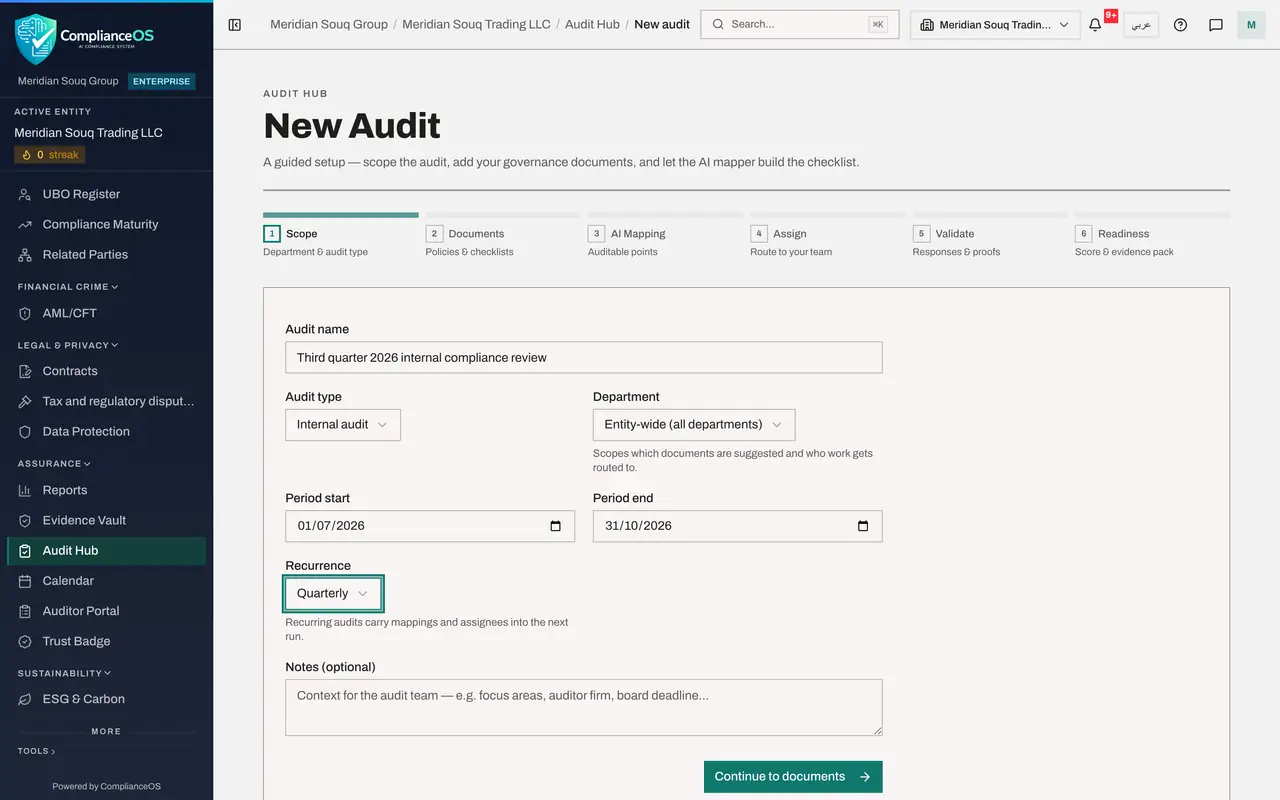
- Type Period start:
- 5
Add a note and continue
In Notes, say what the review covers. Then select Continue to documents.
- Type Notes (optional):
Tests three controls: September salaries through WPS, the third quarte… - Select Continue to documents
- Type Notes (optional):
- 6
Upload the control standard
In Document type choose Policy document. Then select the box Drop files here or click to browse and choose the standard, here compliance-control-standard.txt. It states the three controls. PDF, Word, Excel, PowerPoint, CSV, plain text and images are accepted.
- Select Auto-detect from filename
- Choose Policy document
- Upload Choose a file:
compliance-control-standard.txt
- 7
Upload your checklist
Change Document type to Existing audit checklist and add the checklist the same way, here internal-review-checklist.csv. It holds your three checks, one for each control. The mapper matches your checks to the controls it finds in the standard.
- Select Policy document
- Choose Existing audit checklist
- Upload Choose a file:
internal-review-checklist.csv
- 8
Select Finish setup
Both files are listed with their types. Select Finish setup. The screen says AI mapping in progress: the documents are being read, the points that can be audited are extracted, and they are matched against your checklist. This usually takes a minute or two, and you can leave the page and come back. The next part reviews the result.
- Select Finish setup
How to check it worked
The audit is in the Audit Hub and the screen says AI mapping in progress, or already shows the auditable points.
Common mistakes
- Uploading only a checklist. The mapper needs a policy or standard to extract the controls from; a checklist alone produces nothing to test.
- Leaving the document type on Auto-detect for a file with an unhelpful name. Choose the type yourself, so the mapper treats a checklist as a checklist.
- Uploading the same policy twice under two names. Each document is read and mapped; duplicates create duplicate points.
Check your understanding
1. What does the Audit Hub do with the documents you upload?
- A.It stores them only
- B.It reads them, extracts the points that can be audited, and matches them against your checklist
- C.It sends them to the auditor
Show answer
Answer: B. It reads them, extracts the points that can be audited, and matches them against your checklist
The third step of the audit, AI Mapping, builds the checklist that becomes requests for evidence. You review it before anything is assigned.
2. Which six steps does an audit move through?
- A.Scope, Documents, AI Mapping, Assign, Validate, Readiness
- B.Plan, Do, Check, Act, Close, Archive
- C.Draft, Review, Approve, Publish, Send, File
Show answer
Answer: A. Scope, Documents, AI Mapping, Assign, Validate, Readiness
The progress bar at the top of the audit shows the six steps and where you are.