Lesson 56 of 63
Journey F, part 1: The administrator builds the group's structure
What you will be able to do
The last journey is about running the group: who sits where, who may do what, and who watches. It starts with structure. The group has two companies, both under Head office. In this part the administrator adds a level called Region, creates a region for the online business, and moves the e-commerce company into it. From then on, a role granted on the region covers the companies inside it.
Before you start
- You are signed in as an organisation administrator.
- You know how the group is organised: which companies belong to which region or division.
Steps
- 1
Open Access control on Organisation structure
Open the account menu, choose Organisation settings, then Access control. It opens on the Organisation structure tab. A new organisation has one unit, Head office, which holds every company. A unit is a box in your organisation chart.
- 2
Select Unit types and add a Region type
Select Unit types. A unit type names a level in the structure; only Head office exists, at level 0. At the bottom, type the key region, the name Region and the level 1, then select Add type. The key is a short label that cannot be renamed later.
- Select Unit types
- Type Key:
region - Type Name:
Region - Type Level:
1 - Select Add type
- 3
Close the window and select Add unit
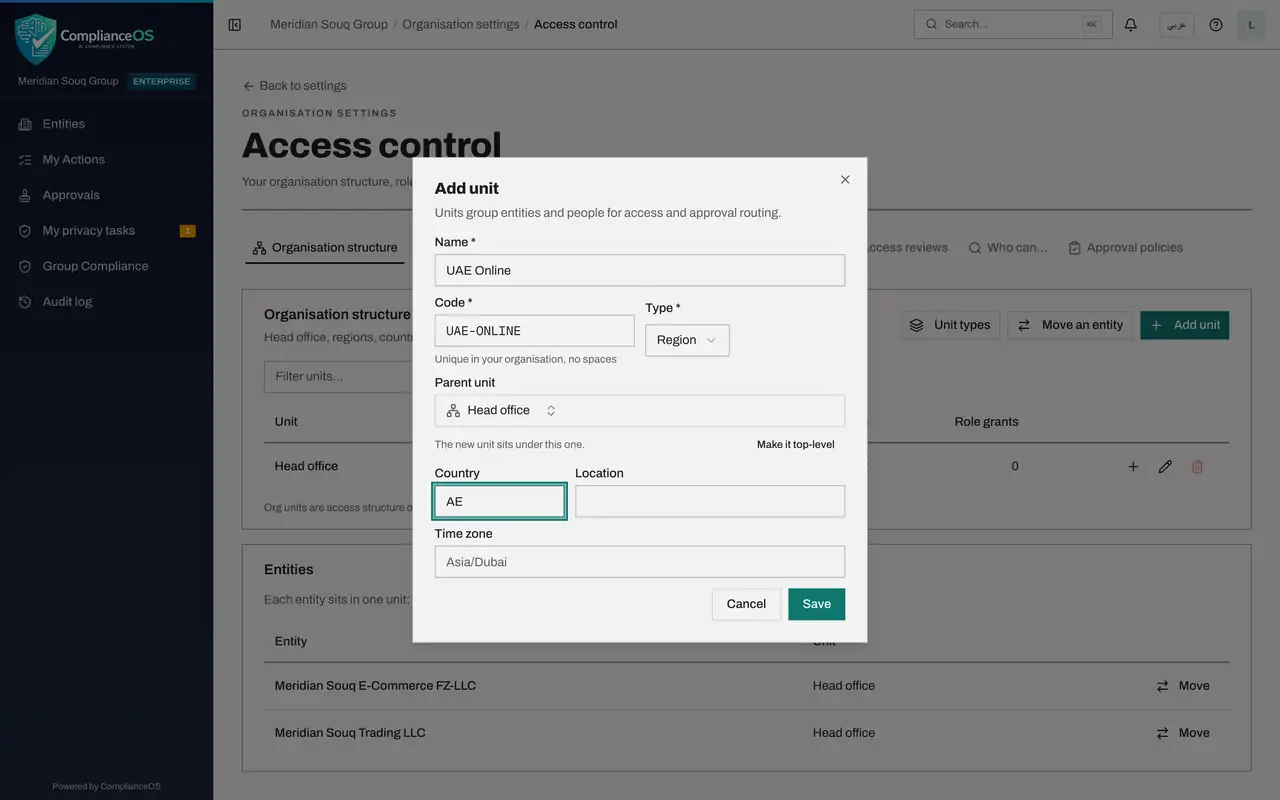
Select Close, then select Add unit. The form opens with Head office already chosen as the parent, the unit this new one sits under.
- Select Close
- Select Add unit
- 4
Name the region and choose its type
Type the name UAE Online and a short code without spaces. In Type choose Region. Country, location and time zone are optional and help people recognise the unit.
- Type Name *:
UAE Online - Type Code *:
UAE-ONLINE - Select Region
- Choose Region
- Type Country:
AE
- Type Name *:
- 5
Save the region
Select Save. The region appears in the table, indented under Head office, with no entities and no role grants yet.
- Select Save
- 6
Select Move on the e-commerce company
Scroll to the Entities list under the tree. It shows each legal company and the unit it sits in. On the row for Meridian Souq E-Commerce, select Move.
- 7
Choose the region and select Move
Under Move to unit, choose UAE Online, then select Move. The list now shows UAE Online beside the company. Meridian Souq Trading stays in Head office.
- Select Choose a unit
- Type Search units…:
UAE - Choose UAE OnlineUAE-ONLINE · Region
- Select Move
- 8
Check the counts in the tree
In the structure table, UAE Online now counts one entity. From now on, a role granted on UAE Online covers Meridian Souq E-Commerce and nothing else. The next part uses that.
How to check it worked
The structure shows UAE Online under Head office with one entity, and the Entities list shows Meridian Souq E-Commerce in UAE Online.
Common mistakes
- Choosing a unit's key or code carelessly. The key of a unit type cannot be renamed later, and a unit's code must be unique.
- Thinking a unit is a licence or a legal company. Units are access structure only; each company keeps its own licence wherever it sits.
- Moving a company without thinking about who gains access. Roles granted on the destination unit start to cover the company the moment it moves.
Check your understanding
1. What changes when you move a company into a unit?
- A.Its trade licence
- B.Who can reach it: roles granted on that unit now cover it
- C.Its accounting records
Show answer
Answer: B. Who can reach it: roles granted on that unit now cover it
Access granted on a unit applies to the entities beneath it. Nothing about the legal company changes.
2. What is a unit type?
- A.A kind of licence
- B.The name of a level in your structure, such as Region or Store
- C.A role
Show answer
Answer: B. The name of a level in your structure, such as Region or Store
Types give the levels their names and order: Head office at level 0, then whatever levels you add beneath it.