Lesson 61 of 63
Journey F, part 6: The administrator sees the whole group
What you will be able to do
The administrator's role covers the whole organisation. In this part she opens the same Group Compliance screen and sees both companies, reads the risk matrix across the group, looks at the organisation's risk register, checks her approvals inbox, and opens the audit log, which for her holds every action in every company.
Before you start
- Parts 1 to 5 are done.
- You are signed in as an organisation administrator.
Steps
- 1
Select Group Compliance
Select Group Compliance. There is no banner about limited access this time. The tiles give the group score, the number of companies and how many are scored, and the number of high-risk areas. The module list is longer: Intercompany, Consolidated Financials and Risk Register are added.
- Select Group Compliance
- 2
Read the entity scores
Both companies are listed. Meridian Souq Trading LLC has a score built from the modules the journeys used. Meridian Souq E-Commerce FZ-LLC now has a score as well, from the three modules switched on in part 4, and it is low because nothing has been recorded there yet.
- 3
Open the Risk Matrix
Select Risk Matrix. One row for each company, one column for each module. Read across a row to see where a company is weak; read down a column to see whether a weakness is shared across the group.
- Select Risk Matrix
- 4
Open the group Risk Register
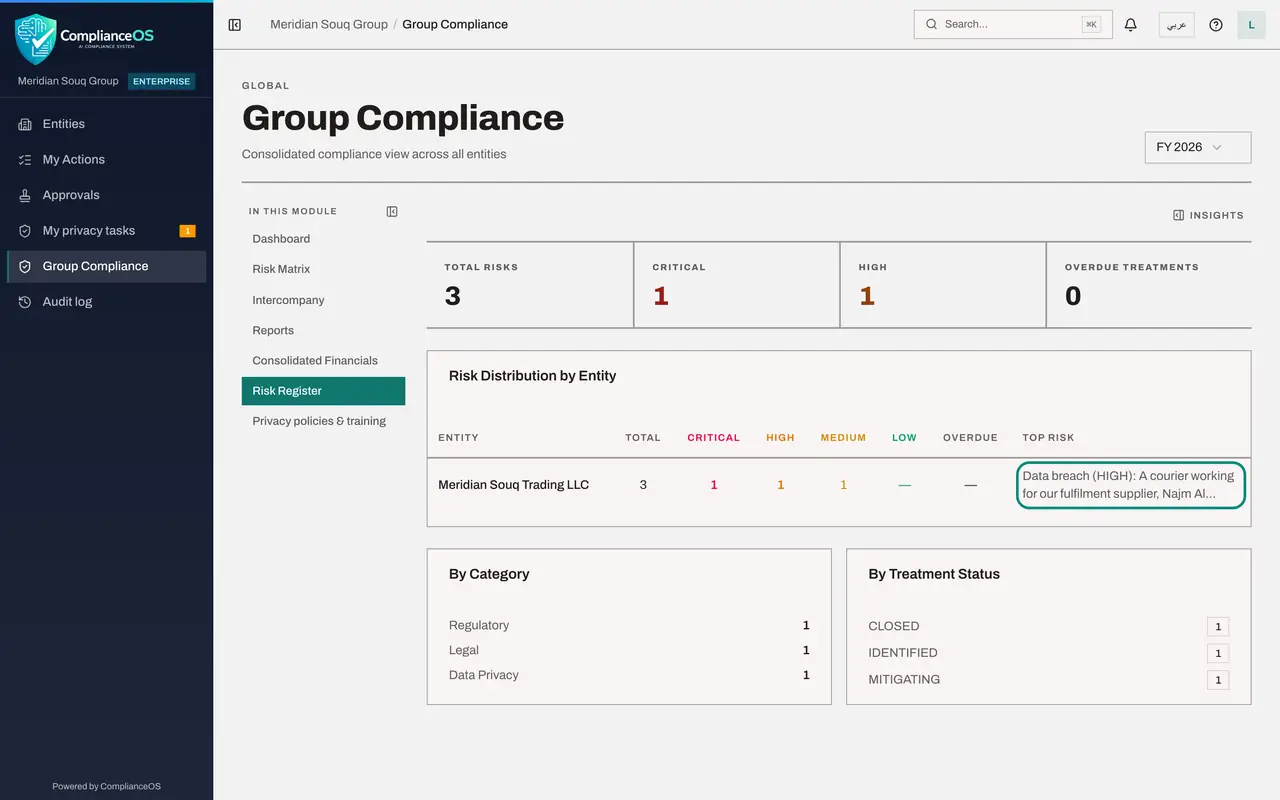
Select Risk Register in the same list. It gathers the risks of every company in one place. The data breach from Journey D is here, with the company it belongs to, its score and its owner.
- Select Risk Register
- 5
Open Approvals
Select Approvals in the left menu. To decide lists what is waiting for you across every company; My requests lists what you have asked others to approve, with where each one stands. The role request from part 2 shows as Approved.
- Select Approvals
- Select My requests
- 6
Open the Audit log
Select Audit log. For you it holds every action in the organisation: each line gives the time, the action, the kind of record, the company and the person. The newest lines are your own from this journey: the policy you saved and the roles you granted.
- Select Audit log
- 7
Search the log
Type a word from an action in the search box, for example grant, to narrow the list. Select Details on a line to see what changed. The Resource Type box filters by the kind of record. This is where a question that starts with who or when is answered.
- Type Search by action name:
grant - Select Details
- Type Search by action name:
How to check it worked
Group Compliance lists both companies, the risk matrix has a row for each, and the audit log shows actions from every journey in this course.
Common mistakes
- Judging the group by the group score alone. One strong company can hide a weak one; read the matrix row by row.
- Treating Not in use as a pass. Check that the modules which apply are switched on for each company.
- Using the audit log only after something has gone wrong. A weekly look at grants and approvals is how surprises are avoided.
Check your understanding
1. Why does the administrator see two companies where the compliance officer saw one?
- A.A different screen
- B.The same screen; her role covers the whole organisation
- C.She has a newer browser
Show answer
Answer: B. The same screen; her role covers the whole organisation
What Group Compliance shows follows the reader's access. There is no separate head-office page.
2. Which events does an organisation-wide reader see in the audit log that a company-level reader does not?
- A.None
- B.Organisation-level events, such as role grants and policy changes, and events of every company
- C.Only sign-ins
Show answer
Answer: B. Organisation-level events, such as role grants and policy changes, and events of every company
A company-level reader sees only events recorded against the companies they can access.