Lesson 9 of 63
Journey A, part 9: The accountant pays the bill from the bank
What you will be able to do
The bill is verified and the transfer has left the bank. In this part the accountant adds the company's bank account, brings in the bank statement, and lets the system match the transfer to the bill. The match is the payment: the bill turns to Paid and the journal entry is posted, without anyone typing the payment in.
Before you start
- Part 8 is done: the bill is Verified.
- The transfer has been made, and you have downloaded the statement from online banking as a file.
Steps
- 1
Open Banking
In Accounting, select Banking in the section list. Each bank account the company uses gets a card here, and its statement lines are checked off against what the books expect. No account has been added yet.
- Select Banking0 (0)
- 2
Select Add Bank Account and fill in the form
Select Add Bank Account. In Bank Name type Al Waha Commercial Bank. Type the account number and the IBAN in masked form: stars, with only the last four digits. Leave Currency on AED and Account Type on Current.
- Select Add Bank Account
- Type Bank Name *:
Al Waha Commercial Bank - Type Account Number (masked) *:
****4471 - Type IBAN (masked):
AE**0330****4471
- 3
Select Add Account
Select Add Account. A card for the account appears. Feed not connected means statements are brought in by file, not by a live link to the bank.
- Select Add Account
- 4
Select the account and import the statement
Select the card to open the account. Then select Import Statement and choose the file you downloaded from the bank, here al-waha-statement-october-2026.csv. A banner reports how many transactions were imported.
- Select Bank account Al Waha Commercial Bank ****4471
- Upload Choose a file:
al-waha-statement-october-2026.csv
- 5
Read the imported lines
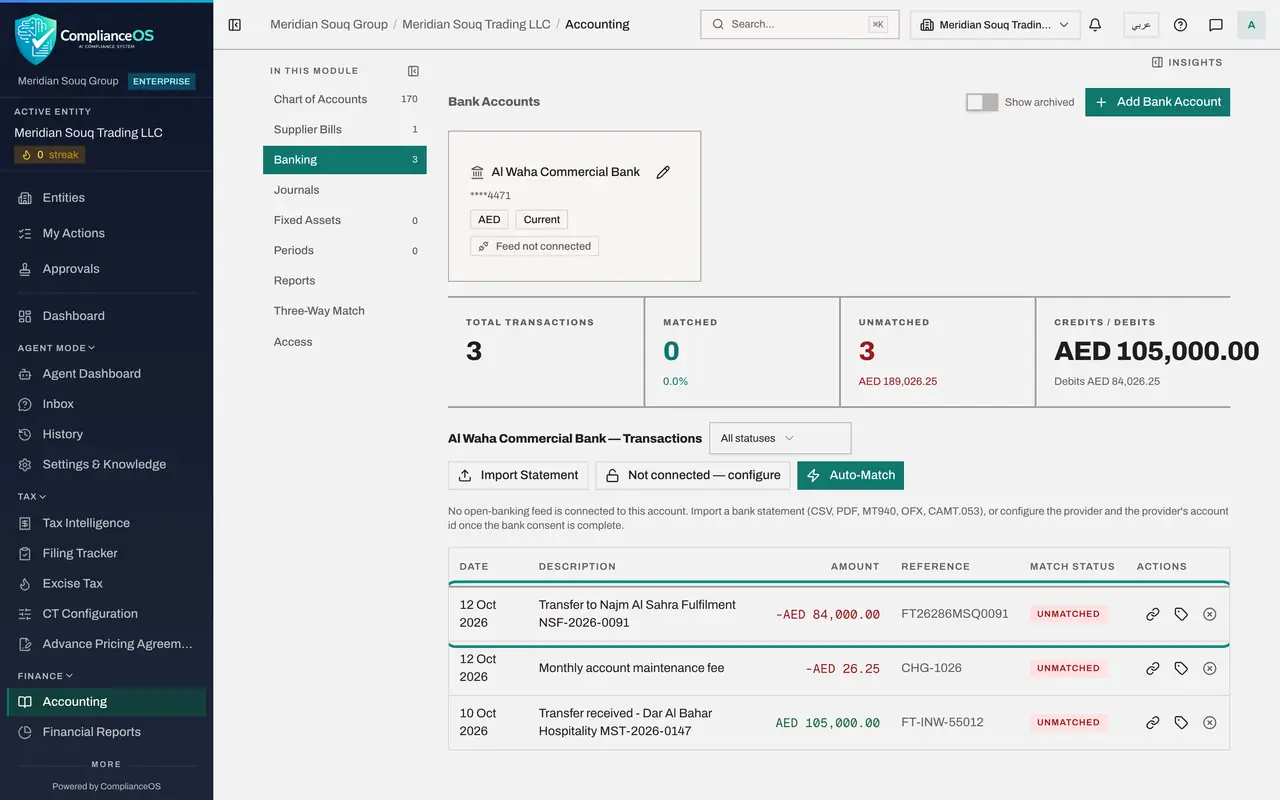
The statement has three lines, all Unmatched. One is the transfer of 84,000 dirhams to the supplier, with the bill number in its description and the bank's reference. The other two, a receipt from a customer and a bank fee, are dealt with in Journey B.
- 6
Select Auto-Match
Select Auto-Match. A window asks how to match. Rules Only compares each line with the open bills by amount, reference, date and party name. Rules plus AI Matching goes on to reason about the lines the rules could not place.
- Select Auto-Match
- 7
Choose Rules Only
Select Rules Only. After a few seconds a message reports one transaction matched by rules, and the supplier line shows Auto matched: it was paired with the verified bill of the same amount.
- Select Rules Only (Free)
- 8
Check the bill is paid
Select Supplier Bills. Bill NSF-2026-0091 now shows Paid, beside Verified and its journal number. You did not record a payment on the bill; the bank match did it. The Unmatched tile above the list has dropped to zero.
- Select Supplier Bills1 (1)
- 9
Open Journals
Select Journals in the section list. Two entries are listed for this bill, both Posted. The one dated 30 September records the bill: the expense, the input VAT and the amount owed. The other records the payment. Neither was typed by hand.
- Select Journals
- 10
Open the payment entry
Select the eye at the end of the payment entry. A window shows its lines: Accounts Payable is debited, so you owe the supplier nothing more, and the bank account is credited by the same amount. The bank reference is FT26286MSQ0091. Finance is done. Next, the tax manager finds the same purchase in Tax.
- Select View
How to check it worked
The statement line for the supplier shows Auto matched, the bill shows Paid, and Journals lists two posted entries for this bill: the bill itself and its payment.
Common mistakes
- Typing the full account number or IBAN. Only a masked version is kept, stars and the last four digits.
- Recording the payment by hand on the bill and then matching the bank line as well. Use one route; this lesson uses the bank match.
- Leaving the bill number out of the transfer details at the bank. The match uses the amount, the reference and the supplier's name.
Check your understanding
1. What does matching the bank line to the bill post to the ledger?
- A.Nothing; it only changes labels
- B.It reduces what is owed to the supplier and reduces the bank account
- C.It records the expense a second time
Show answer
Answer: B. It reduces what is owed to the supplier and reduces the bank account
The payment entry debits Accounts Payable and credits the bank account. The expense was recorded when the bill was verified.
2. Which lines does Rules Only match?
- A.Every line on the statement
- B.Lines that agree with an open bill on amount, with the reference, date or party name to confirm it
- C.Only bank fees
Show answer
Answer: B. Lines that agree with an open bill on amount, with the reference, date or party name to confirm it
Rules need an open document of the same amount. Lines with no such document stay unmatched for a person to handle.