Lesson 10 of 63
Journey A, part 10: The tax manager finds the purchase in Tax
What you will be able to do
Nobody told the tax manager about the bill, and nobody needs to. When the accountant verified it, the purchase arrived in Tax Intelligence with its corporate tax category and its VAT treatment. In this part the tax manager finds it, checks how it was classified, and sees what it does to the VAT position.
Before you start
- Part 8 is done: the accountant verified the supplier's bill.
- You are signed in as the tax manager.
Steps
- 1
Open Tax Intelligence
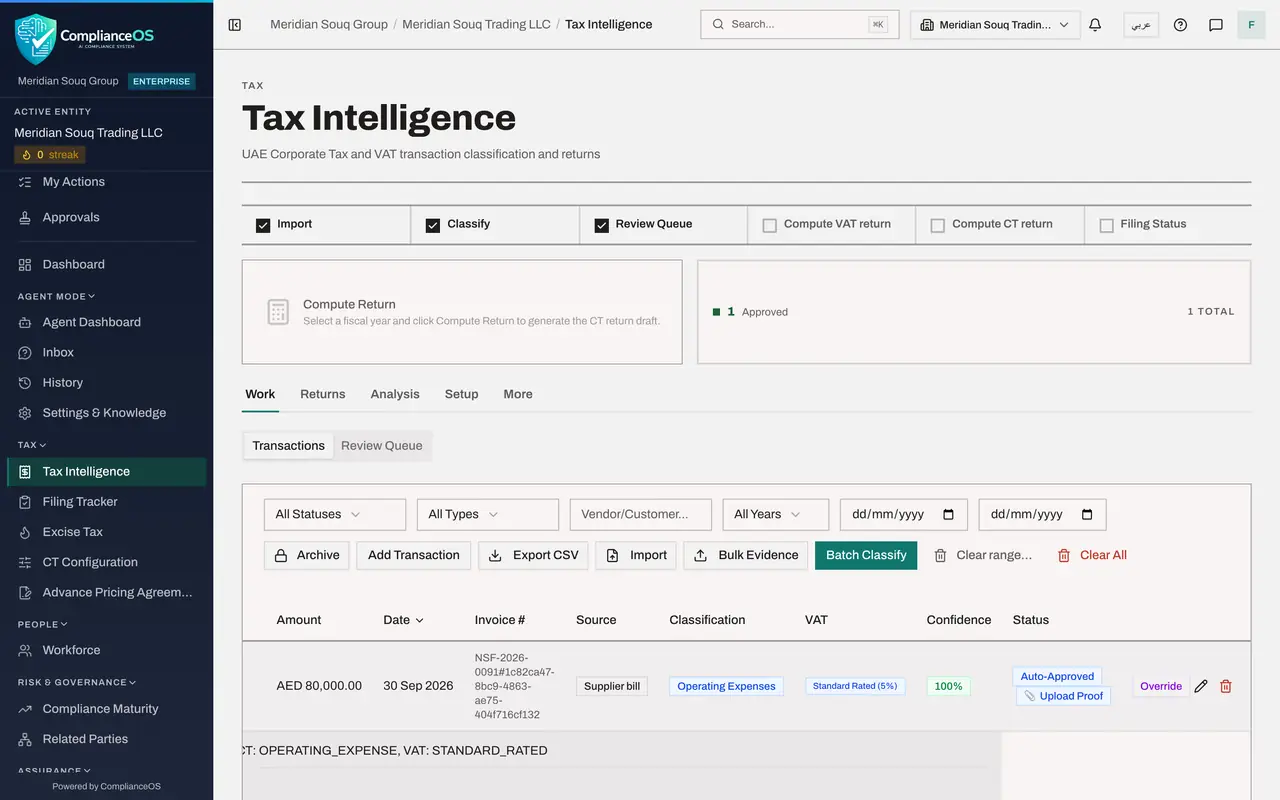
In the left menu, under Tax, select Tax Intelligence. The strip across the top shows the stages of the work: Import, Classify, Review Queue, Compute VAT return, Compute CT return, where CT is corporate tax, and Filing Status. The tile on the right counts one transaction, approved.
- 2
Find the purchase in Transactions
The Transactions list has one row: Supplier Bill NSF-2026-0091, Najm Al Sahra Fulfilment LLC, 80,000 dirhams before VAT, dated 30 September 2026. You did not enter it; it was created when the accountant verified the bill. The bank statement's lines are not listed here: they stay in Accounting, where each is matched or categorised.
- 3
Read the classification and the VAT treatment
Scroll the list sideways. Classification shows Operating Expenses, the corporate tax category the accountant chose. VAT shows Standard Rated, five percent. Under the confidence is the badge Recorded from a posting, and Status shows Auto-Approved: the bill was verified by a person with both choices made, so Tax accepts it without a second review. Upload Proof is where the supplier's invoice is attached.
- 4
Open the row to see where it came from
Select the row. A panel opens under it with the reasoning behind the classification: this transaction was posted from a supplier bill, with the corporate tax category and the VAT treatment recorded on that bill.
- 5
Check the Review Queue
Select the Review Queue tab above the list. Pending Review shows zero: nothing classified is waiting for your decision. A transaction the AI classified, for example one typed in or imported from a spreadsheet, would wait here with the buttons Approve, Reject and Override, however sure the AI was.
- Select Review Queue
- 6
See the effect on VAT
Select Analysis. The summary for 2026 shows VAT on purchases of 4,000 dirhams, recoverable, and no VAT on sales yet, so the net position is a refund of 4,000. That changes when the first sale is recorded, which is Journey B.
- Select Analysis
- 7
Find the supplier in the tax vendor list
Select Setup, then Vendors. Najm Al Sahra Fulfilment LLC is listed here too. It is the same vendor directory record that Data Protection assessed and that the contract is linked to, so a tax detail corrected here is corrected for everyone.
- Select Setup
- Select Vendors
How to check it worked
The purchase is in Transactions with the supplier's name, the classification Operating Expenses, the VAT treatment Standard Rated, and the status Auto-Approved. Nothing is pending in the Review Queue, and Analysis shows 4,000 dirhams of recoverable VAT on purchases.
Common mistakes
- Entering the purchase again with Add Transaction. It is already here, from the bill; a second copy would double the input VAT.
- Skipping the check because the status says Auto-Approved. A wrong VAT treatment on the bill puts the amount in the wrong box of the return; use Override to correct it.
- Changing the treatment in Tax and not telling the accountant. The bill and the journal entry would no longer agree with the return.
Check your understanding
1. How did the purchase get into Tax Intelligence?
- A.The tax manager imported a spreadsheet
- B.Verifying the supplier bill created it
- C.The supplier submitted it
Show answer
Answer: B. Verifying the supplier bill created it
Verify and post writes the journal entry and the tax transaction together. The Invoice number column shows the bill it came from.
2. Why is this transaction Auto-Approved instead of waiting in the Review Queue?
- A.Because the tax manager was away
- B.Because it came from a bill a person verified, with the category and VAT treatment already chosen
- C.Because purchases are never reviewed
Show answer
Answer: B. Because it came from a bill a person verified, with the category and VAT treatment already chosen
The accountant made both choices and verified the bill, and the row is marked Recorded from a posting. A classification that rests on the AI alone always waits in the Review Queue for a person.