Lesson 52 of 63
Journey E, part 8: The external auditor opens the link
What you will be able to do
This part is seen from the other side. Graham Whitlock, the external auditor, opens the link he was sent. He has no ComplianceOS account. He reads the audit and its checklist, downloads a sealed evidence record, and submits a finding of his own. Watch it once so you know exactly what an auditor can and cannot see.
Before you start
- Part 7 is done: the auditor was invited to this audit and has the link.
- Nobody is signed in: the link is opened in a browser with no ComplianceOS session.
Steps
- 1
Open the link
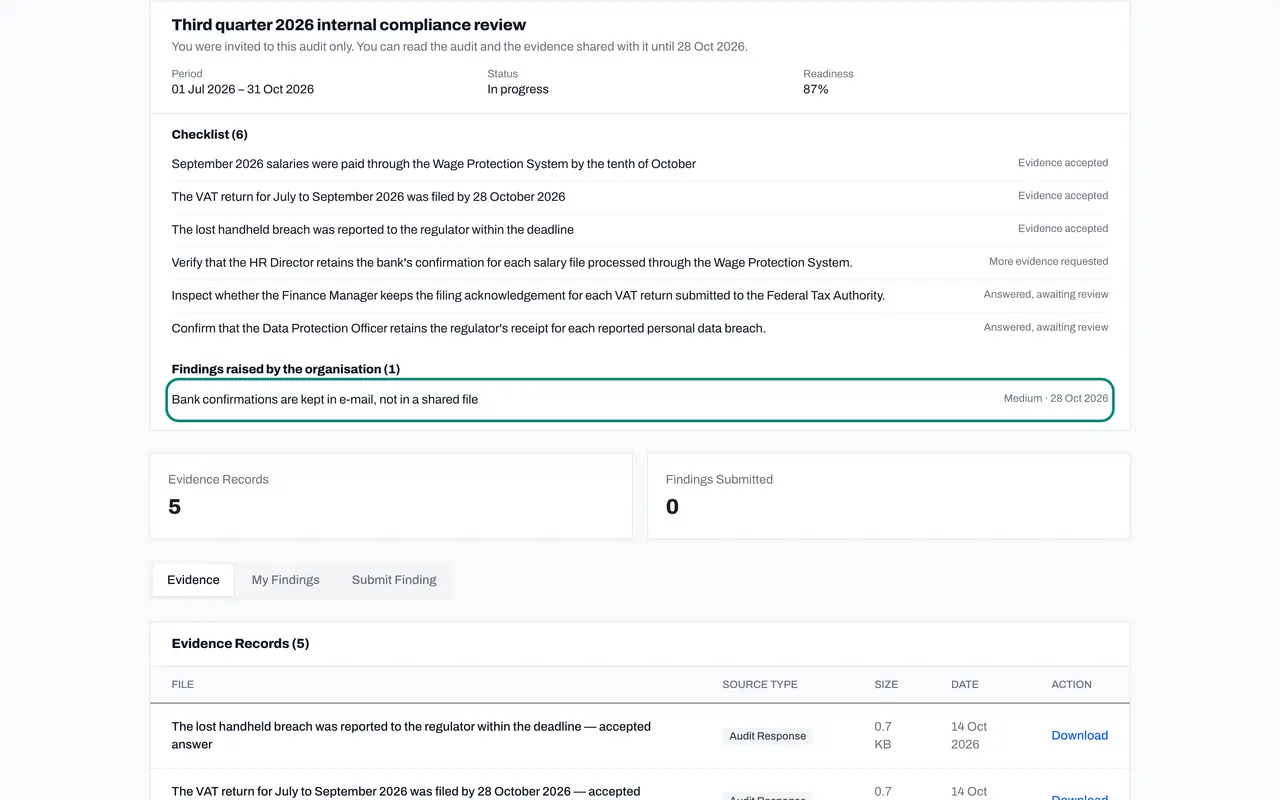
The auditor opens the link from the invitation. No sign-in is asked for. The Auditor Portal opens with the company's name, and one audit: Third quarter 2026 internal compliance review. The line underneath says he was invited to this audit only, and gives the date his access ends.
- 2
Read the audit and its checklist
The audit shows its period, its status and its readiness score. Checklist lists each control that was tested, with where it stands: Evidence accepted, Answered and awaiting review, or More evidence requested. The auditor sees the outcome of each check, not the conversation behind it.
- 3
Read the findings the company raised
Findings raised by the organisation lists what the company found in its own review, with the severity and the date it is to be fixed by. Here it is the finding the compliance officer raised about bank confirmations.
- 4
Open the Evidence tab and download a record
Below are two counts and three tabs. Evidence lists every sealed record of this audit: the frozen policy documents and one record for each accepted answer. Select Download beside a record to save it. The foot of the page states that all access is logged and monitored.
- Select Download
- 5
Select Submit Finding and describe it
The auditor can also report what he finds. Select the Submit Finding tab. In Module choose the audit's module, and in Severity choose a level. Type a short title and a description that says what was seen and where. A recommendation is optional.
- Select Submit Finding
- Type Brief description of the finding:
Proofs are sealed as records, not as the original files - Type Description:
The evidence list offers a sealed record of each accepted answer. The… - Type Recommendation (optional):
Share the original proofs with the audit, or state where they can be i…
- 6
Submit, and check My Findings
Select Submit Finding at the bottom of the form. Then select the My Findings tab. The finding is listed with its severity, its status and the date, and the Findings Submitted count shows one. The compliance officer sees it on her Auditor Portal screen. Next, the HR director deals with the finding the company raised.
- Select Submit Finding
- Select My Findings
How to check it worked
The portal shows this one audit with its checklist, the evidence list, and one finding under My Findings.
Common mistakes
- Expecting the auditor to see the rest of the company. The portal shows this audit only: no ledger, no register, no other audit.
- Telling the auditor the portal is read-only and nothing else. He can also submit findings, and each one reaches your Auditor Portal screen.
- Sending the original proofs by e-mail as well without saying so. The portal offers the sealed evidence records; say which copy is the one to rely on.
Check your understanding
1. What can an invited auditor see?
- A.Everything in the company, read-only
- B.The one audit he was invited to: its checklist, findings and the evidence shared with it, until the expiry date
- C.Only a PDF report
Show answer
Answer: B. The one audit he was invited to: its checklist, findings and the evidence shared with it, until the expiry date
The portal says so at the top: You were invited to this audit only.
2. Can the auditor change anything?
- A.No, nothing at all
- B.He cannot change your records, but he can submit findings of his own
- C.Yes, he can accept or reject answers
Show answer
Answer: B. He cannot change your records, but he can submit findings of his own
The portal has three tabs: Evidence, My Findings and Submit Finding. Nothing else can be edited.