Lesson 2 of 63
Journey A, part 2: The anti-money-laundering officer checks the screening
What you will be able to do
When legal counsel uploaded the contract, both parties were screened against the sanctions lists without anyone asking. In this part the anti-money-laundering officer finds those two checks, reads how they were cleared, screens the supplier's general manager by hand, and sees where a possible match would land as a task.
Before you start
- Part 1 is done: the supply contract has been uploaded and analysed.
- You are signed in as the anti-money-laundering officer.
Steps
- 1
Open the anti-money-laundering module and select Screening
In the left menu, under Financial Crime, select AML/CFT, which stands for anti-money laundering and countering the financing of terrorism. Then select the Screening tab. The tiles count every name screened for this company and how each check ended.
- Select Screening
- 2
Find the two checks that came from the contract
Scroll down to All Screening Checks. Two rows are already here, with the type Counterparty: NAJM AL SAHRA FULFILMENT LLC and Meridian Souq Trading. Nobody typed them in. They were created when the contract was analysed, a few seconds after legal counsel uploaded it.
- 3
Read how the supplier's check ended
Read along the supplier's row. Status shows Cleared. Matched Entry says No match above the threshold: no name on the sanctions lists was similar enough to need a review, so there is no score. A possible match would show the listed entry and a score here, and the status Pending.
- 4
Type the general manager's name
The contract was signed for the supplier by its general manager, and people are not screened automatically from a contract. Scroll up to Screen Counterparty. In Subject Name, type the full name as it appears on the passport or Emirates ID. Here it is Reem Haddadin.
- Type Subject Name:
Reem Haddadin
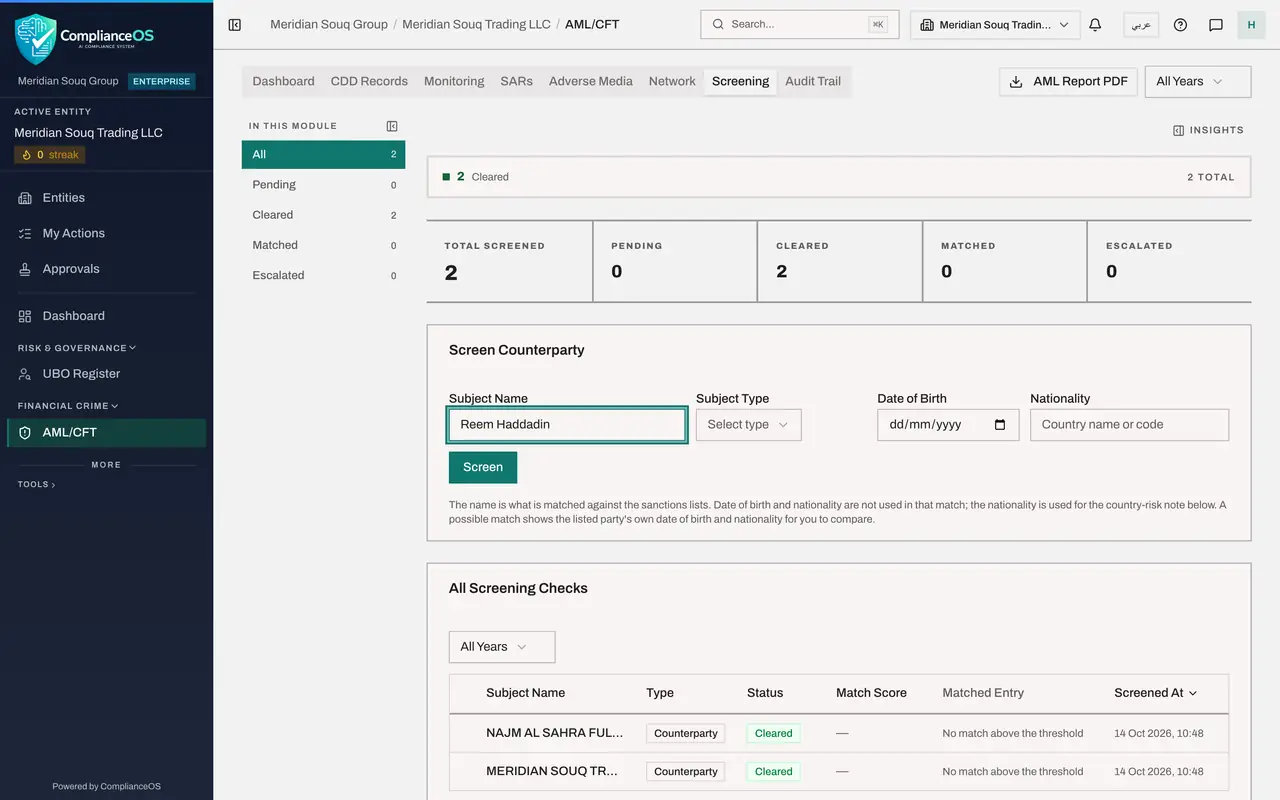
- Type Subject Name:
- 5
Choose the subject type and add the nationality
In Subject Type choose what this party is to you: Customer, Vendor, UBO, which means ultimate beneficial owner, or Other. Choose Vendor. For a person, add the Date of Birth and Nationality when you have them. The note under the form explains that only the name is matched against the lists; the nationality is used for a country risk note. In Nationality type the country, here Jordan. Leave Date of Birth empty.
- Select Select type
- Choose Vendor
- Type Nationality:
Jordan
- 6
Select Screen and read the result
Select Screen. The Screening Result box appears under the form. It shows Cleared, with the words No match above the threshold: no sanctions list name was similar enough to this name to need a review. Pending would mean a possible match that a person must review.
- Select Screen
- 7
Check the review queue
In the list on the left, Pending shows zero. A possible match would be counted here and listed in a review queue above the checks, where you assign it to a reviewer, then clear it as a false match or escalate it. All three checks today are Cleared, so there is nothing to assign.
- 8
See where an assigned check would appear
Select My Actions in the left menu. It opens on Assigned to me. The line under the tabs lists the kinds of work that can be assigned to a person, and Sanctions is one of them. Because every check was cleared, the list says All caught up. The supplier has passed screening; next, the Data Protection Officer registers it as a processor of personal data.
- Select My Actions
How to check it worked
Screening lists three checks: the two contract parties, screened automatically, and the general manager you screened by hand. All three are Cleared, so nothing is waiting in the review queue or in My Actions.
Common mistakes
- Reading Cleared as a promise about the future. It says that no list entry was similar enough on the day of the check; the lists change, and names are screened again.
- Screening a company and forgetting its people. The contract only screens the parties it names; directors, signatories and owners must be screened as well.
- Looking in My Actions for a cleared check. Only a possible match that is waiting for a person can be assigned, and only then does it appear there.
Check your understanding
1. A check shows Cleared, with the words No match above the threshold. What does that tell you?
- A.The lists could not be reached
- B.No name on the sanctions lists was similar enough to this name to need a review
- C.The screening failed and must be repeated
Show answer
Answer: B. No name on the sanctions lists was similar enough to this name to need a review
The result says so in words. A name that was similar enough would show a score and the listed entry, and would wait as Pending for a person.
2. When does a sanctions check appear in someone's My Actions?
- A.Every time a name is screened
- B.When a cleared check is a week old
- C.When a possible match is waiting for review and has been assigned to that person
Show answer
Answer: C. When a possible match is waiting for review and has been assigned to that person
Only pending or escalated checks can be assigned, and My Actions opens on the items assigned to you.