Lesson 3 of 63
Journey A, part 3: The Data Protection Officer registers the supplier and sends the questionnaire
What you will be able to do
The supplier will deliver customers' orders, so it will hold their names, addresses and mobile numbers. That makes it a processor of personal data. In this part the Data Protection Officer, or DPO, adds the supplier to the vendor risk register, which also creates its record in the vendor directory that Tax, Finance and Contracts share, and sends it a due diligence questionnaire by secure link.
Before you start
- Parts 1 and 2 are done: the contract is on file and the supplier passed sanctions screening.
- You are signed in as a Data Protection Officer.
Steps
- 1
Open Data Protection and choose Vendor risk
In the left menu choose Data Protection, then Vendor risk in the module's own menu. A vendor here means any supplier that handles personal data for you. The register is empty because this is the first one.
- 2
Select Add vendor
Select Add vendor. The form opens on New vendor, not in the directory. If the supplier already had a record in the vendor directory, for example from an earlier bill, you would pick it from the Vendor box instead of typing it again.
- Select Add vendor
- 3
Enter the legal name and country
In Vendor name type the legal name exactly as it is written in the contract: Najm Al Sahra Fulfilment LLC. In Country type the two-letter country code. AE is the United Arab Emirates.
- Type Vendor name:
Najm Al Sahra Fulfilment LLC - Type Country (ISO code):
AE
- Type Vendor name:
- 4
Set business criticality and data volume
Business criticality is how much you depend on this supplier: choose High, because orders cannot be delivered without it. Data volume is how many people's data it handles: choose Medium. Both feed the inherent risk, which is the risk the supplier carries before you look at its safeguards.
- Select Business criticality
- Choose High
- Select Data volume
- Choose Medium (1,000–100,000)
- 5
List the personal data the supplier handles
Under Additional data categories, list the kinds of personal data the supplier will see, separated by commas. Take them from the personal data clause of the contract: customer name, delivery address and mobile number.
- Type Additional data categories:
Customer name, Delivery address, Mobile number
- Type Additional data categories:
- 6
Add the supplier's contact and your internal owner
Enter the person at the supplier who will answer questionnaires, with their e-mail address. In Internal owner, name the person in your own business who manages the relationship. In Notes, say in one line what the supplier does for you.
- Type Contact name:
Reem Haddadin - Type Contact email:
reem.haddadin@najmalsahra.example.com - Type Internal owner:
Head of Logistics - Type Notes:
Stores, packs and delivers online orders across the UAE. Contract MST-…
- Type Contact name:
- 7
Save the vendor
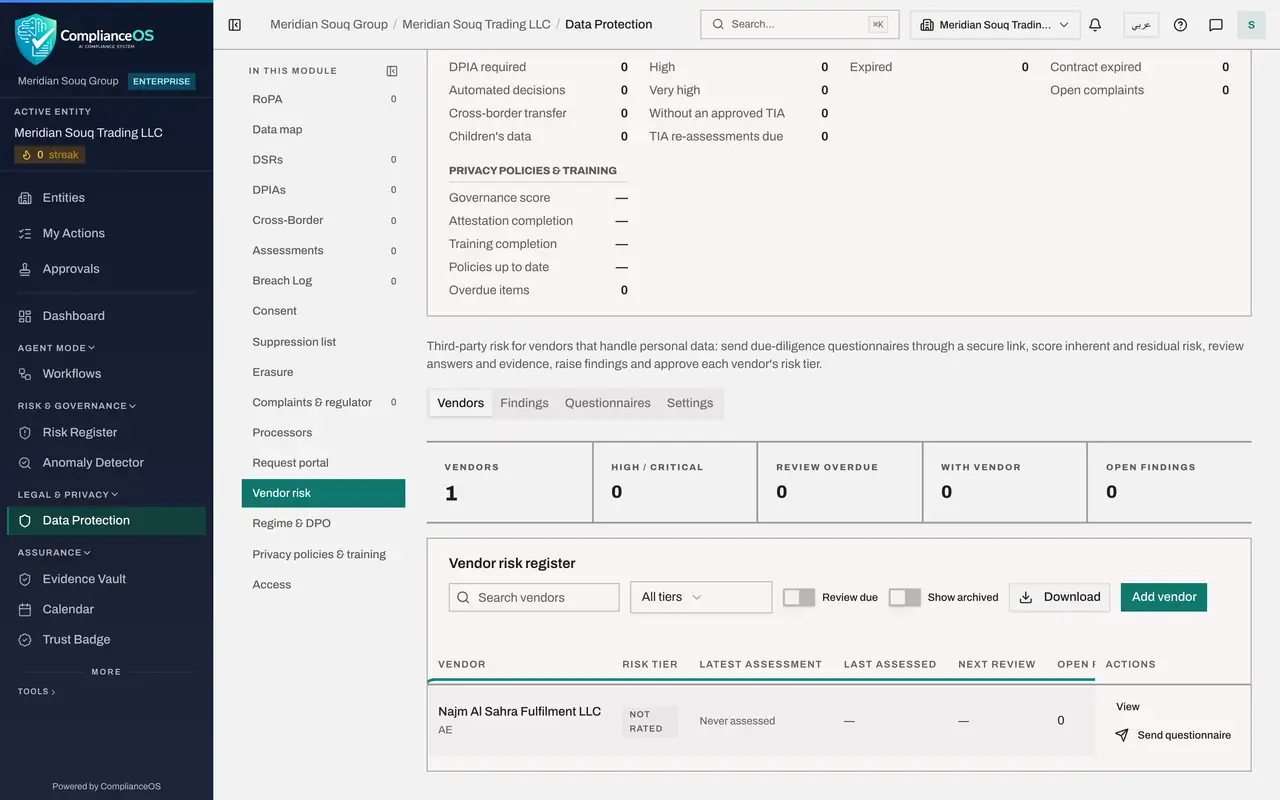
Select Save. The supplier joins the register as Not rated and Never assessed. It has no risk tier until a questionnaire has been answered, reviewed and approved. At the same moment its record is created in the vendor directory.
- Select Save
- 8
Select Send questionnaire
On the supplier's row, select Send questionnaire. The contact name and e-mail are filled in from the supplier's profile, and the due date is set two weeks ahead.
- Select Send questionnaire
- 9
Choose the questionnaire
Under Questionnaire choose UAE PDPL processor due diligence. PDPL is the UAE's Personal Data Protection Law. This ready-made questionnaire asks a processor how it follows instructions, secures the data, reports breaches and uses other companies.
- Select Questionnaire
- Choose UAE PDPL processor due diligence · v1
- 10
Set the due date and add a message
Set the date by which you need the answers. Then tell the supplier why you are asking and what to attach. The message appears at the top of the questionnaire.
- Type Due date:
2026-11-04 - Type Message to the vendor (optional):
Clause 5.4 of our agreement asks you to complete this questionnaire. P…
- Type Due date:
- 11
Untick the e-mail box
E-mail is switched off on this system, so untick Email the link to the contact. The link will be shown on screen instead, for you to copy and send yourself.
- Select Email the link to the contact
- 12
Select Send and copy the secure link
Select Send. The secure link is shown in full only now. Select Copy link and pass it to your contact by your usual secure route. Anyone holding the link can answer for the supplier.
- Select Send
- Select Copy link
- 13
Select Done and check the register
Select Done. The supplier's row now shows Sent with the questionnaire's name, and the With vendor tile counts it until the answers come back. The next part shows what the supplier's contact does with the link.
- Select Done
How to check it worked
The supplier is in the vendor risk register with Sent under Latest assessment, and you hold the secure link to pass to the supplier's contact. In the next part the supplier answers.
Common mistakes
- Typing the supplier's name differently from the contract and the invoices. The vendor directory matches on the name, so one spelling keeps one record for Tax, Finance, Contracts and Data Protection.
- Leaving Email the link ticked when e-mail is not set up. Nothing would reach the supplier. Untick it and pass the link yourself.
- Sharing the secure link widely. Anyone holding it can answer for the supplier, so treat it like a password.
Check your understanding
1. You add a new vendor in Vendor risk. Where else does that supplier now exist?
- A.Nowhere else; each module keeps its own list
- B.In the vendor directory shared with Tax, Finance and Contracts
- C.In the sanctions lists
Show answer
Answer: B. In the vendor directory shared with Tax, Finance and Contracts
A vendor in the risk register is a vendor directory record. The same record is matched when a bill is entered and can be linked from the contract.
2. E-mail is switched off. How does the supplier get the questionnaire?
- A.You untick the e-mail box, copy the secure link and send it yourself
- B.It cannot be sent
- C.The supplier signs in to ComplianceOS
Show answer
Answer: A. You untick the e-mail box, copy the secure link and send it yourself
The link is shown in full once, with a copy button. The supplier needs no account.