Lesson 43 of 63
Journey D, part 10: The compliance officer produces the report for the board, and schedules it
What you will be able to do
The board will ask what happened and where the company stands. In this part the compliance officer requests a Full Compliance Report, which draws on every module, including the breach, the supplier, the tax return and the workforce figures from the earlier journeys. She then schedules the same report to be produced every month, so the board gets it without anyone remembering.
Before you start
- The earlier parts of Journey D are done.
- You are signed in as the compliance officer.
Steps
- 1
Open Reports
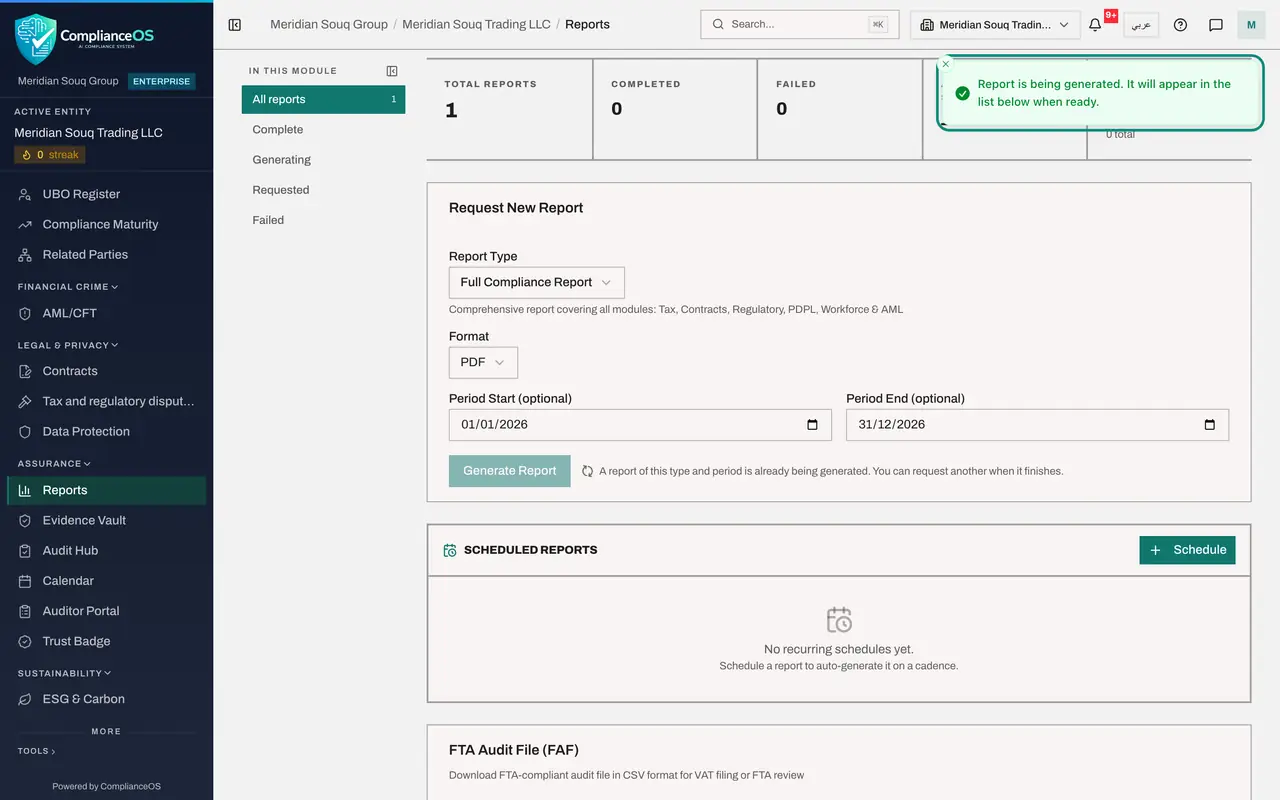
In the left menu, under Assurance, select Reports. The figures at the top count the reports produced, how many completed or failed, their average compliance score and the number of schedules. Request New Report is the form underneath.
- 2
Choose the report type
In Report Type choose Full Compliance Report. It covers every module. The other types cover one area each: corporate tax, a VAT period, the contract portfolio, regulatory compliance, data protection, workforce and Emiratisation, or anti-money laundering and sanctions.
- Select Select Report Type
- Choose Full Compliance Report
- 3
Choose the format and the period
Leave Format as PDF, the version to hand to the board. Set the period the report should cover: here the 2026 financial year, 1 January to 31 December.
- Type Period Start (optional):
2026-01-01 - Type Period End (optional):
2026-12-31
- Type Period Start (optional):
- 4
Select Generate Report
Select Generate Report. A message says the report is being generated and will appear in the list when ready.
- Select Generate Report
- 5
Find the report under Generated Reports
Scroll down to Generated Reports. Your report is at the top. Its status moves from Requested to Generating and then Complete, usually within a few minutes. You do not need to stay on the page. A completed report has View and a download; View shows the overall score, an executive summary and a section for each module.
- 6
Select Schedule
To get the same report regularly, go to Scheduled Reports and select Schedule. The Schedule Recurring Report window opens.
- Select Schedule
- 7
Set the type and how often
In Report Type choose Full Compliance Report, and in Frequency choose Monthly. Daily, Weekly and Quarterly are the other choices. Keep the format as PDF. Leave Recipient Emails empty: e-mail is switched off on this system, and each report can be downloaded from the list.
- Select Select Report Type
- Choose Full Compliance Report
- Select Monthly
- Choose Monthly
- 8
Select Create Schedule
Select Create Schedule. The schedule is listed under Scheduled Reports with its frequency, its format and the date of its next run. The two buttons at the end of its line pause the schedule or delete it. The board's report will now be produced every month from whatever the modules hold on that day.
- Select Create Schedule
How to check it worked
Generated Reports lists a Full Compliance Report, and Scheduled Reports lists a monthly schedule with the date of its next run.
Common mistakes
- Waiting on the page for the report. A background job produces it; the status moves from Requested to Generating to Complete, and you can come back later.
- Typing recipients into a schedule on a system where e-mail is not set up. Leave it empty and download the report from the list.
- Requesting a second report while one is still running. The second request is refused with a brief message.
Check your understanding
1. Where does the Full Compliance Report get its content?
- A.You type it
- B.From the records in every module: tax, contracts, regulatory, data protection, workforce and anti-money laundering
- C.From last year's report
Show answer
Answer: B. From the records in every module: tax, contracts, regulatory, data protection, workforce and anti-money laundering
That is why the journeys matter: what each person recorded in their own module is what the board reads.
2. What does a schedule do?
- A.It produces the same report at the chosen frequency without anyone asking
- B.It reminds you to write the report
- C.It e-mails the regulator
Show answer
Answer: A. It produces the same report at the chosen frequency without anyone asking
The schedule is listed with its frequency and the date of its next run, and can be paused or deleted.