Lesson 37 of 63
Journey D, part 4: The notices are delivered and recorded as sent
What you will be able to do
The notices are approved. ComplianceOS does not file anything with the regulator, and e-mail is switched off on this system, so the Data Protection Officer delivers both notices herself and then records, on each, when and how it was sent. Recording the regulator's notice as sent stops the deadline clock and changes the breach's status.
Before you start
- Part 3 is done: both notices show Approved, not sent.
- You have delivered, or are about to deliver, the notices through your own channels.
Steps
- 1
Open the notifications page
In the Breach Log, select View on the breach and then Open notifications. Both notices show Approved, not sent, and each now has a Mark as sent button.
- 2
Download the approved regulator notice
On the regulator's notice, select PDF, EN, to download the approved document. Deliver it to the regulator yourself, through the channel the regulator accepts.
- Select PDF (EN)
- 3
Select Mark as sent and record how it was delivered
When it has been delivered, select Mark as sent. Set Sent on to when you actually delivered it, here one hour ago. In How it was sent, describe the channel. In Reference, enter the receipt number the regulator gave you. Then select Mark as sent.
- Select Mark as sent
- Type Sent on *:
2026-10-14T10:31 - Type How it was sent *:
E-mail to the UAE Data Office - Type Reference (optional):
Receipt ACK-2026-0412 - Select Mark as sent
- 4
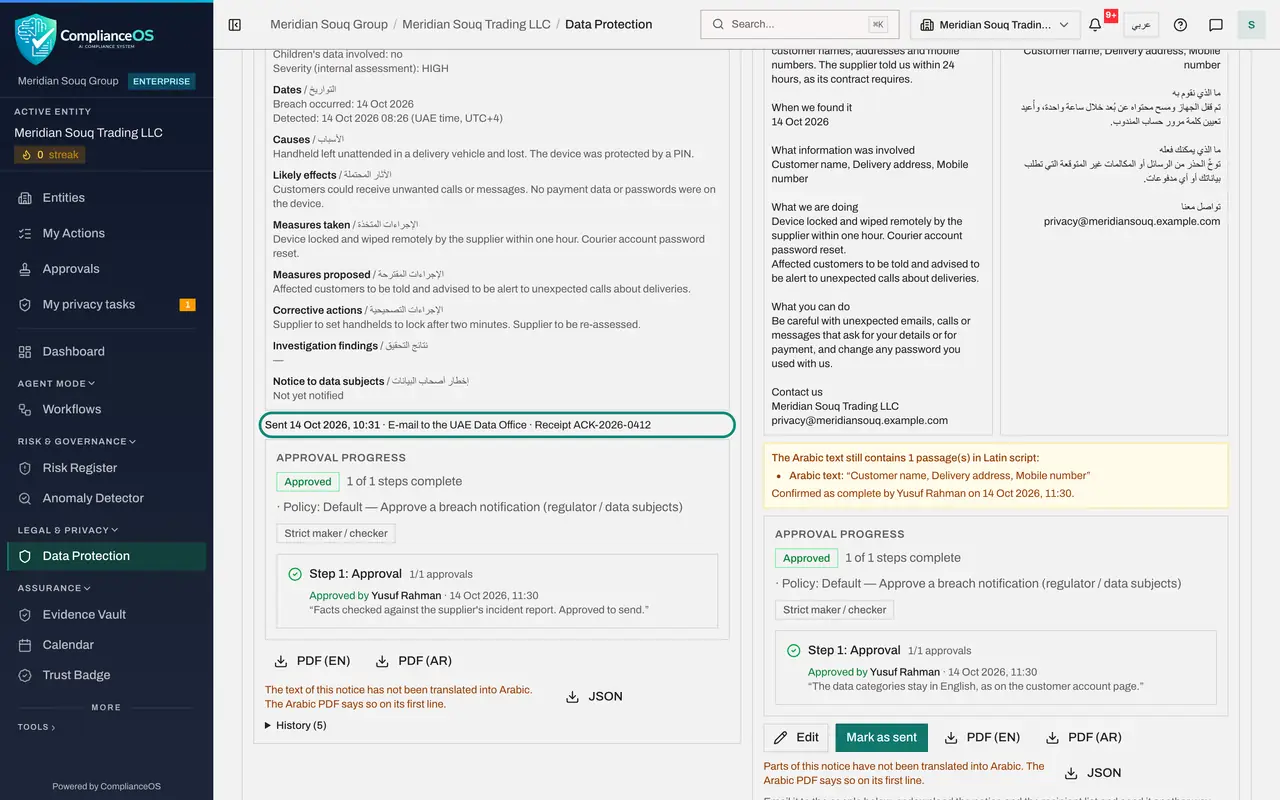
Check the regulator's notice
The regulator's notice now shows Sent, with a line giving the date, the channel and the reference. It can no longer be edited.
- 5
Download the notice for the customers
On the customer notice, Email the notice would e-mail each recipient in their own language, but e-mail is not set up here, as the amber line says. Select PDF, AR, and PDF, EN, to download the notice in both languages, and send it by letter or text message.
- Select PDF (AR)
- Select PDF (EN)
- 6
Mark the customer notice as sent
When the customers have been told, select Mark as sent on their notice, describe how it was sent, and select Mark as sent.
- Select Mark as sent
- Type How it was sent *:
Text message with a link, and a letter to each address - Select Mark as sent
- 7
Go back to the Breach Log
Select Back to breaches at the top. The breach's status is now Reported to regulator, and the Regulator report due column shows Reported in place of the countdown.
- Select Back to breaches
- 8
Open the breach to see the recorded dates
Select View on the breach. The detail now shows when the regulator was told, the regulator's reference, and that the affected people have been notified. The privacy side of the incident is on record. Next, the compliance officer finds the same breach in the Risk Register.
- Select View: Delivery handheld lost at Najm Al Sahra
How to check it worked
Both notices show Sent with the date and channel, and the breach shows Reported in the Breach Log, with the Reported to regulator tile at one.
Common mistakes
- Marking a notice as sent before it has been delivered. The time you record is evidence of meeting the deadline.
- Selecting Email the notice on a system where e-mail is not set up. Download the notice and send it another way.
- Leaving out the regulator's receipt reference. It is the first thing asked for if the report is ever questioned.
Check your understanding
1. What stops the Regulator report due countdown?
- A.Approving the notice
- B.Recording the regulator's notice as sent
- C.Closing the browser
Show answer
Answer: B. Recording the regulator's notice as sent
After Mark as sent, the column shows Reported in place of the countdown.
2. E-mail is not set up. How do the customers get their notice?
- A.They do not
- B.You download the notice and the recipient list and send it by letter, text message or your own mail system
- C.ComplianceOS posts it
Show answer
Answer: B. You download the notice and the recipient list and send it by letter, text message or your own mail system
PDF in English and Arabic, and Recipient list, CSV, give you what you need to send it yourself.