Lesson 46 of 63
Journey E, part 2: The compliance officer reviews the mapping and assigns the requests
What you will be able to do
The system has read the standard and the checklist. In this part the compliance officer reviews what it produced, confirms it, and assigns each request for evidence to the person who holds the proof: payroll to the HR director, the VAT return to the finance manager, the breach to the Data Protection Officer. Dispatching puts each request in that person's own list.
Before you start
- Part 1 is done: the audit exists and its documents are uploaded.
- You are signed in as the compliance officer.
Steps
- 1
Read the totals
Open the audit from the Audit Hub. It resumes on the AI Mapping step. Four tiles count what the mapper produced: auditable points, checklist items, document gaps and clarifications.
- 2
Read an auditable point
Each point is one rule from the standard that can be tested. It shows the clause it came from, a risk level, whether the control prevents, detects or corrects, how confident the mapper is, and the evidence that would prove it. The buttons at the right confirm or dismiss the point, and the dropdown changes its risk level.
- 3
Open Gaps and clarifications
Select the Gaps and clarifications tab. A gap is something a good standard would cover and yours does not. A clarification is wording that is too vague to test. They are advice for improving the standard; they do not become requests.
- Select Gaps & clarifications (6)
- 4
Open the Checklist
Select the Checklist tab. Your three checks are marked Matched from your checklist, each with the control it tests. Items marked AI-generated are checks the system proposes for controls your checklist did not cover. Each item will become one request for evidence.
- Select Checklist (6)
- 5
Select Confirm mapping and continue
When the points and the checklist are right, select Confirm mapping and continue. Points you did not review are accepted as they are. The policy documents are frozen into the Evidence Vault at this moment, and the requests are created.
- Select Confirm mapping & continue
- 6
Assign the payroll request to the HR director
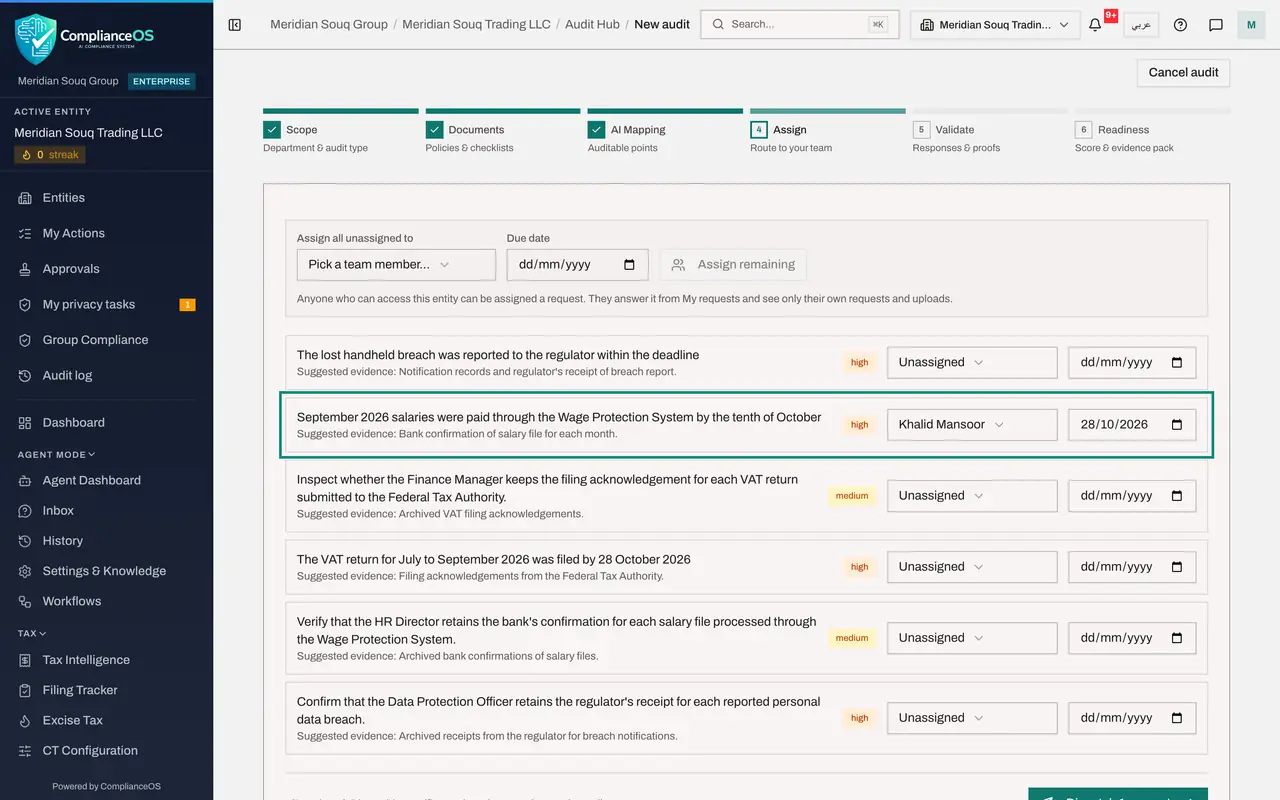
You are on the Assign step. Each request is listed with the evidence it suggests and a box that says Unassigned. Find the request about the September salaries. Open its box and choose Khalid Mansoor, the HR director, then set the date by which the proof is needed.
- Select Unassigned
- Choose Khalid Mansoor
- 7
Assign the VAT request to the finance manager
Find the request about the VAT return for July to September. Assign it to Rashid Karim, the finance manager, who signed the return off, with the same due date.
- Select Unassigned
- Choose Rashid Karim
- 8
Assign the breach request to the Data Protection Officer
Find the request about the lost handheld breach. Assign it to Sara Ahmed, the Data Protection Officer, with the same due date.
- Select Unassigned
- Choose Sara Ahmed
- 9
Assign the remaining requests in the same way
Assign each remaining request to the person who holds its proof: anything about salaries to the HR director, anything about VAT to the finance manager, anything about breaches to the Data Protection Officer. For a long list, the row at the top, Assign all unassigned to, gives every unassigned request to one person and one date.
- Select Unassigned
- Choose Rashid Karim
- Select Unassigned
- Choose Khalid Mansoor
- Select Unassigned
- Choose Sara Ahmed
- 10
Select Dispatch requests
At the bottom, the line counts how many requests are assigned and says that dispatching notifies each assignee and starts the audit. Select Dispatch requests.
- Select Dispatch 6 requests
- 11
Read the Validate step
The audit moves to Validate. The tiles count the responses received, those the automatic check has validated, those that need more, and the average score. Every request is listed with its assignee, its due date and the status Open. Each of the three people now has work in My audit requests. The next three parts show them answering.
How to check it worked
The audit is on the Validate step, with every request showing the name of its assignee, a due date and the status Open.
Common mistakes
- Confirming the mapping without reading it. Every point you leave becomes a request that somebody must answer; dismiss the ones that do not apply.
- Assigning everything to yourself. The person who holds the evidence should answer; anyone with access to the company can be assigned.
- Forgetting to dispatch. Assigning only prepares the requests; Dispatch requests is what sends them.
Check your understanding
1. Who can be assigned an audit request?
- A.Only people with the Audit Hub role
- B.Anyone who can access this company
- C.Only administrators
Show answer
Answer: B. Anyone who can access this company
The assignee answers from My audit requests and sees only their own requests and uploads; they need no Audit Hub permission.
2. Where do the requests come from?
- A.You type each one
- B.From the checklist items: your own checks matched to the standard, plus checks the system proposes for controls your checklist missed
- C.From last year's audit
Show answer
Answer: B. From the checklist items: your own checks matched to the standard, plus checks the system proposes for controls your checklist missed
The Checklist tab marks each item as Matched from your checklist or AI-generated.