Lesson 47 of 63
Journey E, part 3: The HR director answers the audit request
What you will be able to do
In Journey C you prepared the salary file and recorded the day the bank paid it. The audit now asks you to prove it. In this part you find the request in My audit requests, explain how the requirement was met, attach the proof as a PDF, and submit. An automatic check reads your answer and the file and scores it before the compliance officer sees it.
Before you start
- Part 2 of Journey E is done: the compliance officer dispatched the requests.
- You are signed in as the HR director. You need no Audit Hub permission to answer.
- You have the proof as a file: PDF, Word, Excel, PowerPoint, CSV, plain text, or a PNG or JPG image.
Steps
- 1
Find the request in My Actions
After signing in, select My Actions. It opens on Assigned to me. The audit's requests are listed with the type Audit request, from the Audit Hub, with the due date the compliance officer set.
- Select My Actions
- 2
Open My audit requests
Select My audit requests in the left menu; the number beside it counts what is waiting. Each request under Needs your action shows what is asked, the audit it belongs to, the due date and the evidence that is suggested.
- Select My audit requests2
- 3
Write your answer and attach the proof
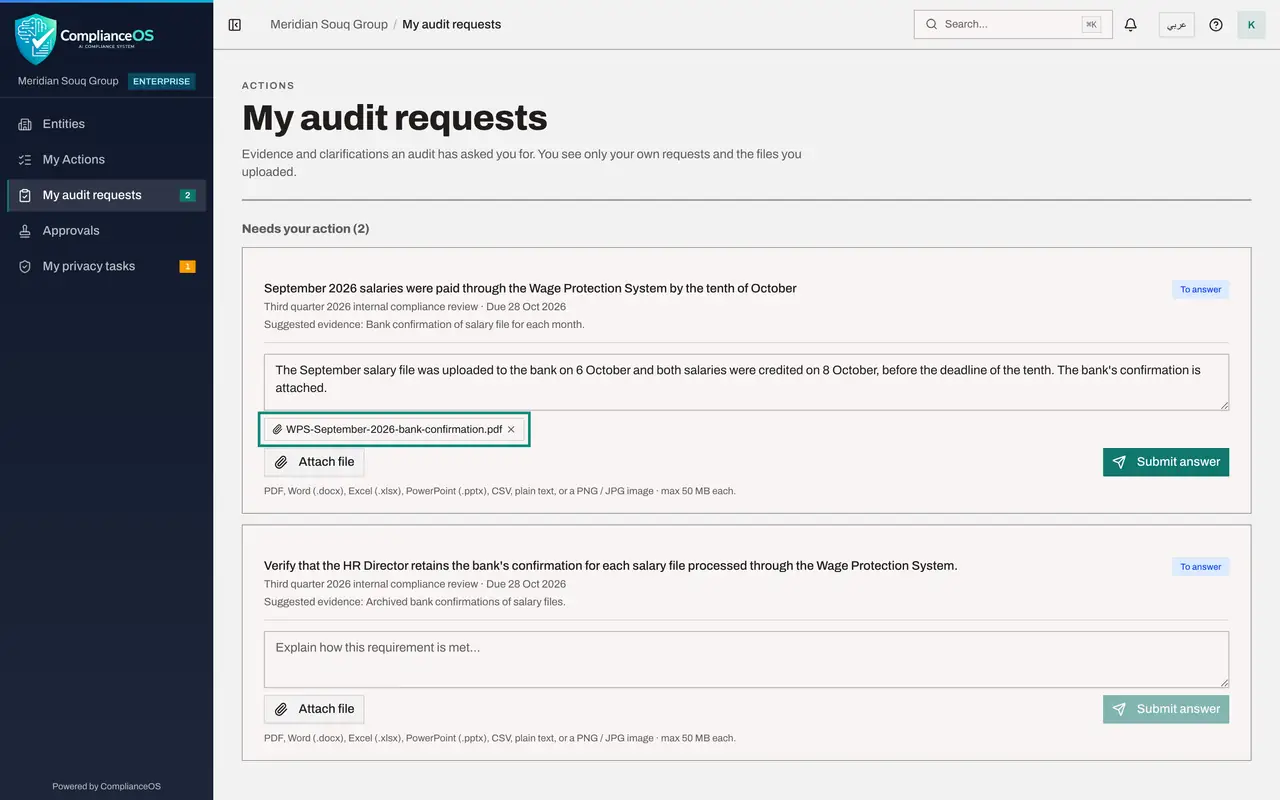
Find the request about the September salaries. In the answer box, explain how the requirement was met, with the dates. Then select Attach file and choose the proof, here WPS-September-2026-bank-confirmation.pdf. The file name appears under the answer.
- Type Your answer:
The September salary file was uploaded to the bank on 6 October and bo… - Select Attach file
- Upload Choose a file:
WPS-September-2026-bank-confirmation.pdf
- Type Your answer:
- 4
Select Submit answer
Select Submit answer. A message says the answer was submitted and is being checked. The request moves from Needs your action to Submitted, with your answer and the file listed under Files you uploaded.
- Select Submit answer
- 5
Answer any other request in the same way
If another request is still under Needs your action, answer it in the same way: say how the requirement is met and attach the proof. One file can serve more than one request.
- Type Your answer:
Bank confirmations are kept with each month's salary file. September's… - Select Attach file
- Upload Choose a file:
WPS-September-2026-bank-confirmation.pdf - Select Submit answer
- Type Your answer:
- 6
Read the result of the automatic check
Wait a few seconds. The status of each request changes from Being checked to the result. The check gives a score out of one hundred and says in a sentence what it found. If it says More needed, it lists what is missing, and you can answer again. The compliance officer makes the final decision. Next, the finance manager answers his request about the VAT return.
How to check it worked
Your requests are under Submitted, each showing your answer and the file you uploaded, with the status Being checked or the score of the automatic check.
Common mistakes
- Writing that the proof is attached and not attaching it. The automatic check reads the file; without one the answer is marked More needed.
- Attaching a file that does not show the date or the amount in question. The check, and then the auditor, look for exactly those.
- Answering only the request you recognise. Every request under Needs your action is waiting for you.
Check your understanding
1. Where does a person with no audit role find the requests assigned to them?
- A.In the Audit Hub
- B.Under My audit requests in the left menu, and in My Actions
- C.They cannot see them
Show answer
Answer: B. Under My audit requests in the left menu, and in My Actions
My audit requests shows only your own requests and the files you uploaded. The same requests appear in My Actions with the type Audit request.
2. What happens straight after you select Submit answer?
- A.The audit closes
- B.An automatic check reads the answer and the file and gives a score; the compliance officer then decides
- C.Nothing until the due date
Show answer
Answer: B. An automatic check reads the answer and the file and gives a score; the compliance officer then decides
The status reads Being checked, then shows the score. More needed means the check wants something else; you can answer again.