Lesson 8 of 63
Journey A, part 8: The accountant records and verifies the supplier's bill
What you will be able to do
The supplier has sent its first invoice: the September service fee of 80,000 dirhams plus 4,000 dirhams of value added tax, or VAT. In this part the accountant sets up the chart of accounts, because this company is new, enters the bill, and verifies it. Verifying is the moment the bill reaches the ledger and the purchase reaches Tax.
Before you start
- The supplier is cleared: screened, assessed and linked to its contract.
- You are signed in as the accountant and have the supplier's tax invoice in front of you.
Steps
- 1
Open Accounting
In the left menu, under Finance, select Accounting. The list on the left of the page holds its sections. Chart of Accounts shows zero and the table says No accounts yet. A journal entry needs accounts to post to, so the chart comes first.
- 2
Seed the chart of accounts
Select Seed Template. In Template, keep UAE Trading, which suits a retailer; other templates cover services, free zone, construction, real estate, holding and manufacturing companies. Select Seed. A message confirms how many accounts were created. You do this once per company.
- Select Seed Template
- Select Seed
- 3
Open Supplier Bills and select Manual Entry
Select Supplier Bills in the section list. A supplier bill is an invoice you have received and need to pay. Select Manual Entry to type the bill in. Upload Document is for a PDF or a photo of the bill, which the system then reads for you.
- Select Supplier Bills0 (0)
- Select Manual Entry
- 4
Enter the supplier and the invoice number
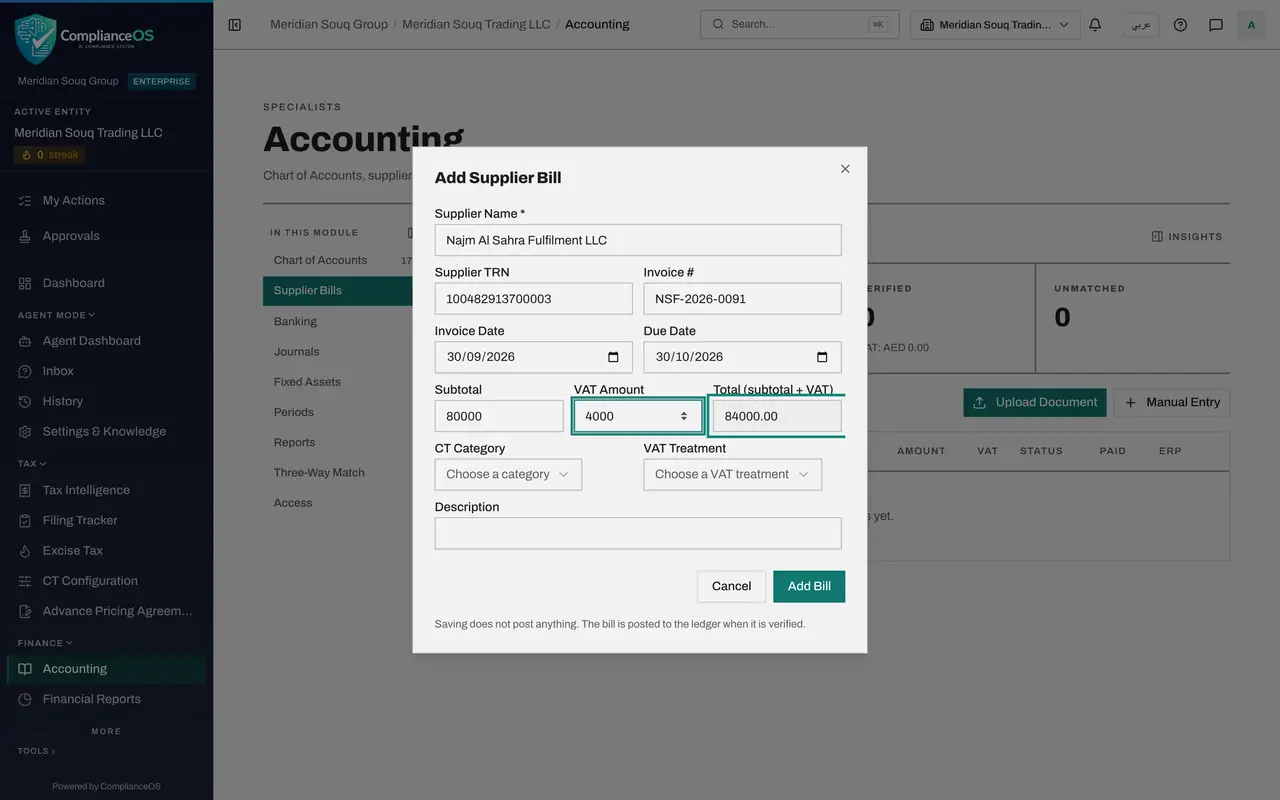
In Supplier Name type Najm Al Sahra Fulfilment LLC, exactly as it is in the vendor directory. In Supplier TRN type the supplier's 15-digit tax registration number from the invoice. In Invoice number type the number printed on the supplier's invoice.
- Type Supplier Name *:
Najm Al Sahra Fulfilment LLC - Type Supplier TRN:
100482913700003 - Type Invoice #:
NSF-2026-0091
- Type Supplier Name *:
- 5
Enter the dates and the amounts
Set Invoice Date to the date on the invoice, 30 September 2026, and Due Date to 30 October 2026, thirty days later as the contract says. Type 80000 in Subtotal and 4000 in VAT Amount. Total is worked out for you: 84,000.
- Type Invoice Date:
2026-09-30 - Type Due Date:
2026-10-30 - Type Subtotal:
80000 - Type VAT Amount:
4000
- Type Invoice Date:
- 6
Choose the tax category and the VAT treatment
CT Category says how the cost is treated for corporate tax: choose Operating Expenses. VAT Treatment says how VAT applies: choose Standard Rated, five percent. In Description, say what was bought. These two choices travel with the bill into Tax.
- Select CT Category
- Choose Operating Expenses
- Select VAT Treatment
- Choose Standard Rated (5%)
- Type Description:
Fulfilment and delivery service fee, September 2026
- 7
Select Add Bill
Select Add Bill. The bill joins the list as Not verified and Unpaid. The message reminds you that nothing is posted yet.
- Select Add Bill
- 8
Open the bill
Select the eye at the end of the bill's row. The bill opens underneath with its line items and a Payments box. Record payment is greyed out: a bill must be verified before it can be paid.
- Select View line items
- 9
Select Review posting and verify
Select Review posting and verify. The window shows exactly what will be posted to the ledger: the service fee as an expense, the VAT as input VAT you can recover, and the full 84,000 as owed to the supplier in Accounts Payable. Debits and credits are equal.
- Select Review posting and verify
- 10
Select Verify and post
Select Verify and post. The bill's status changes to Verified, and the number of the journal entry appears under it. From this moment the cost is in the ledger, and the purchase is in Tax for the VAT return. Paid still says Unpaid.
- Select Verify and post
How to check it worked
The bill is in Supplier Bills as Verified with a journal number under its status, and Paid still says Unpaid. In the next part you pay it.
Common mistakes
- Typing the supplier's name differently from the vendor directory. Use the same legal name so the bill joins the existing supplier record.
- Leaving out the supplier's tax registration number. Without it the VAT on the bill may not be recoverable.
- Assuming a saved bill is in the books. Saving posts nothing; only verifying posts the expense and the amount owed.
Check your understanding
1. When does a supplier bill reach the ledger?
- A.When it is saved
- B.When it is verified
- C.When it is paid
Show answer
Answer: B. When it is verified
Saving stores the bill. Verify and post creates the journal entry: expense and VAT on one side, the amount owed to the supplier on the other.
2. Which account does the VAT on this bill go to?
- A.The expense account, with the service fee
- B.VAT Receivable, as input VAT you can recover
- C.Accounts Payable only
Show answer
Answer: B. VAT Receivable, as input VAT you can recover
The preview shows 4,000 dirhams debited to VAT Receivable, Standard Rate Input.