Lesson 57 of 63
Journey F, part 2: The administrator invites people and grants scoped roles
What you will be able to do
Two people join. Hana Qasim will run compliance for the online region, and should also administer access inside it. Tariq Haddad is a contractor who needs to look at the e-commerce company for a few weeks. In this part the administrator invites both, gives the contractor a read-only role on one company, and requests a privileged role for the regional manager, which waits for a second administrator.
Before you start
- Part 1 is done: the region UAE Online exists and holds the e-commerce company.
- You are signed in as an organisation administrator.
Steps
- 1
Open Organisation settings and select Team
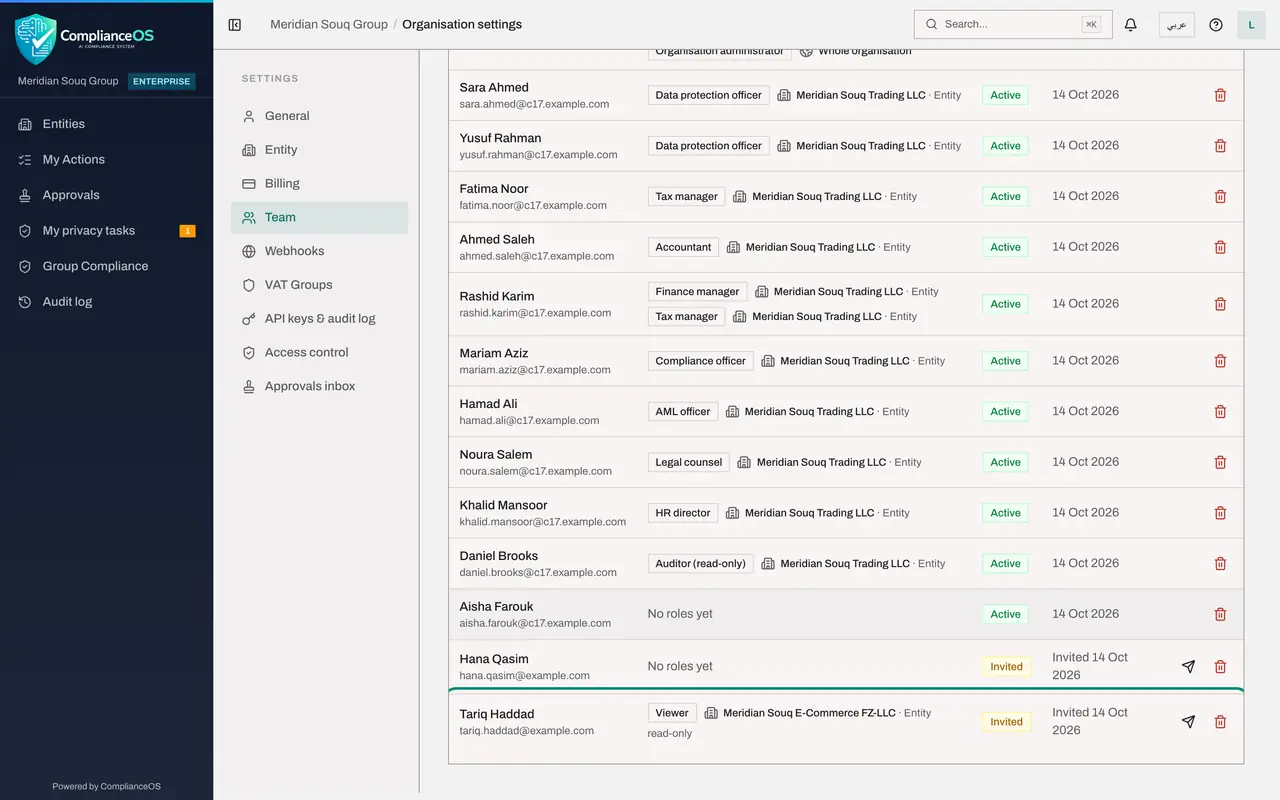
Open the account menu, choose Organisation settings, then select Team. Team Members lists everyone in the organisation with the roles they hold and where. The list is for reading; roles are changed in Access control.
- Select Team
- 2
Invite the regional compliance manager with no role yet
Select Invite Member. Type her work e-mail address and her full name. Leave First role on No role yet: her roles are granted separately, in a moment. Select Send invitation. On a live system she receives a link to join; on this system no e-mail is sent.
- Select Invite Member
- Type Email address *:
hana.qasim@example.com - Type Name (optional):
Hana Qasim - Select Send invitation
- 3
Invite the contractor and choose a first role
Select Invite Member again and enter the contractor's address and name. This time open First role and choose Viewer, a built-in role that can read and export.
- Select Invite Member
- Type Email address *:
tariq.haddad@example.com - Type Name (optional):
Tariq Haddad - Select No role yet
- Type Search roles…:
viewer
- 4
Limit the role to one company, read-only
Two more controls appear. Under Where the role applies, choose Meridian Souq E-Commerce in place of the whole organisation. Switch on Read-only. Then select Send invitation. His row shows Viewer, the company, and the words read-only.
- Select Whole organisation
- Type Search units and entities…:
E-Commerce - Choose Meridian Souq E-Commerce FZ-LLCUAE Online
- Select Send invitation
- 5
Open Access control and select the regional manager
Select Access control, then the People and assignments tab. Search for Hana and select her. She was invited without a role, so her card shows no role assignments.
- Type Search people…:
Hana
- Type Search people…:
- 6
Grant Compliance officer on the region
Select Grant a role. In Role choose Compliance officer. In Where choose UAE Online, so the role covers the region and the company in it, and nothing else. Type a reason and select Grant. This role is not privileged, so it takes effect at once.
- Select Grant a role
- Select Choose a role
- Type Search…:
compliance - Select Whole organisation
- Type Search units and entities…:
UAE - Choose UAE OnlineUAE-ONLINE · Region
- Type Reason:
Compliance lead for the online region from October 2026 - Select Grant
- 7
Request Org unit administrator on the region
Select Grant a role again. In Role choose Org unit administrator, which lets its holder give roles to people inside the unit. In Where choose UAE Online. Type the reason and select Grant.
- Select Grant a role
- Select Choose a role
- Type Search…:
unit admin - Select Whole organisation
- Type Search units and entities…:
UAE - Choose UAE OnlineUAE-ONLINE · Region
- Type Reason:
Manages access for her own regional team - Select Grant
- 8
Read the message: Sent for approval
The message reads Sent for approval: the role is granted once approved. Org unit administrator is a privileged role, and this organisation requires a second administrator for those. Select View request to see it under My requests in Approvals, with the status Pending. You cannot approve it yourself. The second administrator does that next.
- Select View request
How to check it worked
Team lists both people as Invited; Tariq Haddad holds Viewer, read-only, on Meridian Souq E-Commerce; and Hana Qasim's Org unit administrator role shows as sent for approval.
Common mistakes
- Granting a role on the whole organisation when one unit or one company is enough. Grant at the narrowest place that does the job.
- Expecting a privileged role to work at once. Roles that let someone manage access wait for a second administrator.
- Inviting with a mistyped address. The bin on the person's row removes the invitation; then invite again.
Check your understanding
1. You grant Org unit administrator and the message says Sent for approval. Why?
- A.The system is slow
- B.The role is privileged, and this organisation's policy requires a second administrator to approve such grants
- C.The person has not accepted the invitation
Show answer
Answer: B. The role is privileged, and this organisation's policy requires a second administrator to approve such grants
The approval policy for Grant a role applies when the role is privileged. You cannot approve your own request.
2. What does Read-only do to a role?
- A.Nothing
- B.It keeps only the role's view and export permissions
- C.It hides the person from Team
Show answer
Answer: B. It keeps only the role's view and export permissions
The same role can be granted in full or read-only; read-only strips create, edit, delete and approve.