Lesson 34 of 63
Journey D, part 1: The Data Protection Officer logs a personal data breach
What you will be able to do
Journey D follows something nobody plans: a personal data incident. The fulfilment supplier from Journey A has phoned, as its contract requires, to say that a courier's handheld device with the day's delivery list has been lost. In this part the Data Protection Officer logs the breach. Logging it starts the clock for telling the regulator, and it is the record that every later step, in this module and in others, hangs from.
Before you start
- You are signed in as a Data Protection Officer.
- You know what happened, when it was detected, roughly how many people are affected and what data was involved.
Steps
- 1
Open the Breach Log
In Data Protection, select Breach Log. A personal data breach is any loss, leak or unauthorised access involving personal data. The tiles count this year's breaches: the total, those still open, those reported to the regulator, and reports that are overdue. All are zero.
- 2
Select Log Breach and describe the incident
Select Log Breach. In Title, type a short name colleagues will recognise. In Description, say in plain words what was lost or exposed, where and how.
- Select Log Breach
- Type Title *:
Delivery handheld lost at Najm Al Sahra - Type Description *:
A courier working for our fulfilment supplier, Najm Al Sahra Fulfilmen…
- 3
Set when it was detected and when it happened
Detected At starts on the current date and time. Change it to the moment the breach was actually detected, here three hours ago; a future time is refused. Breach Date is optional and records the day it happened.
- Type Detected At:
2026-10-14T08:26 - Type Breach Date (optional):
2026-10-14
- Type Detected At:
- 4
Choose the severity
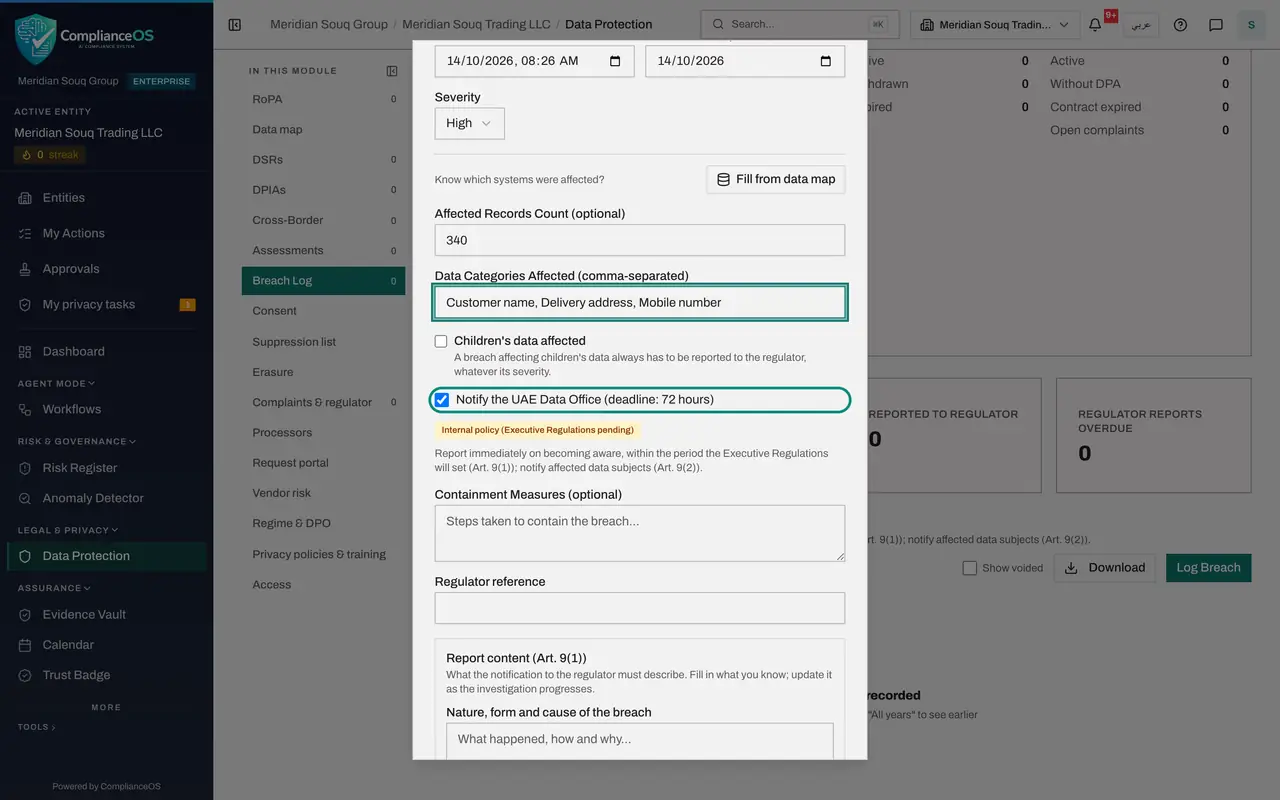
In Severity choose Low, Medium, High or Critical, judged by the harm people could suffer. Addresses and mobile numbers of several hundred customers make this one High.
- Select Medium
- Choose High
- 5
Enter how many records and which data are affected
In Affected Records Count, enter your best estimate, 340. In Data Categories Affected, list the kinds of personal data, separated by commas. Both can be corrected later. Fill from data map can enter them for you once your systems are on the data map.
- Type Affected Records Count (optional):
340 - Type Data Categories Affected (comma-separated):
Customer name, Delivery address, Mobile number
- Type Affected Records Count (optional):
- 6
Confirm that the regulator must be notified
The next box is already ticked. It names the regulator for your company and the deadline, in hours, that applies. Leave it ticked. The box above it, Children's data affected, stays clear; ticking that one makes reporting compulsory.
- 7
Record what has been done to contain it
In Containment Measures, write the steps already taken to stop the harm. Regulator reference stays empty; it is for the number the regulator gives you once you have reported.
- Type Containment Measures (optional):
Device locked and wiped remotely by the supplier within one hour. Cour…
- Type Containment Measures (optional):
- 8
Describe the cause and the likely effects
The box titled Report content holds what the notice to the regulator must describe. Say what happened and why, and what could happen to the people affected.
- Type Nature, form and cause of the breach:
Handheld left unattended in a delivery vehicle and lost. The device wa… - Type Likely effects:
Customers could receive unwanted calls or messages. No payment data or…
- Type Nature, form and cause of the breach:
- 9
Describe the measures and corrective actions
Under Measures taken or proposed, say how you are limiting the effects. Under Corrective actions, say what will change so it does not happen again.
- Type Measures taken or proposed:
Affected customers to be told and advised to be alert to unexpected ca… - Type Corrective actions:
Supplier to set handhelds to lock after two minutes. Supplier to be re…
- Type Measures taken or proposed:
- 10
Select Log Breach to save
Select Log Breach at the bottom of the form. The breach joins the log with the status Detected. The Regulator report due column shows the hours left and, under it, the date and time of the deadline.
- Select Log Breach
- 11
Check the tiles
Total Breaches and Open now each show one. Reported to regulator stays at zero until you record that the notice was sent. The next part drafts that notice, and the one for the customers.
How to check it worked
The breach is in the Breach Log with the status Detected, the severity High, and a countdown under Regulator report due.
Common mistakes
- Waiting until the facts are complete before logging. Only the title, the description and the detection time are required; log it within minutes and correct the rest later.
- Leaving Detected At on the time you sat down to type. The deadline is counted from when the breach was actually detected.
- Unticking the regulator box to avoid the deadline. Untick it only if you have decided, and can justify, that the breach does not need reporting.
Check your understanding
1. From which moment is the regulator's deadline counted?
- A.When the breach happened
- B.When it was detected, the time in Detected At
- C.When the notice is approved
Show answer
Answer: B. When it was detected, the time in Detected At
The Regulator report due column counts down from Detected At, which is why that field must hold the true detection time.
2. What else uses the severity you choose?
- A.Nothing
- B.The score of the risk this breach raises in the Risk Register
- C.The supplier's invoice
Show answer
Answer: B. The score of the risk this breach raises in the Risk Register
Part 5 of this journey shows the breach arriving in the Risk Register, scored from its severity.