Lesson 4 of 63
Journey A, part 4: The supplier answers the questionnaire
What you will be able to do
This part is seen from the other side. The supplier's general manager opens the secure link the Data Protection Officer sent, answers the questions, attaches the security certificate and submits. Nobody at the supplier needs a ComplianceOS account. Watch it once so you can tell a supplier what to expect.
Before you start
- Part 3 is done: the questionnaire was sent and the secure link was passed to the supplier.
- The supplier's contact has the link and their current security certificate as a PDF.
Steps
- 1
Open the secure link
The supplier's contact opens the link. No sign-in is asked for. The page shows who is asking, that it is for Najm Al Sahra Fulfilment LLC, the due date and the message the Data Protection Officer wrote. The language can be switched to Arabic at the top right.
- 2
Enter your name and e-mail address
The contact enters their own name and e-mail address. These are recorded against the answers and are required before submitting.
- Type Your name:
Reem Haddadin - Type Your email (optional):
reem.haddadin@najmalsahra.example.com
- Type Your name:
- 3
Answer the questions about the organisation
Questions marked with a red star are required. Some answers open a follow-up question: answering Yes to having a data protection officer asks for that person's contact details.
- Type Legal name of your organisation*:
Najm Al Sahra Fulfilment LLC - Type Country where your organisation is incorporated*:
United Arab Emirates - Select Yes
- Type Name and contact details of that person*:
Tariq Mahmoud, Compliance Lead, privacy@najmalsahra.example.com
- Type Legal name of your organisation*:
- 4
Answer how the data is processed
The supplier confirms that it uses your data only on your instructions, under a signed agreement, and only for the agreed purpose. It then chooses what happens to the data when the service ends.
- Select Yes
- Select Yes
- Select Yes
- Select Deleted or returned, with written confirmation
- 5
Describe the security measures
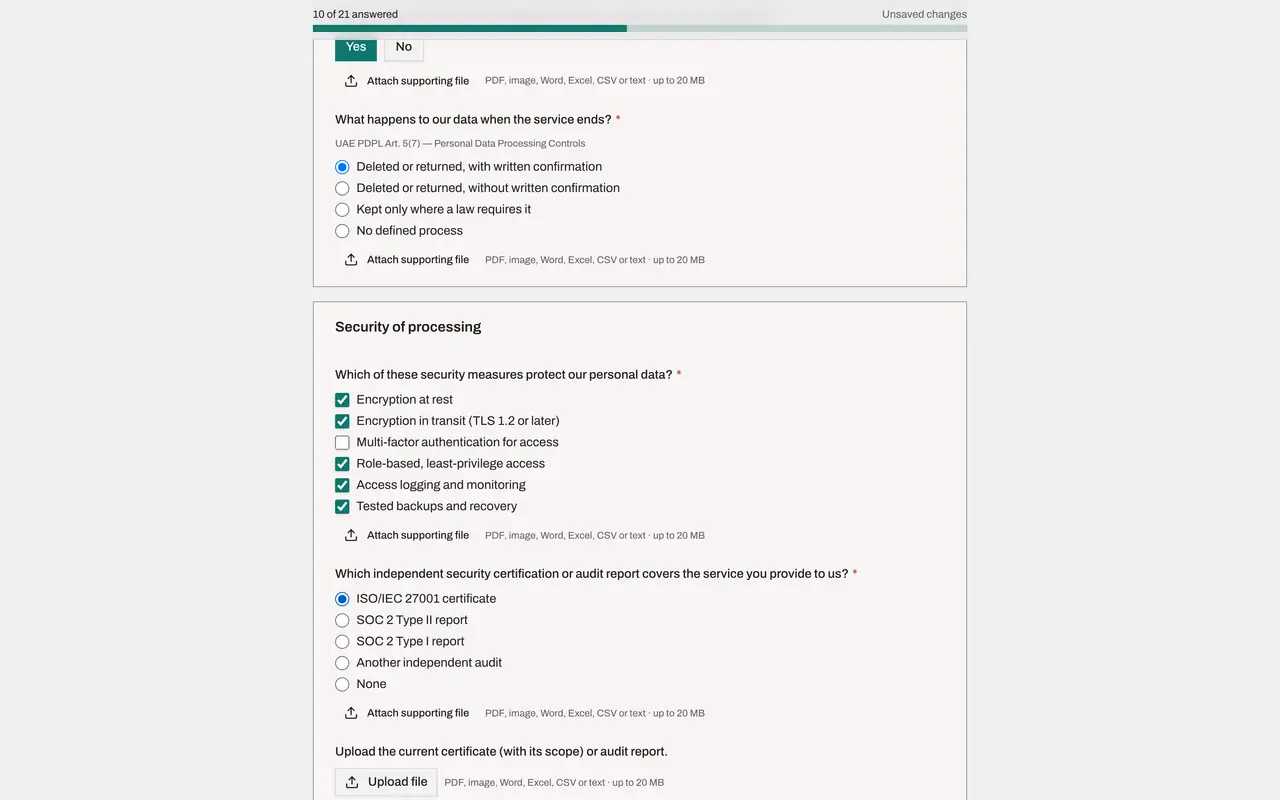
The supplier ticks each security measure it has in place, then chooses the certificate or audit report that covers the service. Here that is an ISO 27001 certificate, the international standard for information security.
- Select Encryption at rest
- Select Encryption in transit (TLS 1.2 or later)
- Select Role-based, least-privilege access
- Select Access logging and monitoring
- Select Tested backups and recovery
- Select ISO/IEC 27001 certificate
- 6
Upload the certificate as evidence
Choosing a certificate opens two follow-up questions. The supplier selects Upload file and picks the certificate, here najm-al-sahra-iso27001-certificate.pdf, then enters its expiry date, 31 December 2026. The file name appears under the question once it is uploaded.
- Select Upload file
- Upload Choose a file:
najm-al-sahra-iso27001-certificate.pdf - Type When does the certificate expire (or when does the report period end)?:
2026-12-31 - Select Yes
- 7
Answer the breach, sub-processor and rights questions
The supplier finishes the remaining sections. It will report a breach within 24 hours, as the contract requires. It has had no breach in the last two years, uses no other companies to process the data, keeps the data inside the UAE, and will help with requests from individuals and with audits.
- Select Yes
- Type Within how many hours of becoming aware will you notify us?*:
24 - Select No
- Select No
- Select No
- Select Yes
- Select Yes
- Select Yes
- 8
Check that everything is answered and saved
The bar that stays at the top of the page counts the answered questions and shows when the answers were last saved. Nothing is lost if the supplier closes the page and comes back later.
- 9
Tick the confirmation
At the bottom of the page the supplier ticks the confirmation that the answers are accurate. Submit answers then becomes available. Until every required question is answered, the page says how many are missing.
- 10
Select Submit answers
The supplier selects Submit answers. The page confirms who submitted and when. The answers are now locked, and the questionnaire is back with the Data Protection Officer, who reviews it in the next part.
- Select Submit answers
How to check it worked
The page says Thank you, your answers have been submitted, with the name of the person who submitted and the time. The answers are locked and the questionnaire is back with the Data Protection Officer.
Common mistakes
- Selecting an answer a second time. Selecting the chosen Yes or No again clears it, and a cleared required answer blocks submission.
- Attaching an expired certificate. The reviewer checks the expiry date against the file.
- Forgetting to tick the confirmation at the bottom. Submit answers stays unavailable until it is ticked and every required question is answered.
Check your understanding
1. What does the supplier need in order to answer?
- A.A ComplianceOS account
- B.Only the secure link
- C.A code sent by text message
Show answer
Answer: B. Only the secure link
The link itself is the key. That is why it must be passed on carefully.
2. The supplier closes the page halfway through. What happens to the answers?
- A.They are lost
- B.They are submitted as they are
- C.They are saved and waiting when the link is opened again
Show answer
Answer: C. They are saved and waiting when the link is opened again
Answers save automatically; the bar at the top shows when they were last saved.