Lesson 42 of 63
Journey D, part 9: A second officer approves and carries out the erasure
What you will be able to do
The erasure plan is waiting for a second person. In this part the second Data Protection Officer approves it, executes it by typing the plan's reference, reads the letter that tells the customer what was erased and what was kept and why, closes the request, and finds the customer on the suppression list, which stops her data being collected again.
Before you start
- Part 8 is done: the erasure plan is Awaiting approval.
- You are signed in as the second Data Protection Officer, who did not prepare the plan.
Steps
- 1
Select Approvals
Select Approvals in the left menu. Under To decide there is a card: Approve an automated erasure plan, with the plan's reference and when it was submitted. It shows the rows to erase and the number of systems, from the dry-run, and says Strict maker and checker.
- Select Approvals1
- 2
Select Open record, then View on the request
Select Open record on that card. Data Protection opens on the DSRs list. Select View on the erasure request and scroll to Automated erasure. Because you did not prepare the plan, you have two buttons your colleague does not: Approve and Reject.
- Select Open record
- Select View: Latifa Al Mazrouei
- 3
Check the plan, then select Approve
Compare the search result with the plan's figures. When they agree, select Approve, and add a short note of what you checked.
- Select Approve
- Type Comment (optional):
Checked against the search result. No legal hold applies to this custo…
- 4
Confirm the approval
Select Approve in the box. A message confirms Plan approved, the Approval stage is ticked, and a new button appears: Execute erasure.
- Select Approve
- 5
Select Execute erasure and type the reference
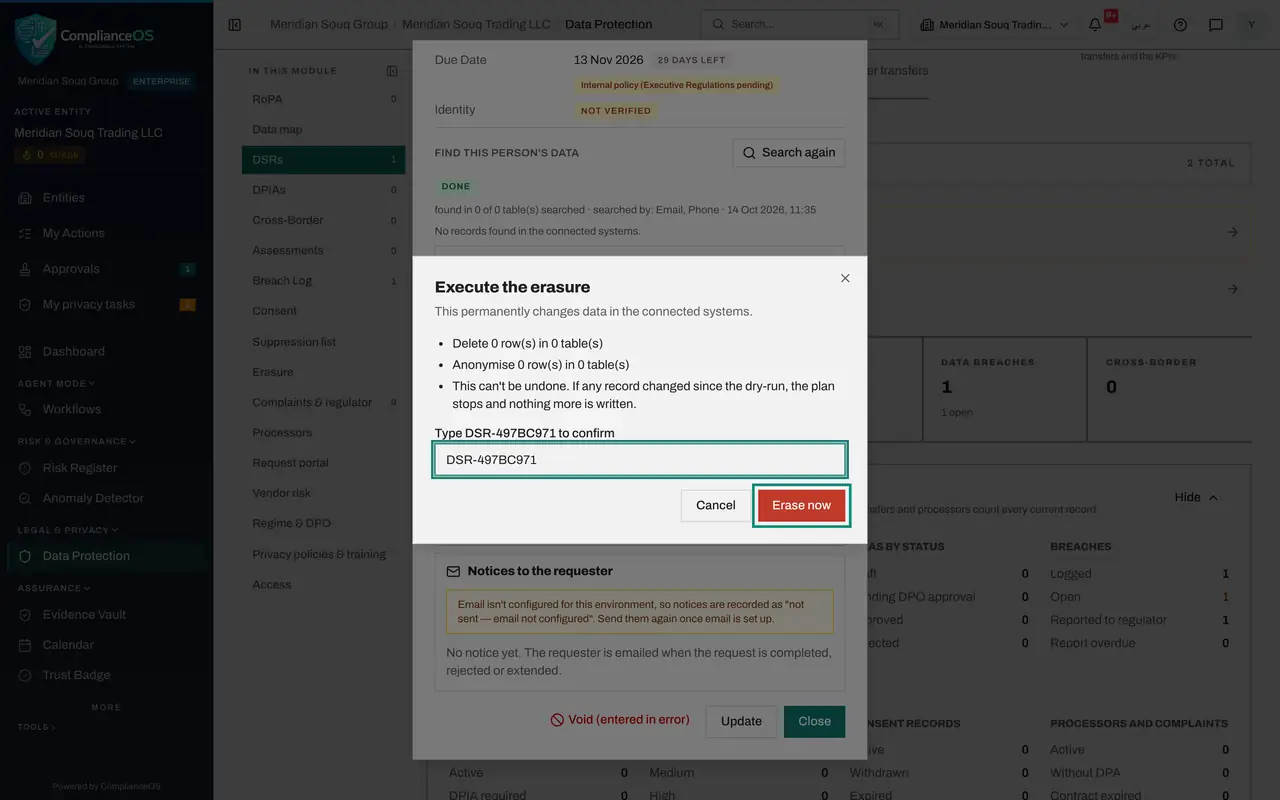
Select Execute erasure. The box is the last safeguard: it states what will be deleted and anonymised and warns that this cannot be undone. Erase now stays greyed out until you type the plan's reference exactly as shown. Type it.
- Select Execute erasure…
- Type Type DSR-497BC971 to confirm:
DSR-497BC971
- 6
Select Erase now
Select Erase now. The erasure runs in the background and then searches again to verify the result. When it has finished, the plan shows Completed. Rows changed is zero here, because no connected system held her records; with a connected system, this is the moment the planned rows are deleted or anonymised.
- Select Erase now
- 7
Select Requester confirmation
Select Requester confirmation. A letter opens that you can send to the customer. It quotes the request, and lists what was erased, what was anonymised and what was kept, with the legal basis for anything kept. It also tells her she was added to your suppression list. It is prepared in English and Arabic; Copy and Download let you send it yourself.
- Select Requester confirmation
- 8
Close the letter and select Update
Close the letter and select Update at the bottom of the record. The window to update the request opens, with Status and Response notes.
- Select Close
- Select Update
- 9
Complete the request with your own note
In Status choose Completed. Add a line to the notes saying what was removed by hand and when the letter was sent. Then select Save Changes. The request shows Completed.
- Select In progress
- Choose Completed
- Type Response notes:
[2026-10-14] Automated erasure plan cfb719f5 completed: 0 table(s) del… - Select Save Changes
- 10
Open the Suppression list
Select Suppression list in the module's list. The erasure added two entries: her e-mail address and the phone number that was searched. Each has the source Erased. From now on, a breach notice, a marketing list or an import that includes either one will skip her.
- Select Suppression list
How to check it worked
The plan shows Completed, the request shows Completed, and the Suppression list holds the customer's e-mail address and phone number with the source Erased.
Common mistakes
- Approving without comparing the plan with the search. The approval is your statement that the right person's records, and only hers, will be removed.
- Typing the reference from memory. Erase now stays greyed out until the reference matches exactly; read it from the window.
- Removing the suppression entry later to tidy up. It is what stops the erased person's data being imported or collected again.
Check your understanding
1. What does the confirmation letter to the requester tell her?
- A.Only that the request is closed
- B.What was erased, what was anonymised, and what was kept, with the legal basis for anything kept
- C.Her new password
Show answer
Answer: B. What was erased, what was anonymised, and what was kept, with the legal basis for anything kept
Some records must be kept by law, such as tax invoices. The letter says which and why, in English and Arabic.
2. Why is the erased customer added to the suppression list?
- A.To send her marketing
- B.So that her data is not collected or imported again
- C.To keep a copy of her data
Show answer
Answer: B. So that her data is not collected or imported again
The entry holds only the identifier and the reason. It blocks future processing for that identifier.