Lesson 50 of 63
Journey E, part 6: The compliance officer validates the answers and raises a finding
What you will be able to do
Three people have answered. In this part the compliance officer reads each answer with its proof and the automatic check's opinion, adds what the platform itself already knows, accepts the answers that stand, and records one weakness as a finding with an owner and a date. Accepting an answer seals its proof in the Evidence Vault.
Before you start
- Parts 3 to 5 are done: HR, finance and privacy have answered their requests.
- You are signed in as the compliance officer.
Steps
- 1
Read the Validate step
Open the audit from the Audit Hub. It resumes on Validate. The tiles show how many requests have a response, how many the automatic check validated, how many need more, and the average score. The buttons under them filter the list by status.
- 2
Select Auto-answer from platform data
Select Auto-answer from platform data. ComplianceOS looks at each request and, where its own records are relevant, attaches a fact from them. A message says how many requests it could add to. This is where the audit draws on the work of the earlier journeys.
- Select Auto-answer from platform data
- 3
Open the payroll request
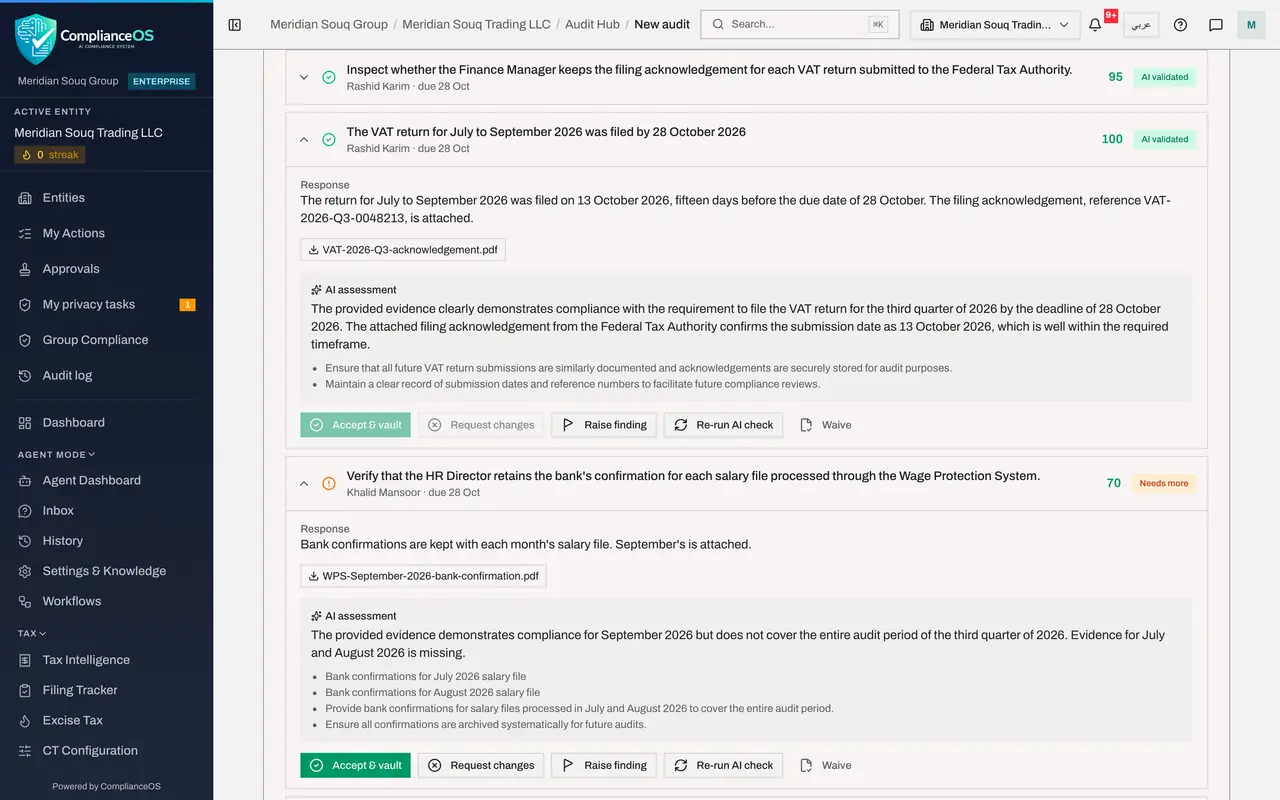
Select the request about the September salaries; if it does not open, select it again. It shows the HR director's answer, the file he uploaded, and the AI assessment: a score and a sentence on what the check found.
- 4
Read the buttons on a request
Under the answer are the decisions. Accept and vault accepts the answer. Request changes sends it back to the assignee with your reason. Raise finding records a weakness linked to this control. Re-run AI check repeats the automatic check, and Waive sets the request aside as not applicable.
- 5
Select Accept and vault
The bank's confirmation shows the salaries credited on 8 October, before the deadline. Select Accept and vault. The request's status changes to Accepted and its proof is sealed in the Evidence Vault.
- Select Accept & vault
- 6
Accept the VAT answer
Open the request about the VAT return in the same way. The finance manager attached the filing acknowledgement, dated before the due date. Select Accept and vault.
- Select Accept & vault
- 7
Accept the breach answer
Open the request about the breach. The Data Protection Officer attached a scan of the regulator's receipt as an image; the check read the image as it reads a PDF. Select Accept and vault.
- Select Accept & vault
- 8
Select View readiness score
The remaining requests are accepted in the same way when you have read them. Now select View readiness score at the bottom. The audit moves to its last step, Readiness. The score is the share of the audit that is evidenced and accepted, weighted by risk level. Recompute refreshes it.
- Select View readiness score
- Select Recompute
- 9
Select Raise finding
One weakness came out of the answers: the bank confirmations are kept in one person's e-mail. Under Findings and corrective actions, select Raise finding. A finding is anything an auditor would write up. Type a short title.
- Select Raise finding
- Type Finding title — e.g. No access reviews performed in Q2:
Bank confirmations are kept in e-mail, not in a shared file
- 10
Set the severity, the owner and the fix-by date
Choose the severity, here medium. In Owner choose the person who will fix it. Anyone with access to the company can own a finding; choose Khalid Mansoor, the HR director. Set the fix-by date.
- Select Owner
- Choose Khalid Mansoor
- 11
Select Raise
Select Raise. The finding is listed with its severity, its owner, its fix-by date and the status Open. Below it, the Evidence pack counts the records sealed so far: the frozen policy documents and the accepted proofs. The HR director will find it in his own list. Next, the external auditor is invited to see exactly this audit and nothing else.
- Select Raise
How to check it worked
The three checklist requests show Accepted, the readiness score has risen, and the finding is listed under Findings and corrective actions with its owner and fix-by date.
Common mistakes
- Accepting on the score alone. The automatic check is an opinion; open the file and read the answer before you accept.
- Expecting one click on a request to open it. On this screen the first click may do nothing; select the request again.
- Owning every finding yourself. Give it to the person who can fix it; they do not need access to the Audit Hub, because it reaches them in My audit requests and My Actions.
Check your understanding
1. What does Accept and vault do?
- A.It deletes the request
- B.It accepts the answer and seals its proof in the Evidence Vault
- C.It sends the answer to the regulator
Show answer
Answer: B. It accepts the answer and seals its proof in the Evidence Vault
The accepted proof joins the audit's evidence pack, sealed with a fingerprint so that it cannot be changed quietly.
2. What is Auto-answer from platform data for?
- A.It writes the assignees' answers for them
- B.It attaches facts ComplianceOS already holds, such as transactions and their evidence status, to requests they are relevant to
- C.It closes the audit
Show answer
Answer: B. It attaches facts ComplianceOS already holds, such as transactions and their evidence status, to requests they are relevant to
The fact appears on the request under From platform data. It supports the answer; it does not replace the person's proof.