Lesson 35 of 63
Journey D, part 2: The Data Protection Officer drafts the notices, in English and Arabic
What you will be able to do
A breach can need two notices: one to the regulator and one to the people affected. In this part the Data Protection Officer drafts both from the breach record, completes the regulator's notice, replaces the Arabic half of the customer notice with a proper translation, reads the check that finds any Arabic text still in English, and submits both for approval.
Before you start
- Part 1 is done: the breach is logged.
- You have the Arabic translation of the customer notice ready.
Steps
- 1
Open the breach's notifications page
In the Breach Log, select View on the breach, then Open notifications. The notices have a page of their own, with the regulator's notice on the left and the notice to affected data subjects, the people the data is about, on the right. Both say Not drafted yet. The grey box names your regulator and the law that requires the report.
- 2
Draft the regulator's notice
Under Notification to the regulator, select Draft from the breach record. The notice is built from what you logged and is marked Draft. Each section has its heading in English and Arabic.
- Select Draft from the breach record
- 3
Select Edit and complete the contact section
Select Edit under the text. Every section opens in its own box. The draft says no data protection officer is recorded for the company, so replace that line with the name and contact details of the person the regulator should speak to. Then select Save.
- Select Edit
- Type Data protection officer / مسؤول حماية البيانات:
Sara Ahmed, Data Protection Officer, privacy@meridiansouq.example.com - Select Save
- 4
Submit the regulator's notice for approval
Select Submit for approval under the regulator's notice. It changes to Awaiting approval. A note says that someone else has to approve it, because you prepared it. Withdraw takes it back if you need to change something.
- Select Submit for approval
- 5
Draft the notice to the people affected
Under Notice to affected data subjects, select Draft from the breach record. The notice appears in English and, underneath, in Arabic. It says what happened, what information was involved, what you are doing and what the reader can do.
- Select Draft from the breach record
- 6
Read the Arabic check
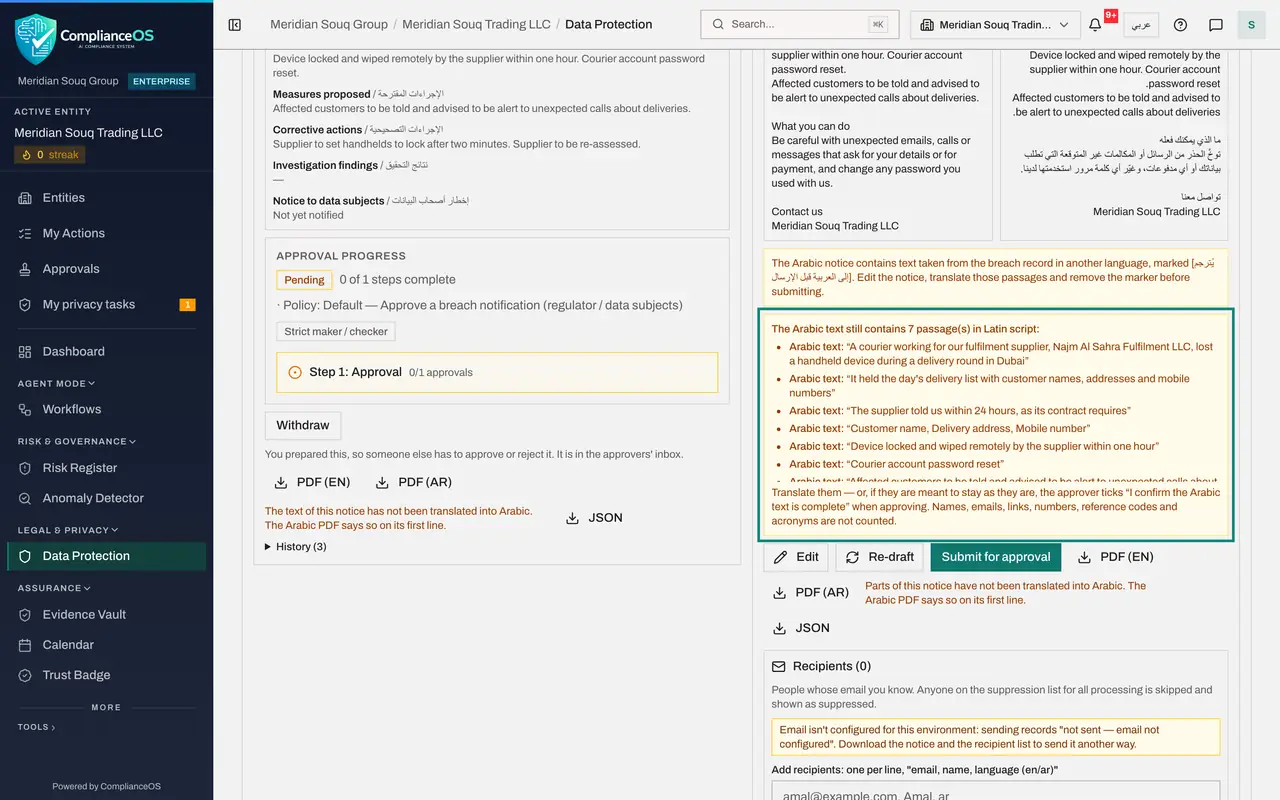
The facts were copied from the breach record, which is in English, so the Arabic half still contains English sentences. The check under the text lists every passage of the Arabic that is in Latin script. Each must be translated, or confirmed as intended by the approver.
- 7
Select Edit and add a contact address in English
Select Edit under the customer notice. The window has four boxes: the subject and the message, each in English and Arabic. At the end of the English message, under Contact us, add the address customers should write to.
- Select Edit
- Type Message (English) *:
Dear {name}, We are writing to tell you about an incident at Meridian…
- 8
Replace the Arabic message with the translation
In Message, Arabic, replace the text with the full translation. Here one line is left in English on purpose: the three data categories, because that is how they are labelled on the customer's account page.
- Type Message (Arabic) *:
عزيزي/عزيزتي {name}، نكتب إليك لإبلاغك بحادثة وقعت لدى ميريديان سوق لل…
- Type Message (Arabic) *:
- 9
Select Save and read the check again
Select Save. The preview shows the translated notice, and the check now lists one passage in Latin script: the line you kept in English. The approver will have to confirm that this is intended.
- Select Save
- 10
Add the recipients
Under Recipients, list the people whose e-mail address you know: one per line, as e-mail address, name and language, where the language is en or ar. Then select Add. Each is listed as Not sent yet. Anyone on your suppression list is skipped.
- Type Add recipients: one per line, "email, name, language (en/ar)":
huda.salim@mailbox.example.com, Huda Salim, ar omar.nasser@example.com… - Select Add
- Type Add recipients: one per line, "email, name, language (en/ar)":
- 11
Submit the customer notice for approval
Select Submit for approval under the customer notice. Both notices are now Awaiting approval and sit in the approver's inbox. That is the next part.
- Select Submit for approval
How to check it worked
Both notices show Awaiting approval, and a note on each says that someone else has to approve it because you prepared it.
Common mistakes
- Sending an Arabic notice that still holds English sentences. The check lists each passage in Latin script; translate them or be ready to justify them.
- Selecting Re-draft after editing. Re-draft replaces the whole text from the breach record and removes your edits.
- Expecting ComplianceOS to file the notice with the regulator. It prepares and records the notice; delivering it is your step.
Check your understanding
1. What does the Arabic check do?
- A.It translates the notice
- B.It lists passages of the Arabic text that are still in Latin script, for a person to translate or confirm
- C.It blocks all English words
Show answer
Answer: B. It lists passages of the Arabic text that are still in Latin script, for a person to translate or confirm
The approver must confirm that the Arabic text is complete before the notice can be marked as sent.
2. Who can approve the notices you drafted?
- A.You
- B.A second person
- C.The supplier
Show answer
Answer: B. A second person
After Submit for approval, each notice says that you prepared it, so someone else has to approve it.