Lesson 38 of 63
Journey D, part 5: The compliance officer finds the breach in the Risk Register and assigns the treatment
What you will be able to do
A breach is also a risk to the business, and the Risk Register is where all risks are weighed together. In this part the compliance officer brings the register up to date from the other modules, finds the breach there, already scored from its severity, and takes ownership of it with a treatment plan and a due date. It then appears in her own My Actions until the treatment is done.
Before you start
- Parts 1 to 4 are done: the breach is logged and reported.
- You are signed in as the compliance officer.
Steps
- 1
Open the Risk Register
In the left menu, under Risk and Governance, select Risk Register. It is the central list of risks from every module. Sync Modules, at the top right, looks through the company's other modules and adds what they have found as risks.
- 2
Select Sync Modules
Select Sync Modules. After a few seconds a message reports how many risks were new, how many were updated and how many were closed.
- Select Sync Modules
- 3
Make room and find the breach
Select Hide above the right-hand panel, and the small collapse icon beside In this module, so the list has the full width. The breach is in the list. Its title starts Data breach, High, followed by the description the Data Protection Officer wrote. Source says Data Breach. The same sync brought in a second risk, with the source Contract Check: a clause the contract analysis flagged in Journey A. It is legal's to treat.
- Select Collapse section list
- 4
Read the score
Score shows 4 by 4, which is 16, and Level shows Critical. A breach logged as High arrives as likelihood 4, Likely, and impact 4, Major. Owner, Residual and Due are empty: nobody owns the risk yet. The heat map above the list now has one risk in that square.
- 5
Select the pencil to edit the risk
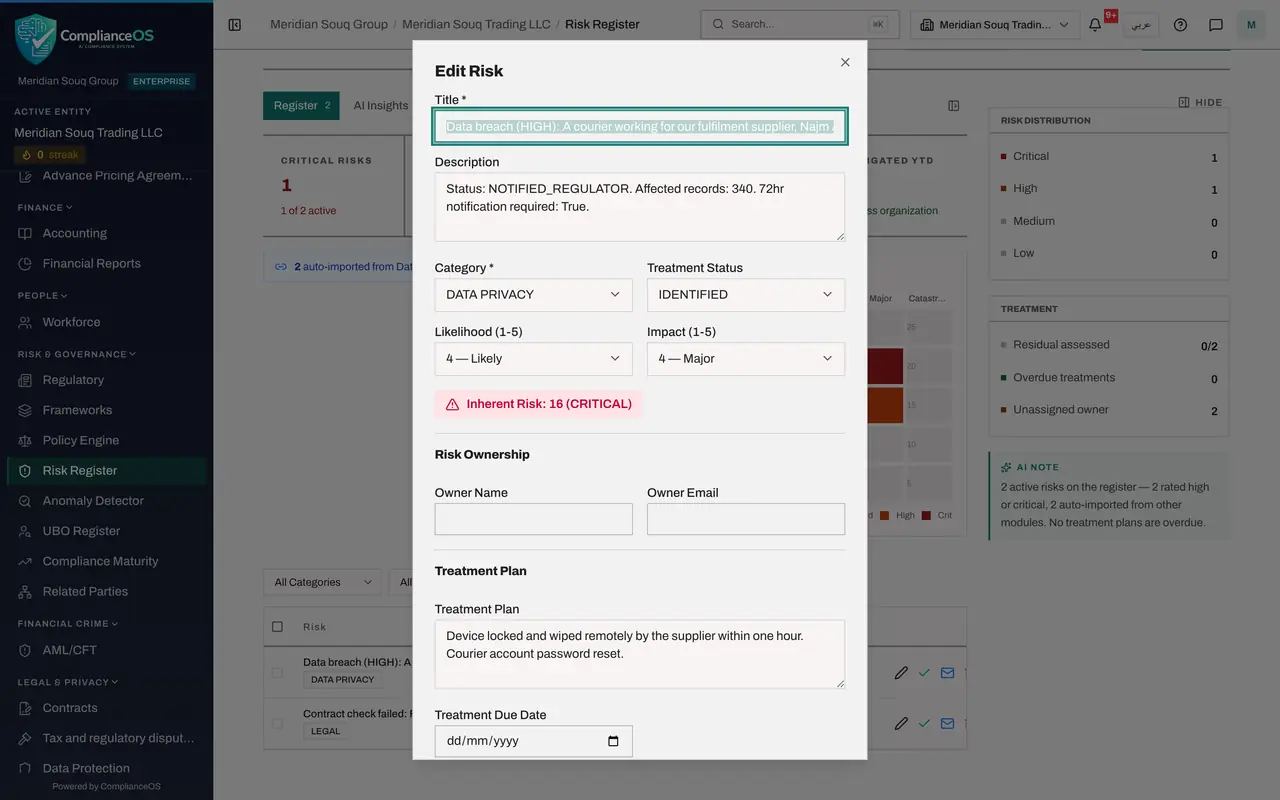
At the end of the row, select the pencil, Edit. The form opens with the title, description, category and scores filled in from the breach.
- Select Edit
- 6
Set the treatment status and the owner
In Treatment Status choose Mitigating, which means work is under way. Under Risk Ownership, type the owner's name and sign-in e-mail address. The owner must be someone whose role includes the Risk Register, or the task will never reach them. Here the compliance officer owns it herself.
- Choose Treatment Status:
MITIGATING - Type Owner Name:
Mariam Aziz - Type Owner Email:
mariam.aziz@c17.example.com
- Choose Treatment Status:
- 7
Write the treatment plan and the due date
In Treatment Plan, say what will be done to reduce the risk. In Treatment Due Date, set the date by which it must be done.
- Type Describe how this risk will be mitigated...:
Data Protection Officer to re-assess the fulfilment supplier. Supplier… - Type Treatment Due Date:
2026-11-13
- Type Describe how this risk will be mitigated...:
- 8
Select Update Risk
Select Update Risk. The row now shows the owner, the status Mitigating and the due date.
- Select Update Risk
- 9
Find the treatment in My Actions
Select My Actions in the left menu. The risk is listed under Assigned to me with the type Risk Treatment, from the Risk Register, with its priority and due date. It stays here until the risk is closed. The plan's first action belongs to the Data Protection Officer; these two are not linked by the system, so tell her. The next part shows her doing it.
- Select My Actions
How to check it worked
The Risk Register lists the data breach with the source Data Breach, a score of 4 by 4, an owner, the status Mitigating and a due date.
Common mistakes
- Adding the breach to the register by hand. Sync Modules brings it in and keeps it tied to the breach; a hand-made copy would never close by itself.
- Naming an owner who cannot open the Risk Register. My Actions shows a risk treatment only to an owner whose role includes the Risk Register; a Data Protection Officer, for example, would never see it. Choose an owner with that access and type their sign-in e-mail address.
- Leaving an imported risk with no owner. Imported risks arrive unowned, and an unowned risk is nobody's work.
Check your understanding
1. How did the breach get into the Risk Register?
- A.The Data Protection Officer added it
- B.Sync Modules imported it from the Breach Log, scored from its severity
- C.It was e-mailed
Show answer
Answer: B. Sync Modules imported it from the Breach Log, scored from its severity
The same check also runs by itself every night. The Source column shows where each imported risk came from.
2. When will this imported risk close?
- A.When you delete it
- B.By itself, at the next sync after the breach is closed in the Breach Log
- C.Never
Show answer
Answer: B. By itself, at the next sync after the breach is closed in the Breach Log
Imported risks follow their source: when the problem is dealt with where it started, the sync closes the risk.