Lesson 27 of 63
Journey C, part 6: A second Data Protection Officer publishes the policy and sends it to all staff
What you will be able to do
The policy is waiting for approval. In this part the second Data Protection Officer records the legal review, approves the policy, which publishes it, and then launches an attestation campaign: a request to every member of staff to read the policy and confirm that they have. Each person receives it as a task of their own.
Before you start
- Part 5 is done: the policy is Awaiting approval.
- Counsel has reviewed the text.
- You are signed in as the second Data Protection Officer.
Steps
- 1
Open Approvals and find the policy
Select Approvals in the left menu. The request to publish the privacy policy is waiting under To decide.
- Select Approvals1
- 2
Select Open record
Select Open record. The draft opens. Approve is not available yet: a line explains that this policy was started from a template, so the legal review must be recorded first.
- Select Open record
- 3
Select Mark legal review done
Counsel has read the text, so select Mark legal review done. The page records it with your name and the time, and Approve becomes available.
- Select Mark legal review done
- 4
Select Approve and confirm
Select Approve, add a comment for the record, and select Approve in the window. The policy is published as version 1.0.
- Select Approve
- Type Comment (optional):
Reviewed with counsel. Approved for publication. - Select Approve
- 5
Open Attestation campaigns and select New campaign
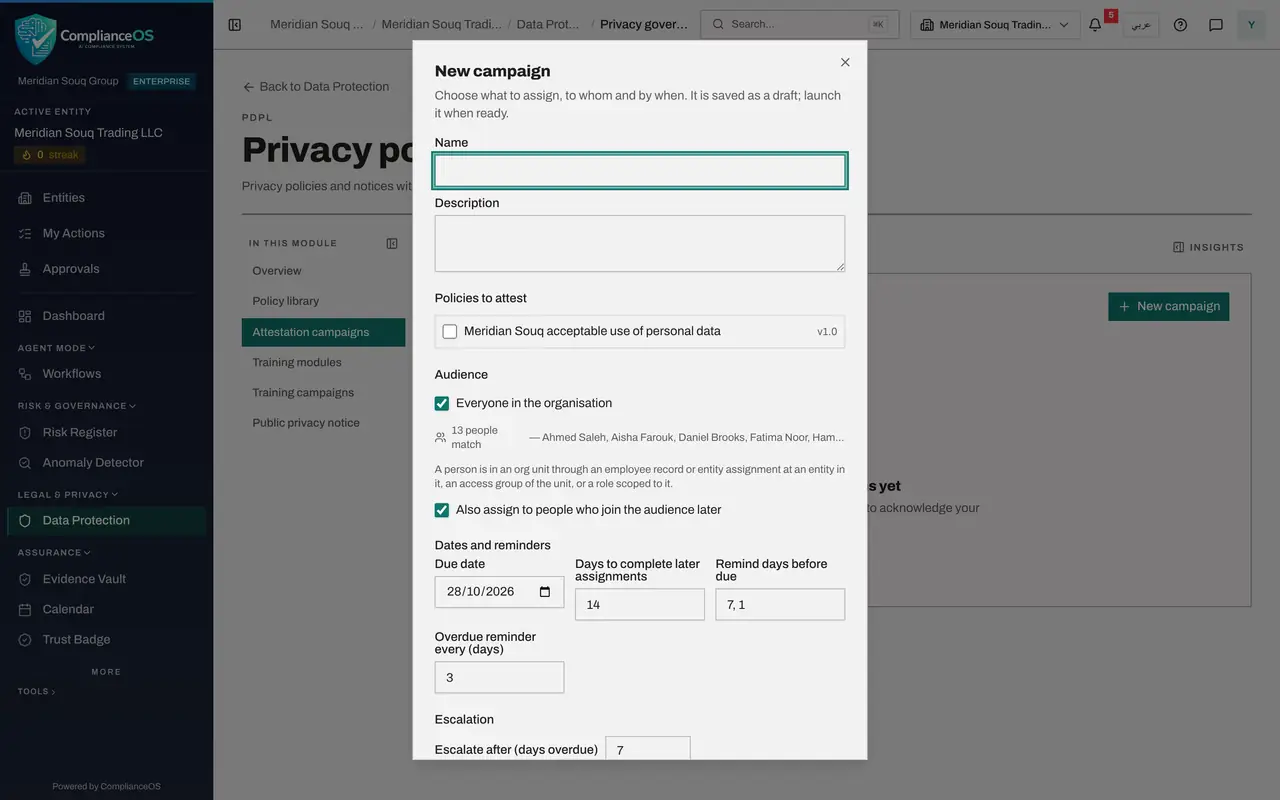
Select Back, then Attestation campaigns. A campaign asks a group of people to read one or more policies and confirm it by a due date. Select New campaign.
- Select Back
- Select Attestation campaigns
- Select New campaign
- 6
Name the campaign and tick the policy
Give the campaign a name and a one-line description, then tick the policy to acknowledge. Only published policies can be chosen.
- Type Name:
Acceptable use policy, October 2026 - Type Description:
All staff read and acknowledge the acceptable use policy.
- Type Name:
- 7
Keep the audience on everyone and set the due date
Leave Everyone in the organisation ticked, and leave Also assign to people who join the audience later switched on, so that the next joiner receives the policy without anyone remembering. Set the due date three weeks ahead. Reminders go out before it.
- Type Due date:
2026-11-04
- Type Due date:
- 8
Select Save draft
Select Save draft. The campaign's own page opens, marked Not launched yet, with its set-up. Nobody has been asked anything so far.
- Select Save draft
- 9
Select Launch
Select Launch. One assignment is created for each person, and the table lists them all with the status of each. Aisha Farouk, an employee, is among them. In the next part she reads and acknowledges the policy.
- Select Launch
How to check it worked
The policy shows Published version 1.0, and the campaign page lists every member of staff, including the employees, as assigned.
Common mistakes
- Recording the legal review before counsel has actually read the text. The tick is a statement on the record, with your name and the time.
- Launching a campaign before the policy is published. Only published policies can be acknowledged.
- Forgetting people who join later. Leave the option that also assigns the policy to new joiners switched on.
Check your understanding
1. What does approving the policy do?
- A.It sends it to staff
- B.It publishes version 1.0; sending it to staff is a separate campaign
- C.It deletes the draft
Show answer
Answer: B. It publishes version 1.0; sending it to staff is a separate campaign
Publishing makes the version official. An attestation campaign is what puts it in front of people with a due date.
2. How does each employee receive the policy?
- A.As a task under My privacy tasks
- B.On paper
- C.They must search the policy library
Show answer
Answer: A. As a task under My privacy tasks
Launching the campaign creates one assignment per person. The next part shows it from an employee's side.