Lesson 11 of 33
The administrator: who may use the assistant
What you will be able to do
This lesson is for the administrator who manages access. Lesson 9 showed an employee without the assistant, and lesson 10 a Data Protection Officer who has it but cannot see tax through it. Both follow from two kinds of permission: AI assistant, Use, which opens the assistant, and each module's own View permission, which decides what it may read for that person. You will find who holds AI assistant, Use on the company, and see the permission inside a built-in role.
Before you start
- You are signed in as an administrator of Meridian Souq Group who may manage access.
Steps
- 1
Open Access control
Select your initials at the top right, choose Organisation settings, and then select Access control in the Settings list on the left.
- Select Account menu
- Select Organisation settings
- Select Access control
- 2
Open the Who can tab
Select the Who can tab. Here you pick a company and a permission, and the page lists everyone who holds that permission there, and through which role.
- Select Who can…
- 3
Choose the company and the permission
Under Entity, choose Meridian Souq Trading LLC. Under Permission, type assistant and choose AI assistant, Use.
- Select Choose an entity
- Type Search…:
Trading - Choose Meridian Souq Trading LLC
- Select Choose a permission
- Type Search permissions…:
assistant - Choose AI assistant · Useassistant:use
- 4
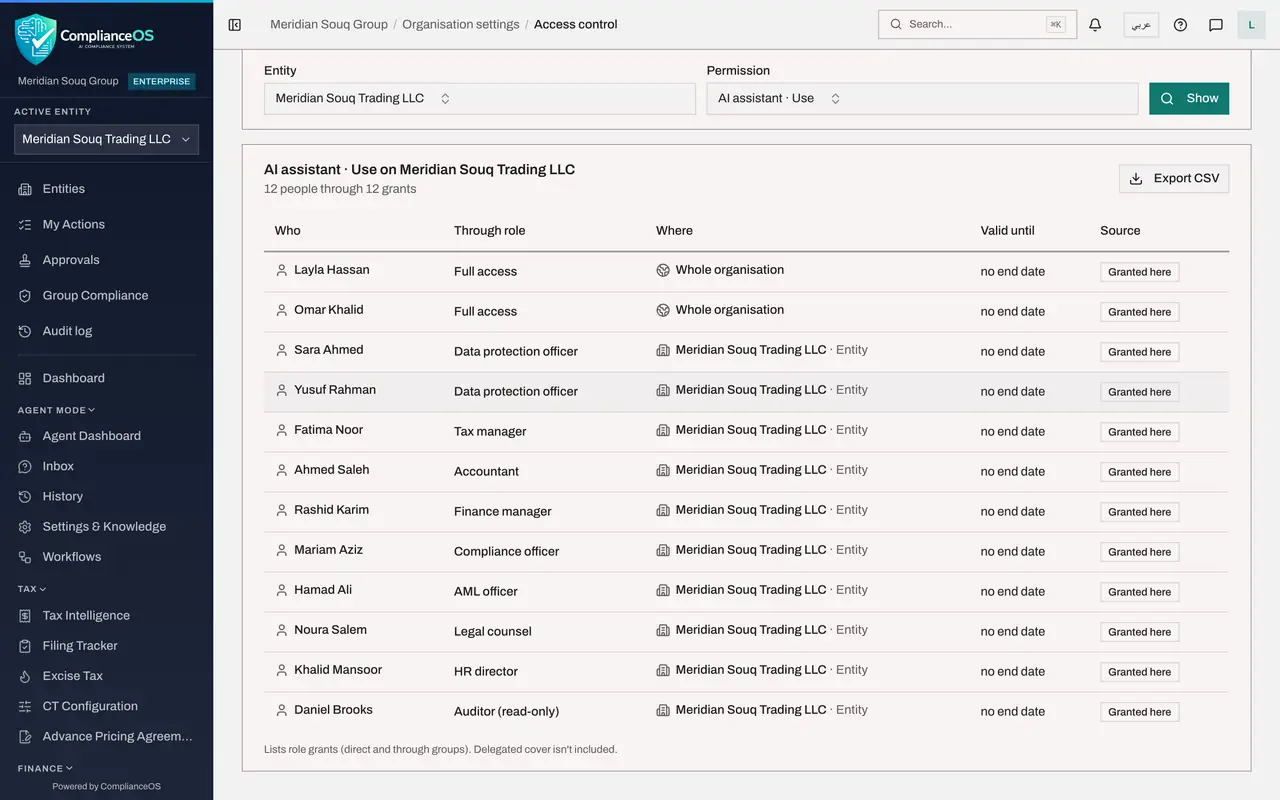
Select Show and read the list
Select Show. The heading reads AI assistant, Use on Meridian Souq Trading LLC, with twelve people through twelve grants. The two administrators hold it through Full access for the whole organisation. Everyone else holds it through their built-in role on this company: Data protection officer, Tax manager, Accountant, Compliance officer, Legal counsel and the others. Aisha Farouk, the employee, is not in the list.
- Select Show
- 5
Open the Roles tab and view the Tax manager template
Select the Roles tab, type tax in Search roles, and select View on the Tax manager row. The window shows the role's permissions as a grid of modules and actions.
- Select Roles
- Type Search roles…:
tax - Select View Tax manager
- 6
Find AI assistant in the grid
The grid has a row called AI assistant with a single action at the end, Use, and it is ticked. The built-in roles include it whenever the role may view at least one module the assistant reads. Templates are read-only; to make a role without the assistant, use Copy to customise and untick Use.
- 7
Close and view the Employee template
Select Close, clear the search, type employee, and select View on the Employee, self-service, row. Its grid holds a single permission: viewing the person's own employee record. AI assistant, Use is not ticked, which is why the employee in lesson 9 had no assistant.
- Select Close
- Type Search roles…:
employee - Select View Employee (self-service)
How to check it worked
Who can lists the people who hold AI assistant, Use on Meridian Souq Trading LLC, with the role each holds it through, and the Tax manager template shows the permission ticked.
Common mistakes
- Granting a broad role so that a colleague can use the assistant. The assistant reads only what the person's other roles allow, so granting it alone gives nothing to read, and granting a broad role gives far more than the assistant.
- Expecting the assistant permission to widen what someone may see. It does not. What the assistant reads for a person is decided by that person's module permissions, module by module.
- Forgetting that every question is logged. When you grant the assistant, the person's questions and the answers appear in the Audit log under their name.
Check your understanding
1. A colleague holds AI assistant, Use but not Tax, View. What happens when she asks about tax transactions?
- A.She gets the answer
- B.The assistant says it cannot show this and names the missing permission and who can grant it
- C.The assistant opens Tax Intelligence
- D.Nothing
Show answer
Answer: B. The assistant says it cannot show this and names the missing permission and who can grant it
The assistant permission opens the conversation. Each module's data is read only with the person's own View permission for that module.
2. Where do you see everyone who may use the assistant on a company?
- A.In the Audit log
- B.In Access control, on the Who can tab, for the permission AI assistant, Use
- C.In Billing
- D.On the AI Assistant page
Show answer
Answer: B. In Access control, on the Who can tab, for the permission AI assistant, Use
Who can lists every person and group holding a permission on an entity, and the role it comes from.