Lesson 16 of 33
Ask first: the agent asks for approval, and a person gives it
What you will be able to do
This lesson is for the tax manager. In lesson 14 you set Classify transactions to Ask first. Now you will tell the agent to classify the transactions, see it stop and raise an approval request instead, find that request in My Actions and in the agent's Inbox, approve it, and then repeat the instruction so that the agent does the work. Finally you will read the AI's suggestions in Tax Intelligence and approve them yourself in the Sign-off cockpit: the agent never approves a classification that only the AI has proposed.
Before you start
- You are signed in as the tax manager of Meridian Souq Trading LLC.
- Classify transactions is set to Ask first, and the three transactions of lesson 1 are unclassified.
Steps
- 1
Tell the agent to classify the transactions
On the Agent Dashboard, go to the chat and type: Classify all transactions.
- Type Ask your agent anything:
Classify all transactions.
- Type Ask your agent anything:
- 2
Send it and read the reply
Select the arrow. The reply starts with What was done, a line for each tool the agent used. Classify all transactions reads: Nothing was classified. This action is set to Ask first, so an approval request was created in the Agent Inbox, which also appears in My Actions. Approve it there, then ask again or wait for the agent's next run.
- Select Send (the arrow beside the box)
- 3
Read the agent's state
Go back to the top of the page. The state now reads Needs input, with 1 question for you. Open inquiries reads one, and a yellow banner says Your agent has 1 question. The agent has stopped and is waiting for a person.
- 4
Find the request in My Actions
Choose My Actions in the left menu. The request is here too, as an Agent approval from Tax Intelligence: Approve, classify all unclassified transactions. It is assigned to you, with high priority and a due date, and the line under the title says the agent is waiting: nothing runs until it is answered.
- Select My Actions
- 5
Open the agent's Inbox
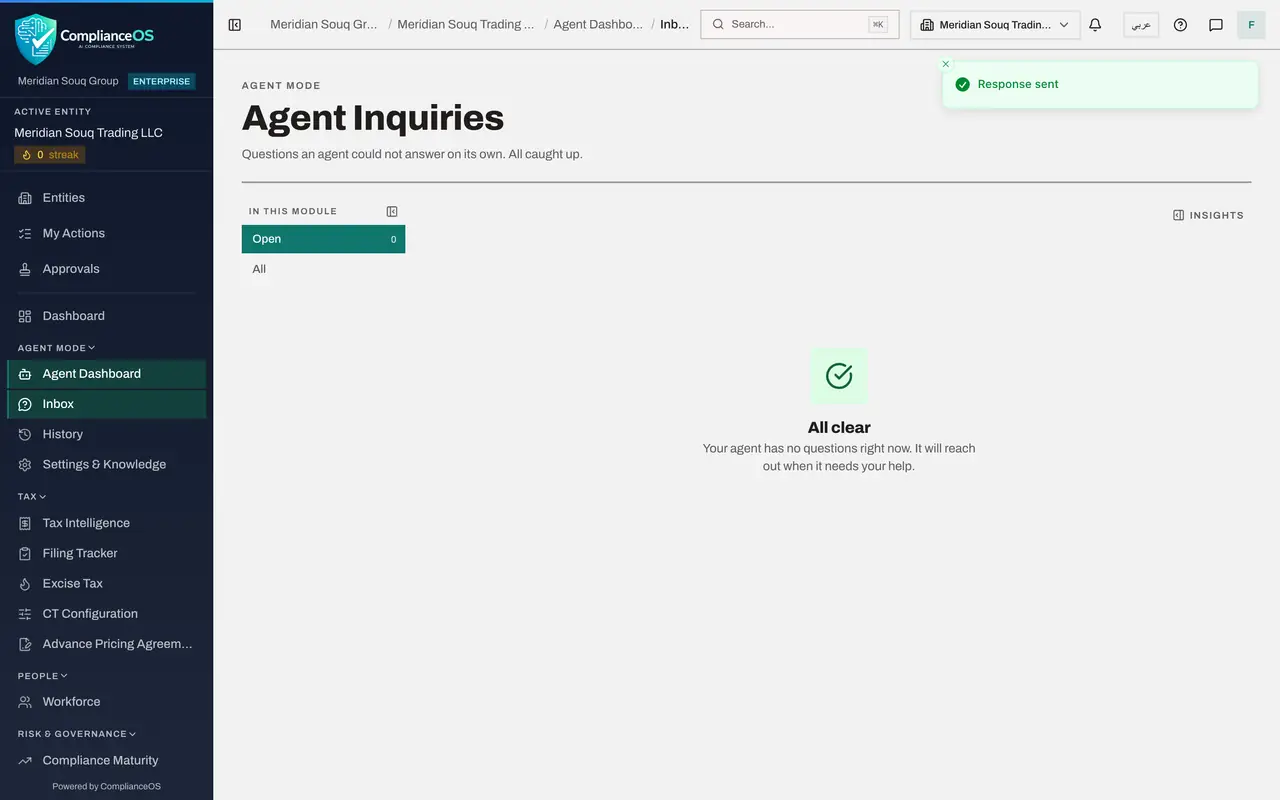
Now open the agent's Inbox, the page Agent Inquiries. One question is waiting. The tiles above count open, answered, skipped and automatically resolved questions. The card says what was asked in the chat, that Classification is set to Ask first so nothing has been classified, and what each answer does: Approve lets it run, Reject leaves the transactions as they are. Under it are Approve and Reject, a box for a written answer, Skip, and the send arrow.
- 6
Select Approve and send
Select Approve, then the send arrow. A message confirms Response sent, and the Inbox reads All clear. Your approval lets the action run once.
- Select Approve
- Select Send
- 7
Give the instruction again
Choose Agent Dashboard in the left menu, go to the chat and type the same instruction: Classify all transactions.
- Select Agent Dashboard
- Type Ask your agent anything:
Classify all transactions.
- 8
Send it and read the reply
Select the arrow. This time What was done reads: Classification was started in the background. Nothing is classified yet; results appear on the Tax page as it runs. It adds the rule that matters next: lines decided by a statutory rule, the company's own supplier rules or a credit note of an approved invoice are approved automatically, and lines that rest on the AI alone wait in the review queue for a person. The approval was used, and the work has begun.
- Select Send (the arrow beside the box)
- 9
Check the result in Tax Intelligence
Choose Tax Intelligence in the left menu and wait for the work to finish, reloading the page if needed. Then select Hide navigation so the table fits. The three rows now carry a classification: Operating Expenses for the courier run, Capital Asset for the shop fit-out and Taxable Income for the sale, each Standard Rated 5 per cent. Each is marked AI suggestion, 95 per cent, and Awaiting Review. The agent proposed them; no person has approved them yet.
- Select Tax Intelligence
- Select Hide navigation
- 10
Open the Review Queue and the Sign-off cockpit
Select the Review Queue tab. It holds the classifications waiting for a person. At the top right of the queue select Open sign-off cockpit. The cockpit lists the three suggestions, each with the AI's confidence and a Why button that opens the AI's reasoning.
- Select Review Queue3
- Select Open sign-off cockpit →
- 11
Approve the three suggestions
You have read each row against the invoices and agree with them. Select Select AI suggestions, 3. The three rows are ticked, and a note says that approving them records you as the reviewer. Select Approve selected. A message confirms Approved 3, and the cockpit says Nothing awaiting sign-off.
- Select Select AI suggestions (3)
- Select Approve selected
- 12
Check the rows again
Select Back to Tax. On the Transactions tab the three rows now read Approved. Beside the confidence, the badge now reads Approved by Fatima Noor: it names the person who decided, where before it said AI suggestion. The Review Queue step on the strip at the top is ticked. The work was split as it should be: the agent did the classifying once you allowed it, and a person approved the result.
- Select Back to Tax
How to check it worked
The Inbox reads All clear after your approval, the Sign-off cockpit says Nothing awaiting sign-off, and the three transactions in Tax Intelligence show a classification marked Approved in place of Unclassified.
Common mistakes
- Approving without reading what the request covers. This one covers every unclassified transaction of the company, not a single row.
- Waiting for the agent to start after the approval. Approval lets the action run once. Give the instruction again, or let the next cycle pick it up.
- Treating the agent's classification as a decision. It is an AI suggestion with a confidence figure, and it waits for a person. Read the rows, open Why where you are unsure, and only then approve them in the Sign-off cockpit.
Check your understanding
1. Classify transactions is on Ask first, and you tell the agent to classify everything. What happens first?
- A.It classifies everything
- B.It classifies nothing and raises an approval request for a person
- C.It switches itself to Automatic
- D.It refuses for ever
Show answer
Answer: B. It classifies nothing and raises an approval request for a person
Ask first means the agent raises a request and waits. Nothing is changed until a person approves.
2. Where can the tax manager find the approval request?
- A.Only in the chat
- B.In My Actions and in the agent's Inbox
- C.In the Audit log only
- D.By email
Show answer
Answer: B. In My Actions and in the agent's Inbox
An approval request appears in the Inbox of agent mode and, for people who may decide it, in My Actions.
3. The agent has classified the three transactions. Who approves the classifications?
- A.The agent, at once
- B.Nobody: they count as approved
- C.A person with the permission to approve tax records, for example in the Sign-off cockpit
- D.The auditor
Show answer
Answer: C. A person with the permission to approve tax records, for example in the Sign-off cockpit
The agent's approval request only let it start the work. Each classification it proposes is an AI suggestion that waits for a person's review.