Lesson 1 of 33
Give the assistant something to read: three tax transactions
What you will be able to do
This lesson is for the tax manager. The AI assistant and the agent answer from the records your company holds, so an empty company gets empty answers. You will add one sale and two purchases to Tax Intelligence by hand. Later lessons ask the assistant and the agent about exactly these three transactions, so that every answer can be checked against a record you know.
Before you start
- You are signed in as the tax manager of Meridian Souq Trading LLC.
- The company is new: Tax Intelligence holds no transactions yet.
Steps
- 1
Open Tax Intelligence
In the left menu, under Tax, choose Tax Intelligence. The Transactions list is empty because this company is new. The assistant would have nothing of yours to read. Add Transaction is in the row of buttons above the list.
- 2
Select Add Transaction
Select Add Transaction. A form opens for one transaction. Type starts on Income, which means a sale, and that is what the first record is.
- Select Add Transaction
- 3
Type the amount and the date
In the Amount box type 84000, the net value of the sale before tax. In Date enter 20 August 2026. The date decides which tax period the sale belongs to: here the quarter from July to September 2026.
- Type Amount (AED), excluding VAT:
84000 - Type Date *:
2026-08-20
- Type Amount (AED), excluding VAT:
- 4
Describe the sale
In Description say plainly what was sold and to whom. The assistant and the agent read this text, so a full sentence gives better answers than a single word.
- Type Description *:
Wholesale sale of home fragrance stock to a Dubai retailer
- Type Description *:
- 5
Type the customer and the invoice number
In Vendor or Customer type the customer's name, and in Invoice Number the number printed on your invoice. Both names are invented for this course. You will use the invoice number later to find this record in an answer.
- Type Vendor/Customer:
Mirdif Lantern Homeware LLC - Type Invoice Number:
MST-INV-8101
- Type Vendor/Customer:
- 6
Select Add Transaction to save the sale
Select Add Transaction at the bottom of the form. A message confirms Transaction added and the form closes.
- Select Add Transaction
- 7
Start the first purchase and choose Expense
Now a purchase. Select Add Transaction again, open Type and choose Expense. Expense means something the company bought.
- Select Add Transaction
- Select Type
- Choose Expense
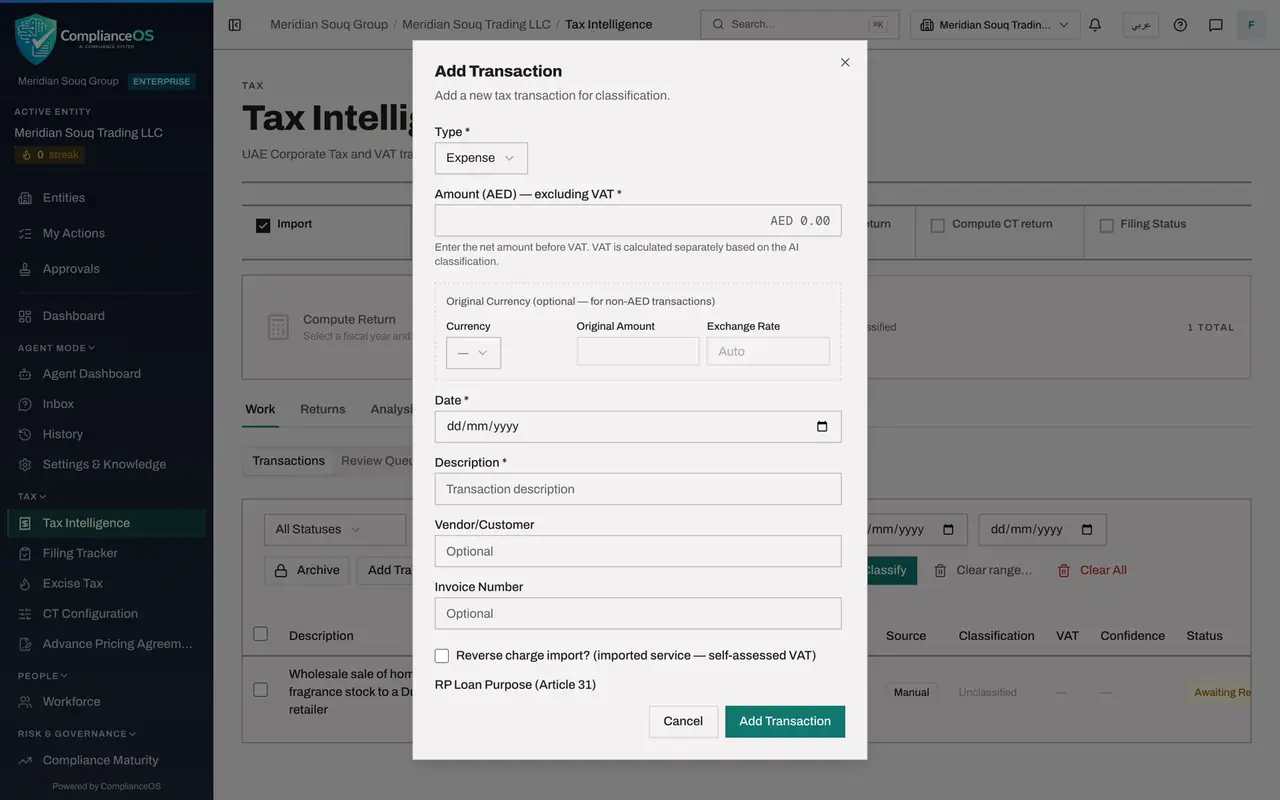
- 8
Enter the courier invoice
Type 1850 in Amount and set Date to 12 September 2026. In Description type what was bought, then the supplier's name and its invoice number.
- Type Amount (AED), excluding VAT:
1850 - Type Date *:
2026-09-12 - Type Description *:
Weekend courier run for the Global Village stall - Type Vendor/Customer:
Falcon Wing Couriers LLC - Type Invoice Number:
FWC-3310
- Type Amount (AED), excluding VAT:
- 9
Save the courier purchase
Select Add Transaction. The message Transaction added shows again.
- Select Add Transaction
- 10
Start the second purchase
Select Add Transaction once more and choose Expense in Type.
- Select Add Transaction
- Select Type
- Choose Expense
- 11
Enter the fit-out invoice
Type 12400 in Amount and set Date to 3 September 2026. Describe the purchase, then type the supplier and the invoice number.
- Type Amount (AED), excluding VAT:
12400 - Type Date *:
2026-09-03 - Type Description *:
Shelving and counter fit-out for the Marsa Walk shop - Type Vendor/Customer:
Sidra Bay Interiors LLC - Type Invoice Number:
SBI-0457
- Type Amount (AED), excluding VAT:
- 12
Save the fit-out purchase
Select Add Transaction. The third record is saved.
- Select Add Transaction
- 13
Read the three rows
The list now holds three transactions: the sale of 84,000 dirhams and the purchases of 1,850 and 12,400 dirhams. These are the only tax records this company has, so they are what the assistant and the agent can find when you ask about your own tax position.
How to check it worked
Tax Intelligence lists three transactions: a sale of 84,000 dirhams with invoice number MST-INV-8101, a courier purchase of 1,850 dirhams with invoice number FWC-3310, and a shop fit-out purchase of 12,400 dirhams with invoice number SBI-0457.
Common mistakes
- Typing the amount with the tax included. Amount is the net amount before tax. The app works out the tax from the classification.
- Leaving Description as a single word such as Invoice. The assistant, the agent and the classifier all read the description, so say plainly what was sold or bought.
- Pasting a real customer's name or tax number into a training company. Use invented names, as this course does.
Check your understanding
1. Why does this course start by adding records before opening the assistant?
- A.The assistant cannot be opened in an empty company
- B.The assistant answers from the company's own records, so there must be records to read and to check its answers against
- C.The assistant needs three transactions to be switched on
- D.Records make the assistant faster
Show answer
Answer: B. The assistant answers from the company's own records, so there must be records to read and to check its answers against
The assistant reads your company's records when you ask about your own position. With known records in place, you can check every figure it gives.
2. Which amount goes in the Amount box?
- A.The amount including tax
- B.The tax only
- C.The net amount before tax
- D.Any of these
Show answer
Answer: C. The net amount before tax
Amount is the net value. The tax is calculated separately from how the transaction is classified.