Lesson 22 of 33
The administrator: AI credits, the agent's budget and its main switch
What you will be able to do
This lesson is for the organisation administrator. Every answer from the Compliance Assistant and every piece of agent work uses AI credits from the organisation's monthly allocation. You will set the monthly budget of one entity's agent, use the agent's main switch to turn it off and on again, and then read how many credits the organisation has used and which module used them.
Before you start
- You are signed in as an organisation administrator of Meridian Souq Group.
- The earlier lessons have used the Compliance Assistant and the Tax Partner Agent, so credits have been consumed.
Steps
- 1
Open the agent's settings
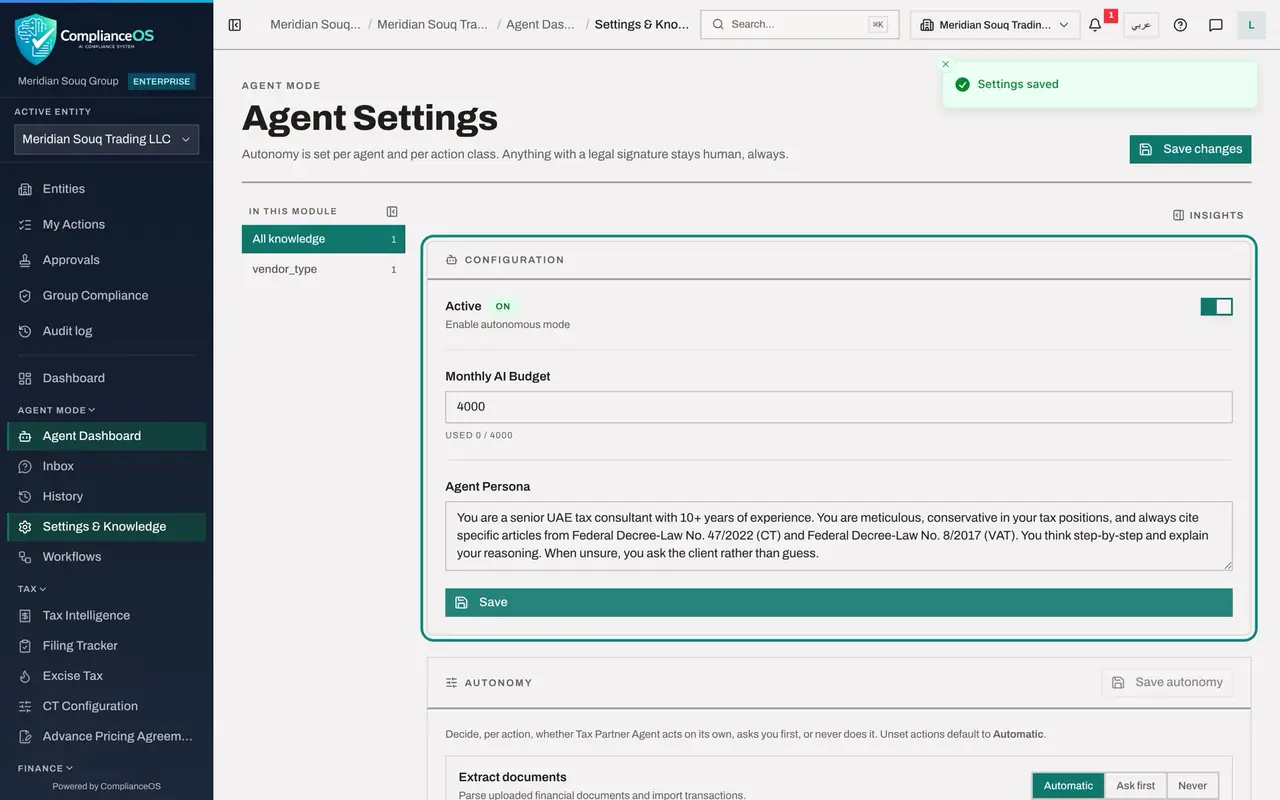
Open the entity Meridian Souq Trading LLC and, in the left menu under Agent Mode, choose Settings and Knowledge. An administrator sees the same page as the tax manager. Under Configuration are the Active switch, the Monthly AI Budget and the Agent Persona.
- Select Settings & Knowledge
- 2
Set the Monthly AI Budget and save
Select the Monthly AI Budget box, replace the number with 4000, and select Save under Agent Persona. A message confirms Settings saved. In lesson 21 the same Save was refused for the tax manager. This agent may now use up to 4000 credits a month.
- Type Monthly AI Budget:
4000 - Select Save
- Type Monthly AI Budget:
- 3
Switch the agent off and save
Active is the agent's main switch. Select the switch so that it reads Off, and select Save. While it is off, the agent does no work for this entity.
- Select Active
- Select Save
- 4
See the agent disabled on its dashboard
Choose Agent Dashboard in the left menu. The state beside the agent's name now reads Disabled, and the credits line shows the new budget: 0 of 4000 credits.
- Select Agent Dashboard
- 5
Switch the agent on again and save
Go back to Settings and Knowledge, select the Active switch so that it reads On, and select Save. The message Settings saved confirms it, and the agent is available again.
- Select Settings & Knowledge
- Select Active
- Select Save
- 6
Open Organisation settings
Now the organisation's side. Select your initials at the top right to open the account menu, and choose Organisation settings.
- Select Account menu
- Select Organisation settings
- 7
Select Billing
In the Settings list on the left, select Billing. The page starts with the entity licences.
- Select Billing
- 8
Read AI Credits
Scroll to AI Credits. Monthly Allocation is the number of credits the organisation receives each month, here 220,000, and Per Entity shows that as 110,000 for each of the two entities. Used This Month is what all AI features together have consumed this month, here 1,898. The line under the large figure says when the count resets: the first day of next month. Cost Calculator and Buy More Credits are at the top right of the card. Leave Buy More Credits alone in training.
- 9
Read Usage by Module
Under the bar, Usage by Module splits the credits used. In this example Chatbot, which is the Compliance Assistant, shows 1,490 credits, Agent Chat 227, Contract Intelligence 141, CT Classification Batch 24, and Workflow Regulatory Impact Analysis 9. The figures cover the whole month for the organisation, including earlier rehearsals of this course, so they are larger than the work you have seen here.
How to check it worked
Billing shows the credits used this month and a line for each module under Usage by Module. On Agent Settings, Monthly AI Budget reads 4000 after Settings saved, and Active is back on.
Common mistakes
- Looking for AI usage on the agent's page only. The agent's page shows the agent's own budget. The organisation's allocation and the usage by module are under Organisation settings, Billing.
- Switching the agent off and forgetting to select Save. The switch takes effect only when it is saved.
- Selecting Buy More Credits during training. It leads to a real purchase. Read the page and leave that button alone.
Check your understanding
1. Where does an administrator see which module used the most AI credits this month?
- A.On the Agent Dashboard
- B.In Organisation settings, on the Billing tab, under Usage by Module
- C.In the Audit log
- D.In Tax Intelligence
Show answer
Answer: B. In Organisation settings, on the Billing tab, under Usage by Module
Billing shows the monthly allocation, what has been used, and a breakdown by module.
2. What does switching Active off and saving do?
- A.It deletes the agent and its log
- B.It stops the agent from working until someone switches it on again
- C.It removes the tax transactions
- D.Nothing
Show answer
Answer: B. It stops the agent from working until someone switches it on again
Active is the agent's main switch. The agent, its settings and its log stay; it just does no work while off.