Lesson 23 of 33
The agent works with your permissions: the auditor's view
What you will be able to do
This lesson is for auditors and other colleagues with read-only access, and for the tax manager who wonders what they can do with the agent. The agent does not have rights of its own in the chat. For each message it is given only the tools that the person signed in may use on this entity. The auditor may view tax records and nothing more. You will ask the agent to read, then ask it to change a classification, and check the record afterwards.
Before you start
- You are signed in as the auditor of Meridian Souq Trading LLC. This role can view and export tax records and cannot change them.
- The three transactions were classified in lesson 16: the courier run reads Operating Expenses.
Steps
- 1
Open the Agent Dashboard as the auditor
Signed in as the auditor, choose Agent Dashboard in the left menu, under Agent Mode. The page opens, because the auditor may view tax records. It looks the same as it does for the tax manager.
- Select Agent Dashboard
- 2
Ask a question that reads
Go to the chat and type: How are the three tax transactions classified?
- Type Ask your agent anything:
How are the three tax transactions classified?
- Type Ask your agent anything:
- 3
Send it and read the reply
Select the arrow. The agent lists the three transactions with their classification: Taxable Income for the sale, Capital Asset for the shop fit-out and Operating Expense for the courier run, each marked Approved, by the tax manager in lesson 16. That matches Tax Intelligence. It adds that Falcon Wing Couriers still has no tax registration number, which is the question skipped in lesson 18. Reading is within the auditor's rights, so the agent can do it.
- Select Send (the arrow beside the box)
- 4
Ask it to change a record
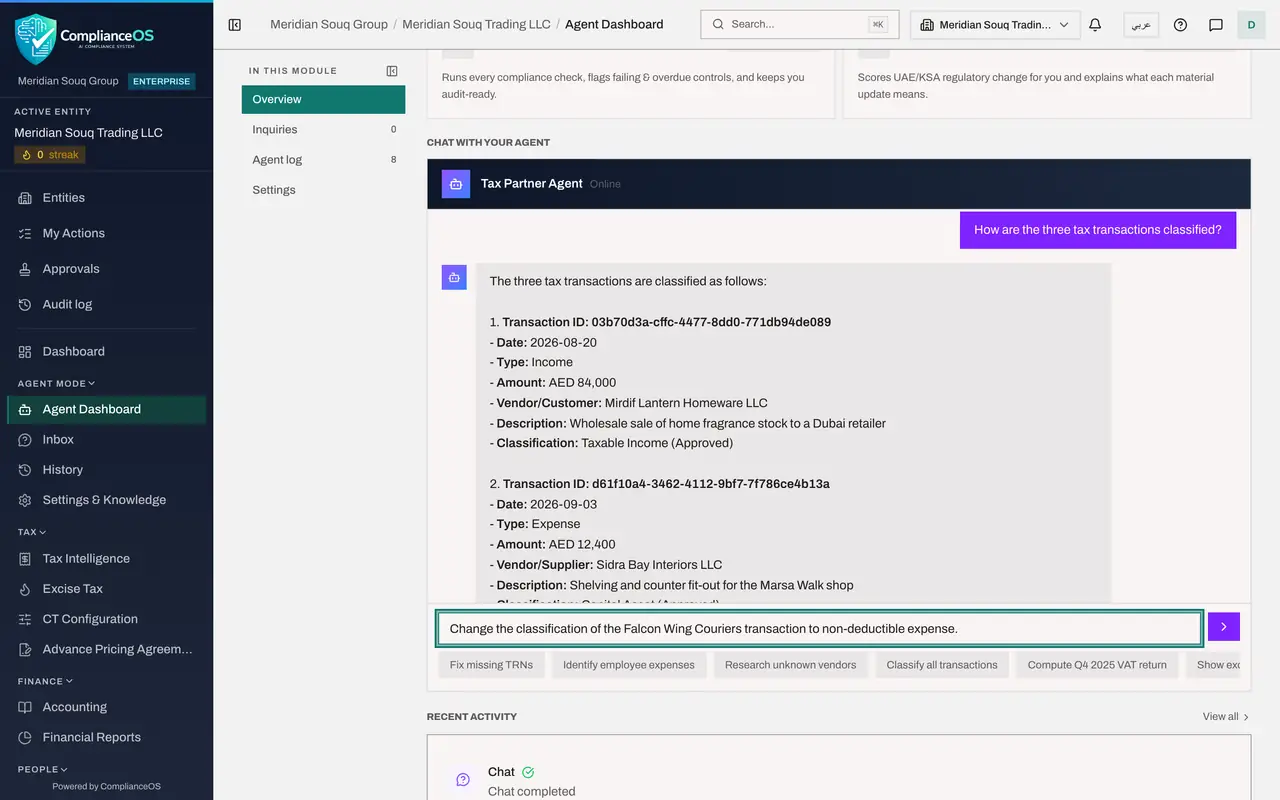
Now ask for a change. Type: Change the classification of the Falcon Wing Couriers transaction to non-deductible expense.
- Type Ask your agent anything:
Change the classification of the Falcon Wing Couriers transaction to n…
- Type Ask your agent anything:
- 5
Send it and read the reply
Select the arrow. The reply has two parts. The agent says it tried to reclassify the transaction, but the action was blocked because she lacks the permission Tax, Approve, and that the request can be escalated to the right person. It does not suggest another way round the block. Under the line, the refusal itself: I can't show you this. Override classification needs the permission Tax, Approve on this company, which you don't hold. Who can grant it: Layla Hassan and Omar Khalid. Nothing was changed. The tool was refused when it ran, because her role may not change classifications.
- Select Send (the arrow beside the box)
- 6
Read the note above the specialist agents
Go back to the top of the page. For the auditor there is no Run full cycle button and no list of actions to ask for. In their place a note reads: You can read the agent's work, but running it needs the permission Tax, Create. The page shows each person only what they may do.
- 7
Check the record in Tax Intelligence
Choose Tax Intelligence in the left menu. The courier run from Falcon Wing Couriers still reads Operating Expenses. Nothing was changed by the auditor's request.
- Select Tax Intelligence
How to check it worked
The agent answered your question about the records, did not change the classification you asked it to change, and in Tax Intelligence the courier run still reads Operating Expenses.
Common mistakes
- Asking a colleague with more rights to type your instruction into their chat. What the agent does is done with the rights of the person signed in, and is logged under their run.
- Assuming the agent's refusal is a fault. The refusal names the permission your role lacks and who can grant it, and says that nothing was changed.
- Trusting the reply instead of the record. Whatever the agent says, open Tax Intelligence and read the row.
Check your understanding
1. An auditor asks the agent to change a classification. Why does nothing change?
- A.The agent is switched off
- B.The agent is offered only the tools the signed-in person may use, and an auditor may only view
- C.Auditors cannot open the chat
- D.The classification is locked
Show answer
Answer: B. The agent is offered only the tools the signed-in person may use, and an auditor may only view
Each tool is tied to a permission and is checked for the person who is chatting. The refusal names the missing permission, here Tax, Approve.
2. Which question can the auditor usefully put to the agent?
- A.Classify all transactions
- B.How are the three tax transactions classified, and which suppliers have no tax registration number?
- C.Approve every classification
- D.Delete the courier invoice
Show answer
Answer: B. How are the three tax transactions classified, and which suppliers have no tax registration number?
Questions that read the tax records are within the auditor's rights, so the agent can answer them.