Lesson 12 of 33
Agent mode: switch on the Tax Partner Agent
What you will be able to do
This lesson is for the tax manager. Agent mode is the second way of working with AI in ComplianceOS. The Compliance Assistant of the earlier lessons only answers questions. An agent does work: it classifies transactions, researches suppliers, prepares a draft VAT return, and stops to ask a person when it is unsure. Each entity has its own agent, and it does nothing until someone with the right role switches it on. You will read what the agent offers and switch it on.
Before you start
- You are signed in as the tax manager of Meridian Souq Trading LLC. Switching the agent on needs the right to create tax records, which this role has.
- The agent has not been switched on for this entity yet.
Steps
- 1
Open the Agent Dashboard
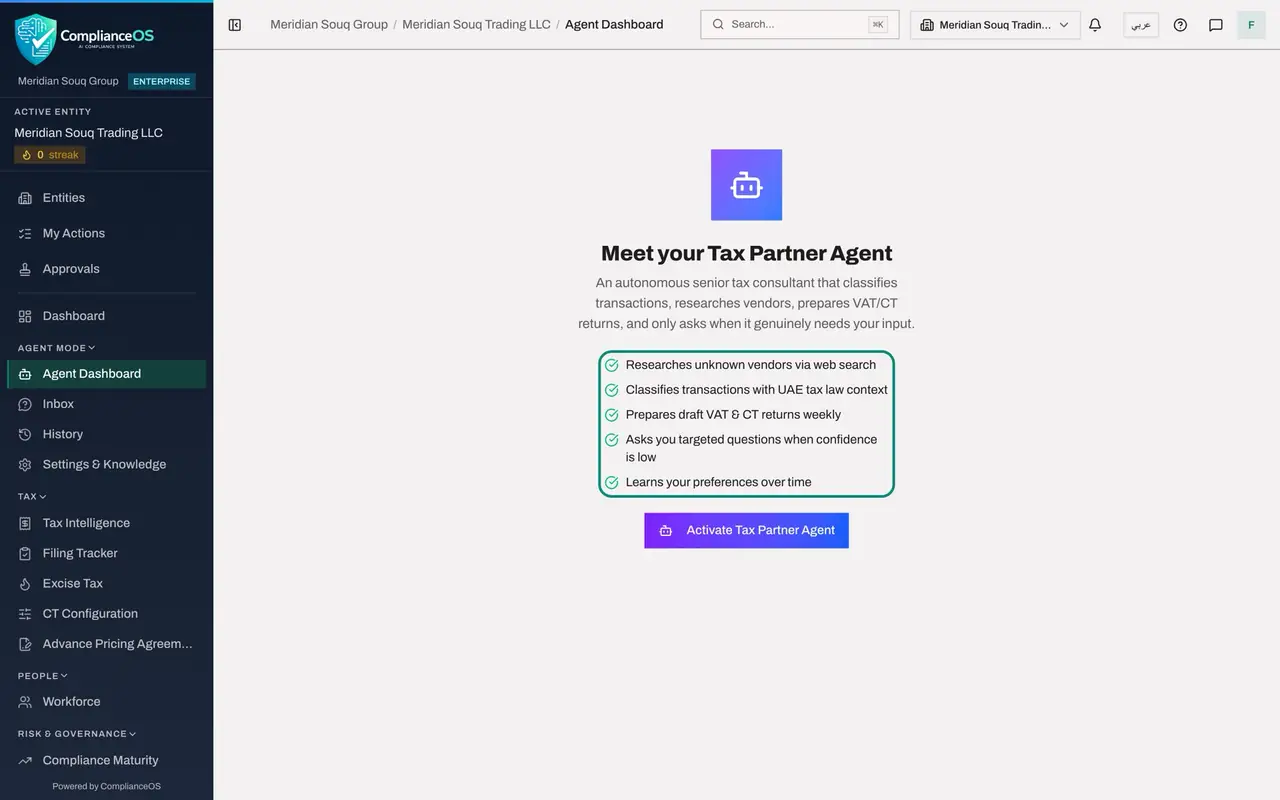
In the left menu, under Agent Mode, choose Agent Dashboard. Because no agent exists for this entity yet, the page introduces one: Meet your Tax Partner Agent.
- Select Agent Dashboard
- 2
Read what the agent does
Five lines describe the agent. It researches unknown vendors, classifies transactions with reference to UAE tax law, prepares draft VAT and corporate tax returns, asks you targeted questions when its confidence is low, and learns your preferences over time. Note the word draft, and the fourth line: the agent is built to stop and ask.
- 3
Select Activate Tax Partner Agent
Select Activate Tax Partner Agent. A message confirms Tax Partner Agent created, and the page changes to the agent's dashboard for this entity. Nothing has been done to your records: the agent now exists and waits to be asked.
- Select Activate Tax Partner Agent
- 4
See the agent's page
The heading is the agent's name, under the label Agent Mode. The sentence below it is the rule of agent mode: agents watch your obligations, draft the work, and stop for a human at every decision that carries legal weight. The next lesson walks through this page.
How to check it worked
A message confirms Tax Partner Agent created, and the Agent Dashboard now shows the agent's own page with a Run full cycle button instead of the introduction.
Common mistakes
- Expecting the agent to be on for every entity. It is switched on entity by entity. The second entity of the group has no agent until someone activates one there.
- Thinking that activating the agent starts work. Switching it on only creates it. It acts when you ask it to in the chat, select one of its actions, or run a cycle.
- Confusing the agent with the Compliance Assistant. They are separate: different pages, different permissions, and only the agent can change records.
Check your understanding
1. What is the main difference between the Compliance Assistant and the Tax Partner Agent?
- A.There is none
- B.The assistant answers questions and changes nothing; the agent can carry out work on tax records
- C.The agent is faster
- D.The assistant works only in Arabic
Show answer
Answer: B. The assistant answers questions and changes nothing; the agent can carry out work on tax records
The assistant reads and reports. The agent classifies, researches and prepares, and asks a person when it needs a decision.
2. After you select Activate Tax Partner Agent, what has the agent done to your records?
- A.Classified everything
- B.Filed the VAT return
- C.Nothing yet: it has only been created
- D.Deleted old transactions
Show answer
Answer: C. Nothing yet: it has only been created
Activation creates the agent for this entity. Work starts only when someone asks for it.