Lesson 25 of 33
Start a workflow and read its trace
What you will be able to do
This lesson is for the compliance officer. A workflow is a fixed, multi-step piece of AI work that you start by hand: the product runs several tools one after another in the background and keeps a trace of each step. The Workflows page is the last entry under Agent Mode. You will start one workflow without inputs, wait for it to end, open its trace, and learn from the result why a workflow needs to be told what to work on.
Before you start
- You are signed in as the compliance officer of Meridian Souq Trading LLC. Starting a workflow needs the same permission as the Compliance Assistant: Compliance tasks, Create.
- No workflow has been run for this entity yet.
Steps
- 1
Open Workflows
In the left menu, under Agent Mode, choose Workflows. Four tiles count the workflows that are Active, Completed and Failed, and the AI credits they used. Below, the list reads No workflows yet.
- Select Workflows
- 2
Select New Workflow
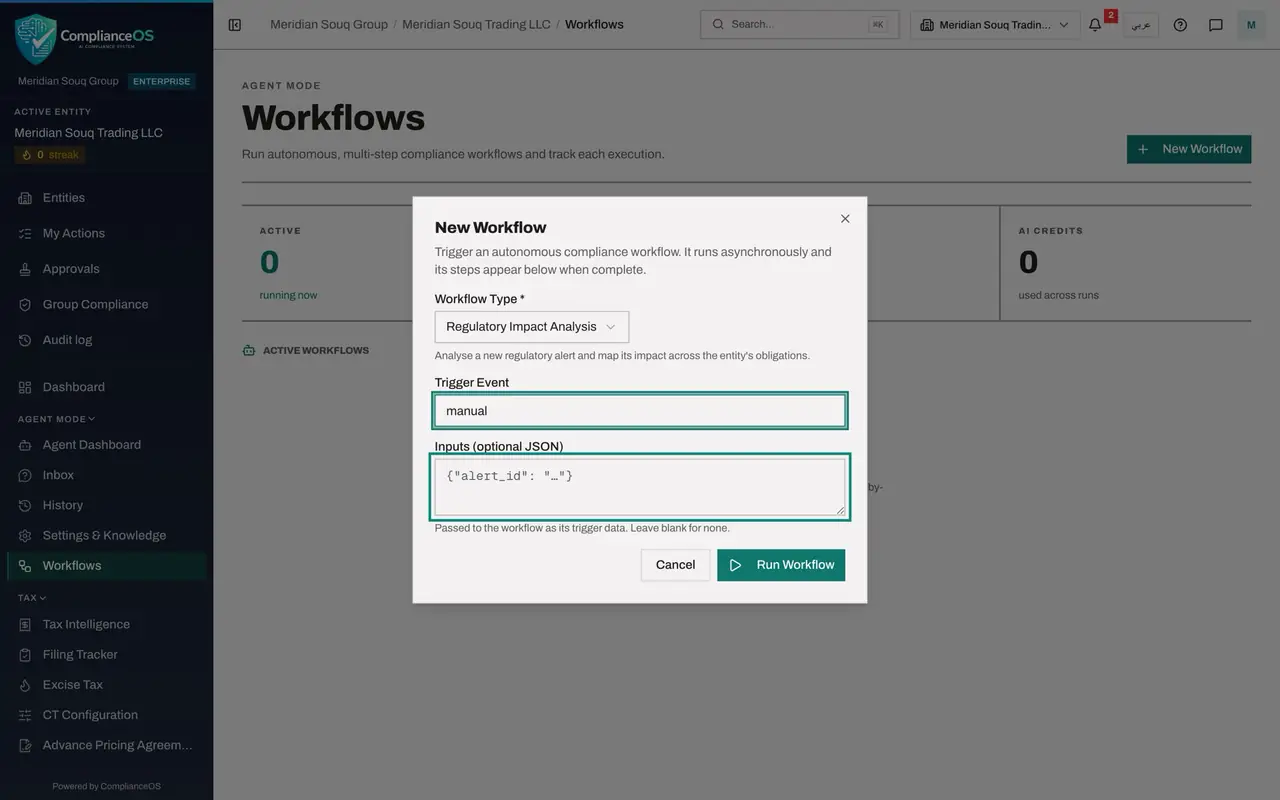
Select New Workflow at the top right. A form opens with three fields: Workflow Type, Trigger Event and Inputs. The line under the title says what will happen: the workflow runs on its own, in the background, and its steps appear when it is complete.
- Select New Workflow
- 3
Choose the workflow type
Open Workflow Type and choose Regulatory Impact Analysis. Its description appears under the box: it analyses a new regulatory alert and maps its impact across the entity's obligations.
- Select Workflow Type *
- Choose Regulatory Impact Analysis
- 4
Type the trigger event
Trigger Event is a short label that says why the workflow was started. It is kept with the run. For a run you start yourself, type manual.
- Type Trigger Event:
manual
- Type Trigger Event:
- 5
Leave Inputs empty
Inputs is optional. It passes structured data to the workflow, written in JSON, which is a notation of names and values in curly brackets. Leave it empty.
- 6
Select Run Workflow
Select Run Workflow. The form closes and a message confirms: Workflow started, it will run in the background. The run appears in the list.
- Select Run Workflow
- 7
Wait for the workflow to end
The run is short. Within a few seconds its status reads Completed and the Completed tile shows one. Look at the two columns beside the status: Steps is zero and AI Credits is zero.
- 8
Open the run and read its trace
Select the row. A window opens with the trace of the run: the workflow, the trigger manual, the status and the credits used. Trigger Inputs lists the tools this run was allowed to use. The product fills that list from your own permissions, so a workflow can read and write only what you may. Under Steps it says No steps recorded yet.
- Select The run: Regulatory Impact Analysis
- 9
Scroll to the result
Read Result at the bottom. It opens with Nothing was changed by this run: it only read data, and no calendar entry, notification or risk insight was created. Then it asks you to provide the details of the regulatory update: its title, source, jurisdiction, summary and relevance score. So the run ended as Completed without analysing anything, because it was given nothing to analyse. Completed means the run ended without an error, not that it was useful. The next lesson runs the same workflow with its inputs.
How to check it worked
The Workflows list holds one Regulatory Impact Analysis with the status Completed and zero steps, and you have opened it and read in Result that it asks for the details of a regulatory update.
Common mistakes
- Starting a workflow and waiting on the form. The form closes at once and the work continues in the background. The row's status changes when it ends.
- Assuming a workflow finds its own subject. Started by hand with empty Inputs, this one had nothing to analyse and said so in its result.
- Reading a completed workflow as a decision. A workflow produces an analysis or a proposal. What to do with it is decided by a person.
Check your understanding
1. Where do you see what a workflow did, step by step?
- A.In the Compliance Calendar
- B.Select its row on the Workflows page: the window lists each step with its input and output
- C.In the chat
- D.Nowhere
Show answer
Answer: B. Select its row on the Workflows page: the window lists each step with its input and output
Each run keeps a trace. Opening the row shows the trigger, every step with what went in and what came out, and the result.
2. What may a workflow read and write while it runs?
- A.Everything in the organisation
- B.Only what the person who started it is permitted to read and write on that entity
- C.Only tax records
- D.Nothing
Show answer
Answer: B. Only what the person who started it is permitted to read and write on that entity
A workflow is started by a person and works within that person's permissions.