Lesson 4 of 33
Open the assistant and ask a first question
What you will be able to do
This lesson is for anyone whose role lets them use the Compliance Assistant; here it is the compliance officer. The assistant is a chat window that answers questions about compliance in the United Arab Emirates and about this company's own records. You will open it from the top of the page, see how it knows which module you are in, send a suggested question, wait for the answer, and move the conversation to the full page.
Before you start
- You are signed in as the compliance officer of Meridian Souq Trading LLC.
- Lessons 1 to 3 are done, so the company holds three tax transactions, a risk, a deadline and a processing activity.
Steps
- 1
Find the assistant button
On any page of an entity, look at the top right. Between the question mark and your initials is a speech bubble. Its name is Open the AI assistant. It is on every page of the entity, so the assistant is always one click away.
- 2
Select the speech bubble
Select the speech bubble. A window headed Compliance Assistant opens at the bottom right, over the page you are on. The yellow line at its top is the rule for this whole course: AI responses are for guidance only.
- Select Open the AI assistant
- 3
Close it and open Tax Intelligence
Select the cross at the top of the window to close it. Then choose Tax Intelligence in the left menu. The assistant gives priority to the module you are working in, so open it from the page your question is about.
- Select Close assistant
- Select Tax Intelligence
- 4
Open the assistant on the tax page
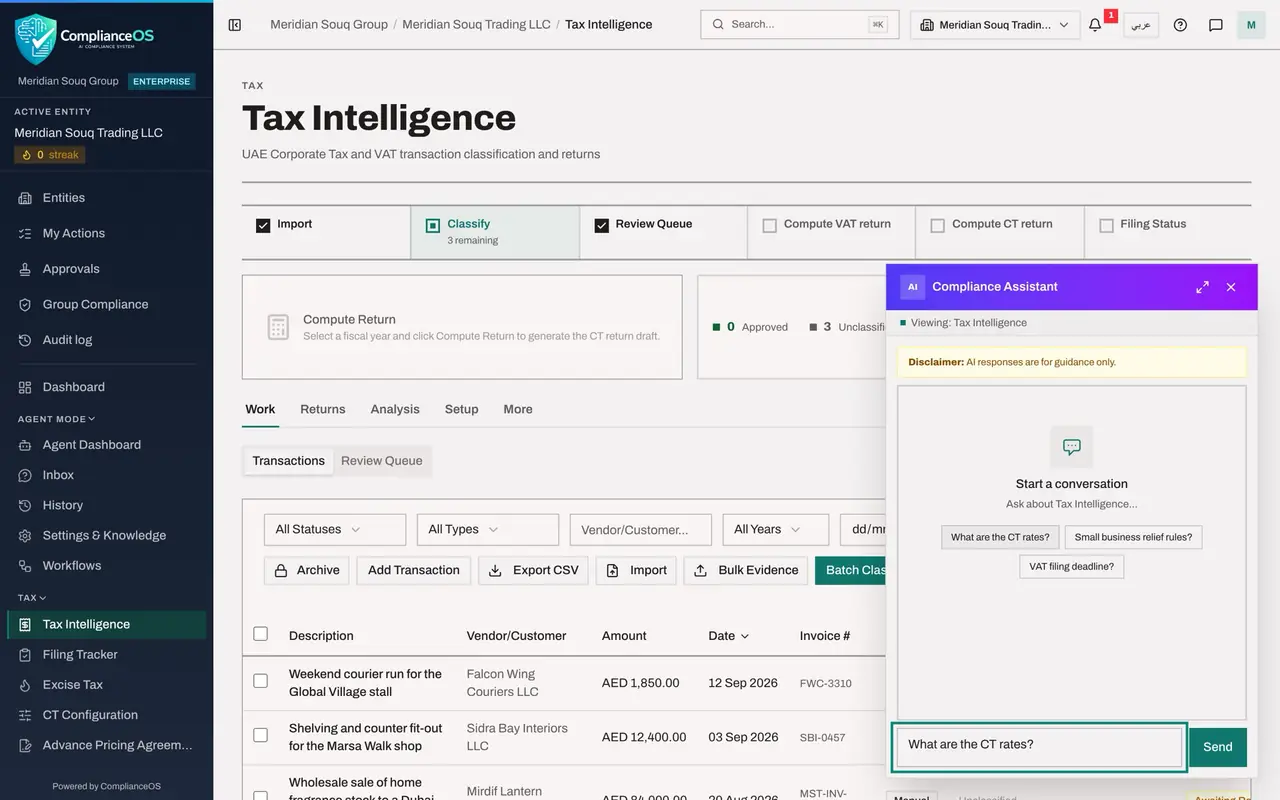
Select the speech bubble again. Under the title, a line now names the module you are viewing, and the suggested questions are about tax. CT is short for corporate tax.
- Select Open the AI assistant
- 5
Select a suggested question
Select What are the CT rates? The question is put in the box at the bottom. It has not been sent. You can change the wording first.
- Select What are the CT rates?
- 6
Select Send and wait
Select Send, or press Enter. Your question appears on the right, and three dots show that the assistant is working. An answer takes from a few seconds to a minute, because a language model reads the question, looks up what it needs, and writes the reply. The question box is greyed out until the answer arrives.
- Select Send
- 7
Read the end of the answer
The answer is laid out with headings and lists. Scroll to its end. Under the text are a Confidence figure and follow-up questions you can select. When an answer draws on a passage of the product's own legal knowledge base, a line called Sources names that passage as well. This answer has none. And when an answer names an article the assistant could not match to that knowledge base, the words not verified against the knowledge base follow it. The next lesson explains each of these.
- 8
Select Expand to full page
At the top of the window, select the icon with two arrows, Expand to full page. The page AI Compliance Assistant opens with the same conversation, in a wider layout. Use the full page for longer answers.
- Select Expand to full page
- 9
Read Context in use
On the right of the full page, Context in use shows what this conversation is working with: the entity, the number of connected sources and documents, whether a session is active, and how many messages it holds. A session is one conversation. The assistant remembers earlier messages only within the same session.
- 10
Find the assistant in the left menu
The full page has its own entry in the left menu. Scroll the menu to the end. Under More is the group Tools, and in it AI Assistant. When the group is closed, select Tools to open it. The speech bubble and this entry lead to the same assistant.
How to check it worked
The assistant opens from the speech bubble at the top right, shows Viewing Tax Intelligence when opened on that page, answers the suggested question in about half a minute, and the same conversation is on the full page under AI Compliance Assistant.
Common mistakes
- Selecting a suggested question and waiting. A suggestion only fills the question box. Nothing is sent until you select Send or press Enter.
- Sending a second question while the first is still being answered. The box is greyed out while the assistant works. Wait for the answer.
- Reading the yellow line as small print. Disclaimer: AI responses are for guidance only is the rule for everything this course shows. An answer is a starting point that you check.
Check your understanding
1. You select the suggestion What are the CT rates? in the assistant. What happens?
- A.The question is sent at once
- B.The question is put in the question box, and is sent when you select Send or press Enter
- C.A help page opens
- D.Nothing
Show answer
Answer: B. The question is put in the question box, and is sent when you select Send or press Enter
A suggestion fills the box so that you can read or change it. You send it yourself.
2. How does the assistant know which module to give priority to?
- A.It asks you each time
- B.It always answers about tax
- C.It takes the module of the page you opened it on, shown as Viewing with the module's name
- D.It cannot know
Show answer
Answer: C. It takes the module of the page you opened it on, shown as Viewing with the module's name
The line Viewing with the module's name shows the page you are on, and the suggested questions change with it.