Lesson 19 of 33
Read the agent log: what the agent really did
What you will be able to do
This lesson is for the tax manager, the compliance officer and the auditor. The agent log, on the page Agent History, records every run of the agent: each chat message and each cycle, who asked for it, the tools it used, what went in and what came out. It is where you settle what the agent actually did. You will read the runs of lessons 15 to 18, open two of them step by step, filter the list, and download the whole trail.
Before you start
- You are signed in as the tax manager of Meridian Souq Trading LLC.
- Lessons 15 to 18 are done, so the log holds chat runs and one full cycle.
Steps
- 1
Open History
In the left menu, under Agent Mode, choose History. The page is headed Agent History: every agent action, with the inputs it read and what it produced. From the Agent Dashboard, the button Agent log opens the same page.
- Select History
- 2
Read the five tiles
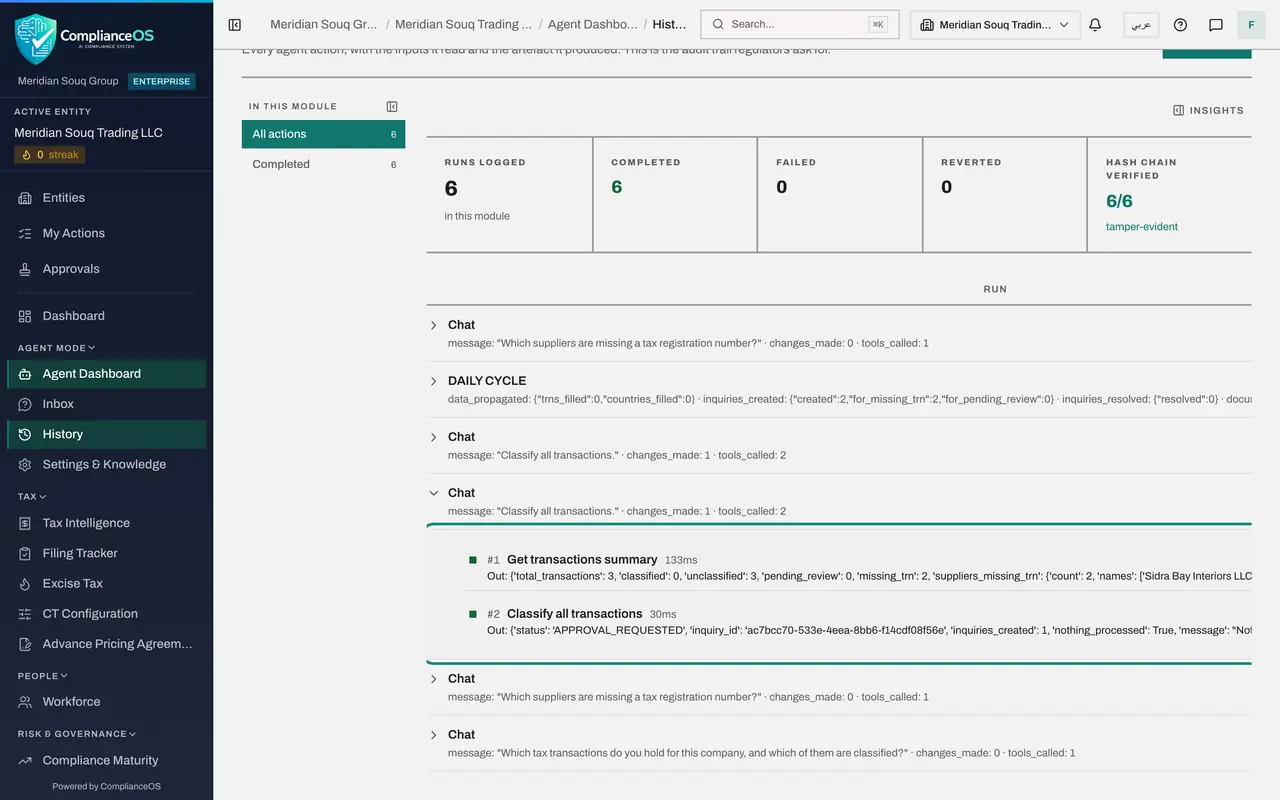
Five tiles summarise the log. Runs logged reads six: five chat messages and one cycle. Completed and Failed count how they ended. Reverted counts runs whose effect was undone. Hash chain verified reads six of six: each run carries a fingerprint linked to the run before it, and the page has checked every one, so a later change to the log would show. That is what tamper-evident means.
- 3
Read a row
Each row is one run, newest first. A run started from the chat is named Chat, and its second line shows the message, how many changes it made and how many tools it called. Requested by names the person who asked: here Fatima Noor for every run. The run named Daily Cycle is the one you started in lesson 17: one click, one run, reporting two inquiries created for missing registration numbers.
- 4
Open the run that asked for approval
Select the older of the two runs whose message reads Classify all transactions, from lesson 16. Two steps open. The first, Get transactions summary, read the three transactions. The second, Classify all transactions, returned the status Approval requested, with one inquiry created, nothing processed, and the same message the chat showed. That is exactly what the chat reported, and here it is on record.
- Select The run: the first Classify all transactions
- 5
Open the run of the full cycle
Select the run again to close it, then open the Daily Cycle run. Its steps are the ones you watched in lesson 17: Research vendors skipped because autonomy is set to Never, two Ask human steps, one for Falcon Wing Couriers and one for Sidra Bay Interiors, each creating an inquiry, and Generate inquiries, Created 2 inquiries.
- Select The run: the first Classify all transactions
- Select The run: the full cycle
- 6
Filter the log by outcome
Go back to the top. In this module, on the left, lists the outcomes that occur in the log, with a count each. Select Completed to see only the runs that ended without an error. A run that fails or waits for a person appears under its own outcome.
- Select Completed6 (6)
- 7
Select Export trail
At the top right, select Export trail. A file named agent-run-trail with the agent and today's date is downloaded. It holds every run with its steps, who requested it, each fingerprint, and a line chain intact with the result of checking the fingerprints: here true, with six of six runs verified, as on the page. The file also explains how to recompute each fingerprint yourself, so an auditor can check the trail outside the app.
- Select Export trail
How to check it worked
You have opened the run of the first Classify all transactions and a run of the full cycle, read their steps, and downloaded the trail as a file.
Common mistakes
- Reading only the first line of a run. What each tool returned is inside, so open the run.
- Treating Completed as a sign that the instruction was carried out. Completed means the run ended without an error. Read the steps to see what was done.
- Looking for the agent's work only in the organisation's Audit log. The step-by-step record of the agent is here, in Agent History.
Check your understanding
1. Where do you see who asked the agent to do something?
- A.Nowhere
- B.In Agent History, in the Requested by column of each run
- C.In Billing
- D.In the chat only
Show answer
Answer: B. In Agent History, in the Requested by column of each run
Every run records the person who asked for it, or that it ran on a schedule.
2. What does Hash-chained, tamper-evident mean for the log?
- A.The log is encrypted and cannot be read
- B.Each run carries a fingerprint linked to the run before it, so a later change to the log would show
- C.Runs are deleted after a day
- D.Only the agent can read it
Show answer
Answer: B. Each run carries a fingerprint linked to the run before it, so a later change to the log would show
A hash is a fingerprint of the run's content. Chaining each one to the previous run makes an altered or removed run detectable.