Lesson 13 of 33
Read the agent's page before you ask it for anything
What you will be able to do
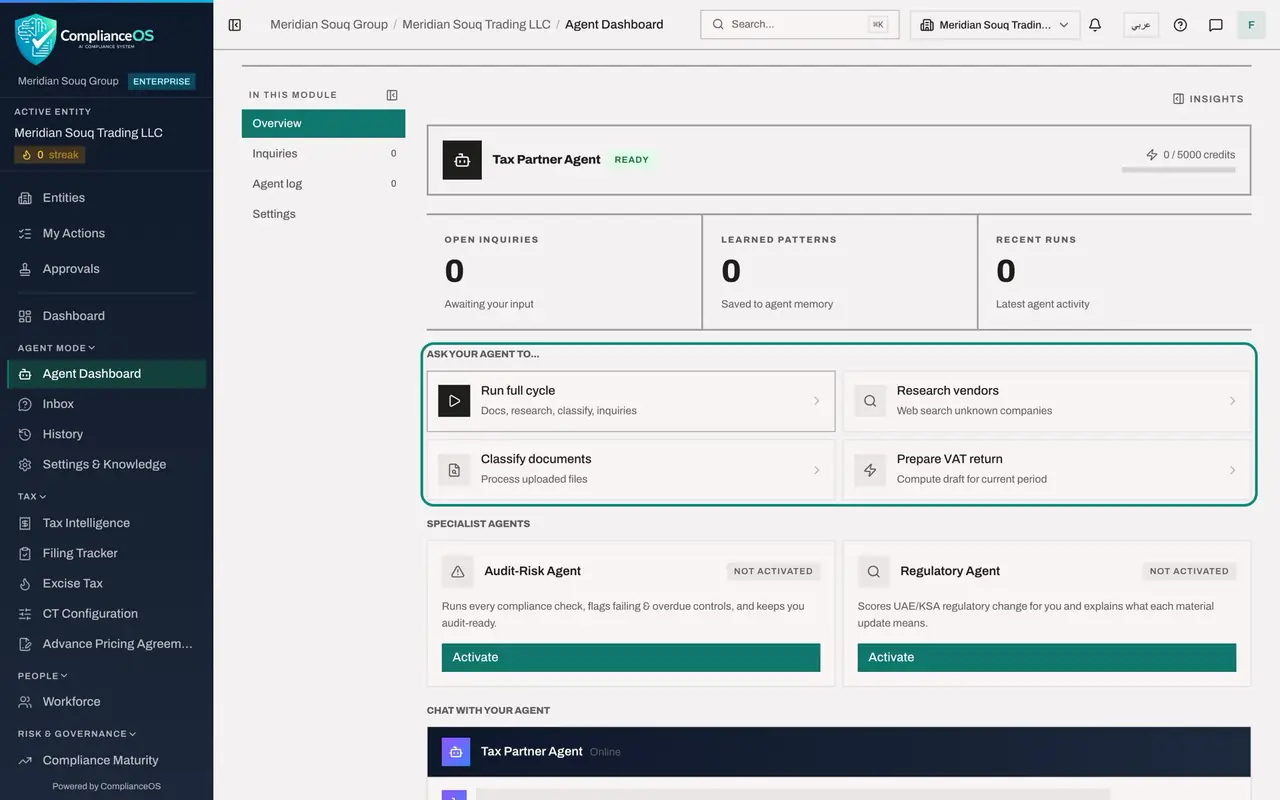
This lesson is for the tax manager and for anyone who will work with the agent. The Agent Dashboard is one page with everything about the agent for this entity: its state, how much of its monthly AI budget it has used, the questions it has for you, the actions you can ask for, two specialist agents, a chat, and its recent activity. You will read each part without starting anything, so that the following lessons make sense.
Before you start
- You are signed in as the tax manager of Meridian Souq Trading LLC.
- The Tax Partner Agent was switched on in lesson 12 and has not done anything yet.
Steps
- 1
Open the Agent Dashboard
In the left menu, under Agent Mode, choose Agent Dashboard. The heading is the agent's name, Tax Partner Agent. At the top right are two buttons: Agent log, which opens the record of everything the agent has done, and Run full cycle, which starts a complete round of work. Do not select Run full cycle yet.
- 2
Read the state and the credits
The bar under the heading shows the agent's state. Ready means it is switched on and idle. Running means it is working, Needs input means it has a question for a person, and Disabled means it has been switched off. Beside the state is the credits line: the AI credits used this month out of the agent's monthly budget.
- 3
Read the three figures
Three figures follow. Open inquiries counts the questions the agent is waiting for you to answer. Learned patterns counts what it has saved to its memory about this company. Recent runs counts its latest pieces of work. All three are zero, because the agent is new. Each figure is a link to its page.
- 4
Read Ask your agent to
Under Ask your agent to are four actions. Run full cycle does everything in order: documents, research, classification and questions. Research vendors looks up suppliers it does not know. Classify documents processes uploaded files. Prepare VAT return computes a draft for the current period. Each of them starts work at once when selected.
- 5
Look at the specialist agents
Specialist agents lists two more agents for this entity. The Audit-Risk Agent runs the compliance checks and flags failing and overdue controls. The Regulatory Agent scores regulatory change and explains what each update means. Both read Not activated. A later lesson switches them on.
- 6
Find the chat
Chat with your agent is where you ask the agent questions and give it instructions in your own words. It greets you and offers three suggestions under the box. Unlike the suggestions of the Compliance Assistant, selecting one of these sends it immediately.
- 7
Scroll to the activity
Below the chat, the page reads No activity yet. After the agent's first piece of work, Recent activity lists its latest runs here.
- 8
Find the agent's other pages
Go back to the top. In this module, on the left of the page, lists Overview, Inquiries, Agent log and Settings. The left menu holds the same pages under Agent Mode with slightly different names: Inbox is Inquiries, History is the Agent log, and Settings and Knowledge is Settings.
How to check it worked
You can point to the agent's state, which reads Ready, the credits line, the three figures Open inquiries, Learned patterns and Recent runs, the four actions under Ask your agent to, the two specialist agents, the chat, and the three other pages of agent mode in the left menu.
Common mistakes
- Selecting Run full cycle to see what it does. It starts real work on your transactions. Read this lesson first, and set the agent's autonomy in lesson 14.
- Ignoring the credits line. Every question and every run uses AI credits from the agent's monthly budget. When the budget is used up, the agent pauses.
- Looking for the agent's questions in your email. They are on the Inbox page of agent mode, and counted here as Open inquiries.
Check your understanding
1. Where do you see whether the agent is waiting for an answer from a person?
- A.In the Compliance Calendar
- B.On the Agent Dashboard: the state reads Needs input and Open inquiries is above zero
- C.In Tax Intelligence
- D.Nowhere
Show answer
Answer: B. On the Agent Dashboard: the state reads Needs input and Open inquiries is above zero
The state and the Open inquiries figure show that the agent has stopped for a person. The questions themselves are on the Inbox page.
2. What does the line 0 of 5000 credits tell you?
- A.The agent has 5000 transactions to classify
- B.How much of the agent's monthly AI budget has been used
- C.The number of users
- D.The agent's accuracy
Show answer
Answer: B. How much of the agent's monthly AI budget has been used
Each piece of AI work costs credits. The line shows what has been used out of the monthly budget set for this agent.