Lesson 26 of 33
Run the workflow with inputs and check what it created
What you will be able to do
This lesson is for the compliance officer. In lesson 25 the workflow ended without doing anything, because it had no regulatory update to analyse. Now you will give it one, written in the Inputs box. The update is an example invented for training. A workflow, unlike the Compliance Assistant, may write records within your permissions, so you will read the trace step by step and compare what the summary says it did with the steps that ran.
Before you start
- You are signed in as the compliance officer of Meridian Souq Trading LLC.
- Lesson 22 is done: the Workflows list holds one run with zero steps.
Steps
- 1
Open Workflows and select New Workflow
In the left menu, under Agent Mode, choose Workflows. The run from lesson 25 is in the list. Select New Workflow.
- Select Workflows
- Select New Workflow
- 2
Choose the type and the trigger
Open Workflow Type and choose Regulatory Impact Analysis again. In Trigger Event type manual.
- Select Workflow Type *
- Choose Regulatory Impact Analysis
- Type Trigger Event:
manual
- 3
Write the inputs
In Inputs, write the regulatory update the workflow should analyse, in JSON. It needs five items: title, source, jurisdiction, summary and relevance score. Each name and each text value is in double quotes, items are separated by commas, and the whole is inside curly brackets. The update typed here is an example invented for training, and says so in its title and summary.
- Type Inputs (optional JSON):
{"title": "Training example: supplier checks before recovering input V…
- Type Inputs (optional JSON):
- 4
Select Run Workflow
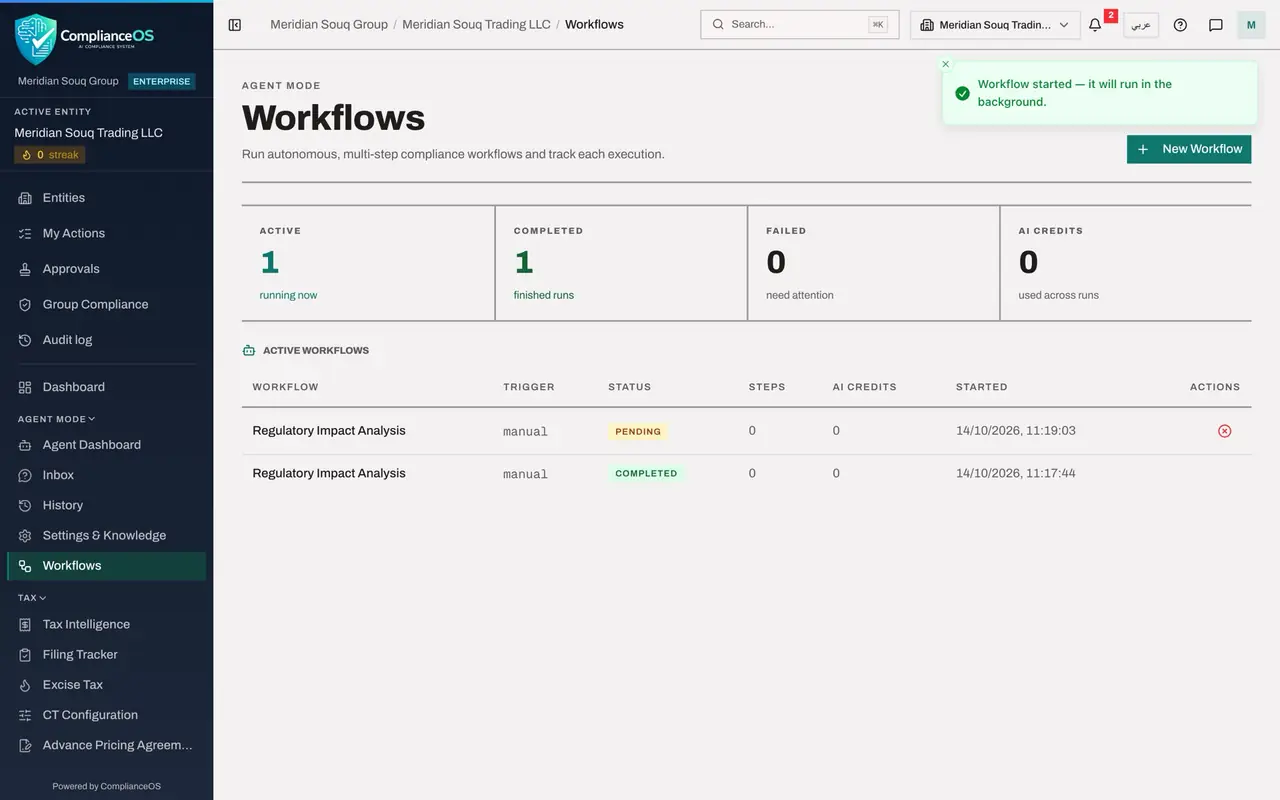
Select Run Workflow. The message Workflow started confirms it, and a new run appears at the top of the list.
- Select Run Workflow
- 5
Wait for the workflow to end
This run has work to do, so it takes a little longer. When its status reads Completed, the Steps column shows five.
- 6
Open the run and read its steps
Select the newest row. Trigger Inputs shows the update you typed, and the list of tools this run was allowed to use, filled from your own permissions. Under Steps, the workflow first read: the regulatory alerts, the tax summary, which reports three transactions, all classified, and the compliance calendar, where it found the trade licence renewal.
- Select The newest run: Regulatory Impact Analysis
- 7
Read the result
Scroll down. Step 4, create_risk_insight, shows its Input: a risk insight titled Supplier Tax Invoice Validation for Input VAT Recovery, severity Medium, for Tax, and its Output: created. Step 5, create_notification, sent a warning titled Input VAT Recovery Compliance Update. Result, at the foot, counts the actions: one notification, one risk insight, no calendar entry. These are real records: the insight appears in the Risk Register under AI Insights, as lesson 30 shows.
- 8
Scroll the summary sideways
The summary in Result is one long line of text, so scroll the window sideways to read it. It begins What this run did, then lists the actions: Risk Insight Created, with its title, and the notification sent. It matches the steps. The summary is the workflow's own report, and the steps are the record; here they agree, and checking them is how you know.
How to check it worked
The Workflows list holds a second Regulatory Impact Analysis with the status Completed and five steps, including create_risk_insight and create_notification, and its summary reports the same two actions.
Common mistakes
- Writing Inputs as a sentence. The box takes JSON only: names and values in double quotes, separated by commas, inside curly brackets. The form answers Inputs must be valid JSON to anything else.
- Feeding a workflow an unverified rumour as a regulatory update. It will analyse whatever it is given and may create entries from it. Use the text of the real update.
- Leaving what the workflow created unread. It recorded a risk insight and sent a notification. Look at both, and correct or dismiss what is wrong.
Check your understanding
1. What is the Inputs box for?
- A.A comment for colleagues
- B.The structured data the workflow should work on, written in JSON
- C.The password
- D.The email address for the result
Show answer
Answer: B. The structured data the workflow should work on, written in JSON
Inputs is passed to the workflow as its trigger data. For this workflow it carries the regulatory update to analyse.
2. A workflow's summary says a notification was sent. How do you know whether it was?
- A.The summary is enough
- B.Read the steps and tools used in the trace: if no tool that sends a notification ran, none was sent
- C.Run it again
- D.Ask the Compliance Assistant
Show answer
Answer: B. Read the steps and tools used in the trace: if no tool that sends a notification ran, none was sent
The trace names every tool that ran and what it returned. In this lesson the steps create_risk_insight and create_notification confirm the two actions in the summary.