Lesson 24 of 31
Assign privacy training by role and by name
What you will be able to do
This lesson is for the Data Protection Officer. You will create a training campaign that assigns a training module to everyone who holds a role, add one more person by name, set the due date and the yearly refresher, launch it, and correct a setting on the live campaign.
Before you start
- The training module is Active, as in lesson twenty-three.
- You know which roles or people must take the training.
Steps
- 1
Open Training campaigns
In Privacy policies and training, select Training campaigns. A training campaign assigns one or more training modules to a group of people and tracks who has passed.
- Select Training campaigns
- 2
Select New campaign and name it
Select New campaign and give it a name staff will recognise in their task list, with a short description.
- Select New campaign
- Type Name:
Breach reporting training 2026 - Type Description:
Short breach reporting training for staff.
- 3
Tick the training module
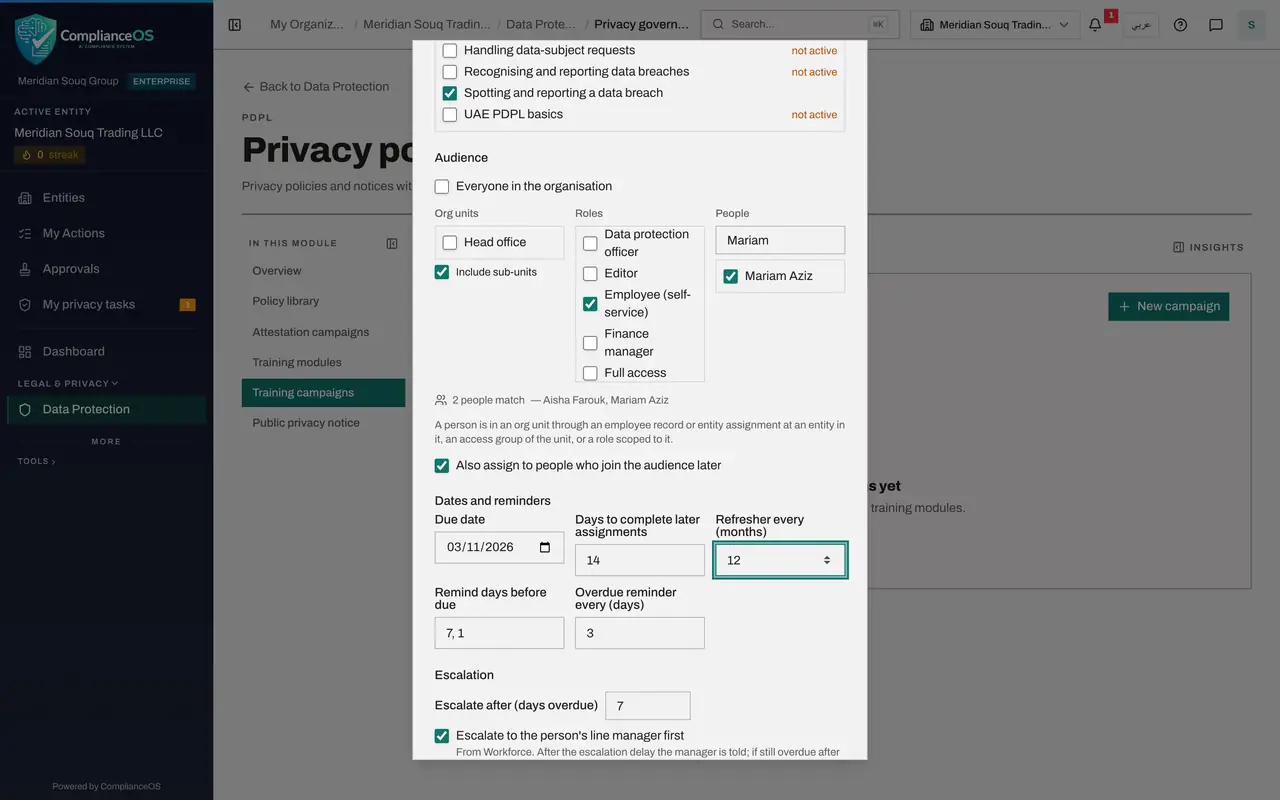
Under Training modules, tick the module to assign. The four starter modules are marked not active, because they are still drafts. You can tick several active modules. Each becomes a separate task for every person.
- Select Spotting and reporting a data breach
- 4
Choose the audience by role
Clear Everyone in the organisation. In Roles, tick Employee. Everyone who holds that role is added, whichever org unit they are in.
- Select Everyone in the organisation
- Select Employee (self-service)
- 5
Add one person by name
In People, type part of a name in Search people and tick the person. Here the compliance officer, Mariam Aziz, is added. The line underneath now shows how many people match.
- Type Search people:
Mariam - Select Mariam Aziz
- Type Search people:
- 6
Set the due date and the refresher
Set the Due date, here three weeks from today. Refresher every, in months, appears only for training campaigns. Type 12 so that each person is asked to take the training again a year after passing.
- Type Due date:
2026-11-03 - Type Refresher every (months):
12
- Type Due date:
- 7
Select Save draft
The reminders and the escalation work as in an attestation campaign. Select Save draft. The campaign opens as a Draft, and the Set-up box lists the module, the audience and the refresher.
- Select Save draft
- 8
Select Launch
Select Launch. The campaign is Active. Each person is notified, finds the training in My privacy tasks, and is listed here as To do until they pass the quiz.
- Select Launch
- 9
Select Edit settings on the live campaign
Go back to the top and select Edit settings. A note says the campaign is live and changes apply from now on. The modules can no longer be changed, but the audience, the dates, the reminders and the escalation can.
- Select Edit settings
- 10
Change the overdue reminder and save
Change Overdue reminder every to 2 days and select Save. If you had changed the audience, you would then select Re-sync audience to assign the campaign to the newly matching people.
- Type Overdue reminder every (days):
2 - Select Save
- Type Overdue reminder every (days):
- 11
See both campaigns in their lists
Select Back. Training campaigns lists the campaign with its status, due date, the number assigned, the number overdue and the completion so far.
- Select Back
How to check it worked
The campaign shows Active, each person in the audience is listed with the module and the status To do, and the Set-up box shows the refresher of 12 months.
Common mistakes
- Ticking a module marked not active. Only an active module can be assigned. Activate it first.
- Setting no refresher for training that the law expects every year. Refresher every, in months, assigns the module again after that time.
- Expecting a change to a live campaign to reach new people by itself. After you change the audience, select Re-sync audience.
Check your understanding
1. You tick the role Employee and also one named person who is not an employee. Who is assigned?
- A.Only the named person
- B.Everyone with the role, plus the named person
- C.Nobody, the choices conflict
- D.Everyone in the organisation
Show answer
Answer: B. Everyone with the role, plus the named person
Org units, roles and people add together. A person who matches more than one is still assigned only once.
2. What does Refresher every 12 months do?
- A.Deletes results after a year
- B.Assigns the module again a year after a person completes it
- C.Sends a reminder every 12 days
- D.Closes the campaign after a year
Show answer
Answer: B. Assigns the module again a year after a person completes it
A refresher asks each person to take the training again after the period, which is how yearly training is kept up.