Lesson 14 of 31
Draft the notification to the regulator and send it for approval
What you will be able to do
This lesson is for the Data Protection Officer who prepares the notices. You will open the breach's notifications page, read who the regulator is, draft the notification from the breach record, complete a section, download it as a PDF in English and Arabic and as a data file, and submit it for approval.
Before you start
- The breach is logged and its report content is filled in, as in lessons twelve and thirteen.
- A second person with the right to approve breach notices is available. Whoever drafts or edits a notice cannot approve it.
Steps
- 1
Open the breach's notifications page
In the Breach Log, select View on the breach. In the window, scroll to Notifications and select Open notifications. The notices have their own full-width page, with the regulator's notice and the notice to the people affected side by side.
- Select Open notifications
- 2
Read who the regulator is
The grey box names the regulator for your entity, the articles of the law that require the report, and how the report can be delivered. For this entity the regulator is the UAE Data Office. ComplianceOS does not file anything for you: it prepares each notice as a document that you deliver yourself.
- 3
See the two notices side by side
On the left is Notification to the regulator. On the right is Notice to affected data subjects, the people the data is about. Both say Not drafted yet. This lesson prepares the regulator's notice, and the next one prepares the other.
- 4
Select Draft from the breach record
Under Notification to the regulator, select Draft from the breach record. The notice is built from what you logged and is marked Draft, version 1. Each section has its heading in English and Arabic.
- Select Draft from the breach record
- 5
Check the dates
Scroll to the section headed Dates. The time of detection is shown in United Arab Emirates time, and says so, so that the regulator reads the same time that you logged.
- 6
Select Edit
Go to the buttons under the text and select Edit. Every section of the notice opens in its own box. Sections marked with a star must be filled in before the notice can be saved.
- Select Edit
- 7
Complete the data protection officer section
The draft says that no data protection officer is recorded for the entity. Replace that line with the name and contact details of the person the regulator should speak to. Then select Save.
- Type Data protection officer / مسؤول حماية البيانات:
Sara Ahmed, Data Protection Officer, privacy@meridiansouq.example.com - Select Save
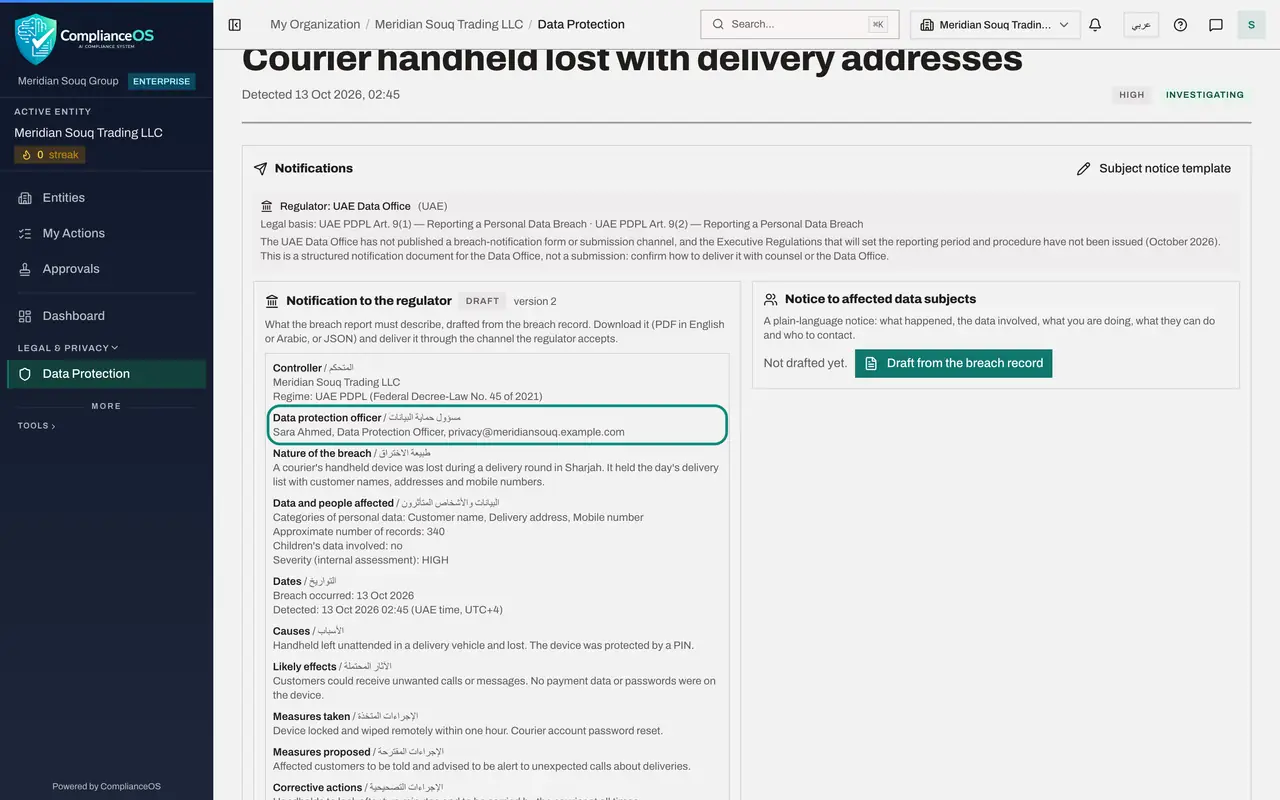
- Type Data protection officer / مسؤول حماية البيانات:
- 8
Know what Re-draft does
Re-draft replaces the whole text with a fresh draft from the current breach record. Use it after you have updated the breach itself. Do not select it now, because it would remove the edit you just made.
- 9
Download the notice as a PDF in English
Select PDF, EN, to download the notice as an English document. Read it through before it goes for approval. This is the file you will deliver to the regulator.
- Select PDF (EN)
- 10
Download the Arabic PDF and read the warning
Select PDF, AR, for the Arabic document. Its headings are in Arabic, but the text of this notice came from the breach record in English. The note beside the buttons warns that the text has not been translated, and the Arabic PDF says the same on its first line.
- Select PDF (AR)
- 11
Download the data file
Select JSON to download the same notice as a data file, for a regulator portal or another system that accepts structured data.
- Select JSON
- 12
Select Submit for approval
Select Submit for approval. The notice changes to Awaiting approval, and Withdraw appears in case you need to take it back. A note says that someone else has to approve it, because you prepared it.
- Select Submit for approval
- 13
Open the History
Select History at the bottom of the notice. It lists each event with the time and the person: Drafted from the breach record, Edited, and Submitted for approval. Later it will also show the approval and the sending.
- Select History (3)
How to check it worked
On the notifications page, Notification to the regulator shows Awaiting approval, with a note that someone else has to approve it because you prepared it, and its History lists Drafted, Edited and Submitted for approval.
Common mistakes
- Expecting ComplianceOS to file the report. It prepares the document. You deliver it to the regulator yourself, through the channel the regulator accepts.
- Selecting Re-draft after editing. Re-draft replaces the whole text with a fresh draft from the breach record, so your edits are lost. Update the breach record first, then re-draft, then edit.
- Sending the Arabic PDF of a notice whose text is still in English. The page warns you, and the first line of the Arabic PDF says the text has not been translated.
Check your understanding
1. Where do the words of the first draft come from?
- A.A blank template
- B.The breach record: description, dates, report content and containment measures
- C.The previous breach
- D.The regulator's website
Show answer
Answer: B. The breach record: description, dates, report content and containment measures
Draft from the breach record builds each section from what was logged, which is why the report content should be filled in first.
2. In which time zone are the dates in the notice shown?
- A.Coordinated Universal Time
- B.United Arab Emirates time
- C.The reader's own time zone
- D.No time is shown
Show answer
Answer: B. United Arab Emirates time
The Dates section states the detection time in UAE time and says so beside it.