Lesson 19 of 31
Record the legal review, then approve and publish the policy
What you will be able to do
This lesson is for the second Data Protection Officer, who approves policies. You will find the policy in your Approvals inbox, see that a policy started from a template cannot be approved until its legal review is recorded, record that review, approve the version so that it is published, and check the published text and the library.
Before you start
- A colleague has drafted the policy and submitted it for approval, as in lesson eighteen.
- Legal counsel has read and adapted the text. You did not write or edit this version.
Steps
- 1
Open Approvals and find the policy
In the left menu, select Approvals. The request to publish a privacy policy version is waiting for you. It names the policy, the entity and who submitted it.
- Select Approvals1
- 2
Select Open record
Select Open record on the request. The policy opens on its draft, version 1.0, marked Awaiting approval.
- Select Open record
- 3
See why Approve is not available yet
In the Awaiting approval box, Approve is greyed out. The line above it explains: this policy was started from a template, so the legal review must be recorded before it can be approved for publication. Reject is available, and sends the draft back to its author with your reason.
- 4
Read the draft
Read the English and the Arabic text below. Select Preview above each text to see it laid out as staff will read it. The fields are locked for you: an approver reads, and does not edit.
- Select Preview
- 5
Select Mark legal review done
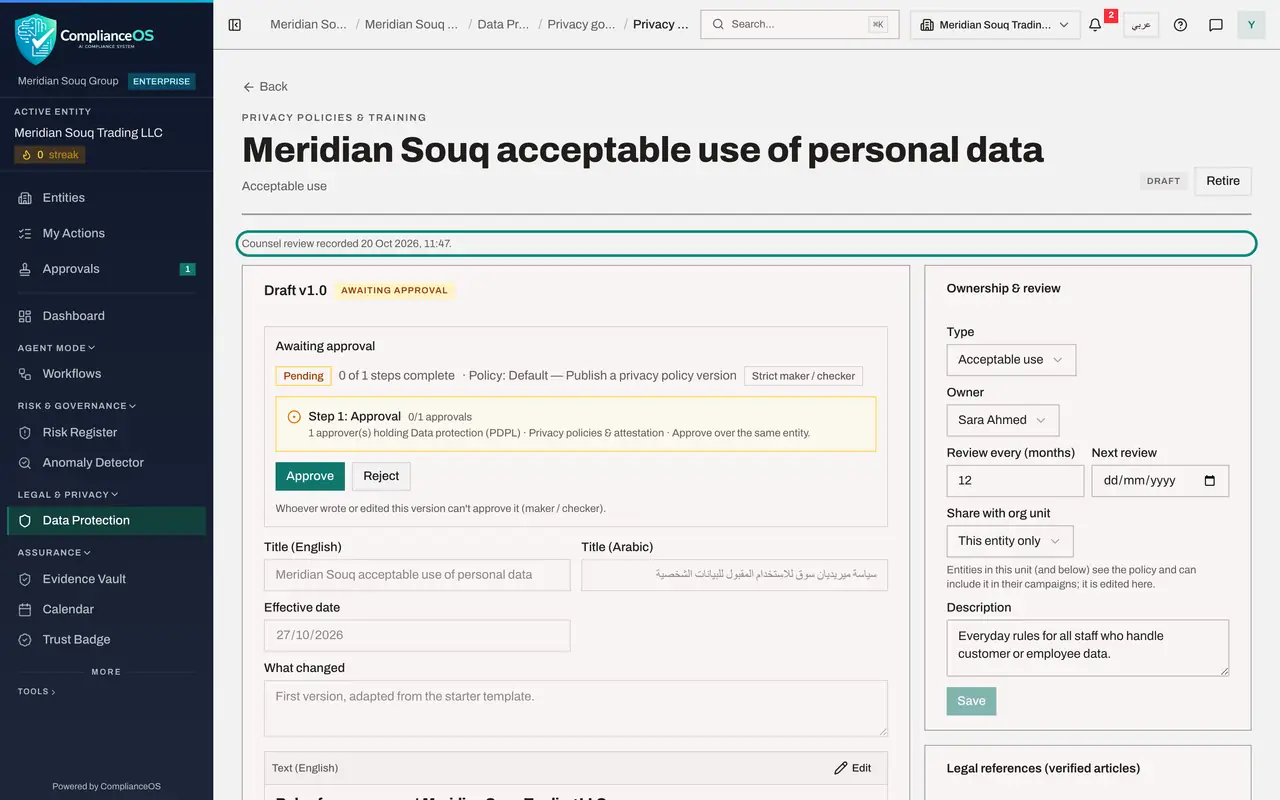
Go back to the top. Once counsel has read and adapted the text, select Mark legal review done. The button is available to you because you did not write or edit the policy. Legal counsel with their own sign-in can record the review in the same way, if their role includes Record legal review. The page now shows Counsel review recorded, with the date and time.
- Select Mark legal review done
- 6
Select Approve
Approve is now available. Select it. The window is titled Approve and publish: once every approval step is complete, this version is published and becomes the one staff acknowledge.
- Select Approve
- 7
Add a comment and confirm
Add a comment if you wish. It is kept with your decision. Then select Approve in the window.
- Type Comment (optional):
Reviewed with counsel. Approved for publication. - Select Approve
- Type Comment (optional):
- 8
See the published version
The policy now shows Published version 1.0, with its effective date and the published text. The short code beside the date is a fingerprint of the text, which proves which wording each person acknowledged.
- 9
Check the version history
Scroll to Version history. It lists every version with its status, effective date and change summary. When there are two or more versions, the From and To buttons compare them.
- 10
Check the Policy library
Select Back at the top. The policy is listed as Published, with version 1.0, its owner and the next review date, which is worked out from the review cycle.
- Select Back
How to check it worked
The policy page shows Published version 1.0 with its effective date, the line Counsel review recorded with a date, and the Policy library lists the policy as Published, version 1.0.
Common mistakes
- Recording the legal review before counsel has actually read the text. Mark legal review done is a record that someone outside the drafting has checked it. It is dated and kept on the policy.
- Looking for the template banner in the published text. The banner is a reminder on the policy page. It is never part of what staff read.
- Approving a version whose effective date has already passed without noticing. Check the Effective date before you publish.
Check your understanding
1. Approve is greyed out on a policy that started from a template. What is missing?
- A.A comment
- B.The legal review has not been recorded
- C.The Arabic title
- D.A training campaign
Show answer
Answer: B. The legal review has not been recorded
A template-based policy cannot be approved for publication until Mark legal review done has been selected by someone other than the author.
2. What happens when the approval is complete?
- A.The draft is deleted
- B.The version is published and becomes the one staff are asked to acknowledge
- C.Staff are e-mailed the policy immediately
- D.Nothing until a campaign ends
Show answer
Answer: B. The version is published and becomes the one staff are asked to acknowledge
Once every approval step is complete the version is published. Staff are asked to read it when you launch an attestation campaign.