Lesson 13 of 31
Follow the deadline clock, update a breach and void an entry made in error
What you will be able to do
This lesson is for the Data Protection Officer. You will read the deadline clock on a breach, open its full detail, update its status and findings as the investigation moves on, void a breach that was logged by mistake, and download the breach log.
Before you start
- A breach has been logged, as in lesson twelve.
- You are signed in with the Data Protection Officer role for the entity.
Steps
- 1
Read the deadline clock
In the Breach Log, look at the Regulator report due column. The tag shows the hours left to report. Under it is the date and time of the deadline, in United Arab Emirates time. The tag turns red and shows the hours overdue if the deadline passes. The banner at the top of Data Protection also warns of an active breach.
- 2
Select View to open the full detail
Select View on the breach. The window shows the severity, the status, when it was detected, the breach date, the number of records, when the regulator report is due, and whether the regulator and the people affected have been notified.
- 3
Read the report content and the notifications summary
Scroll down in the window. Report content shows what you entered for the regulator's report. Notifications shows the state of the two notices, both Not drafted yet, with the button Open notifications. Drafting the notices is the next lesson.
- 4
Select Update
Select Update at the bottom of the window. The Update breach form opens with the current values. Only what you change is saved.
- Select Update
- 5
Move the status on
Open Status and choose Investigating. The statuses are Detected, Investigating, Contained, Reported to regulator and Closed. Severity, the record count, the categories and the containment measures can all be corrected here as well.
- Select Detected
- Choose Investigating
- 6
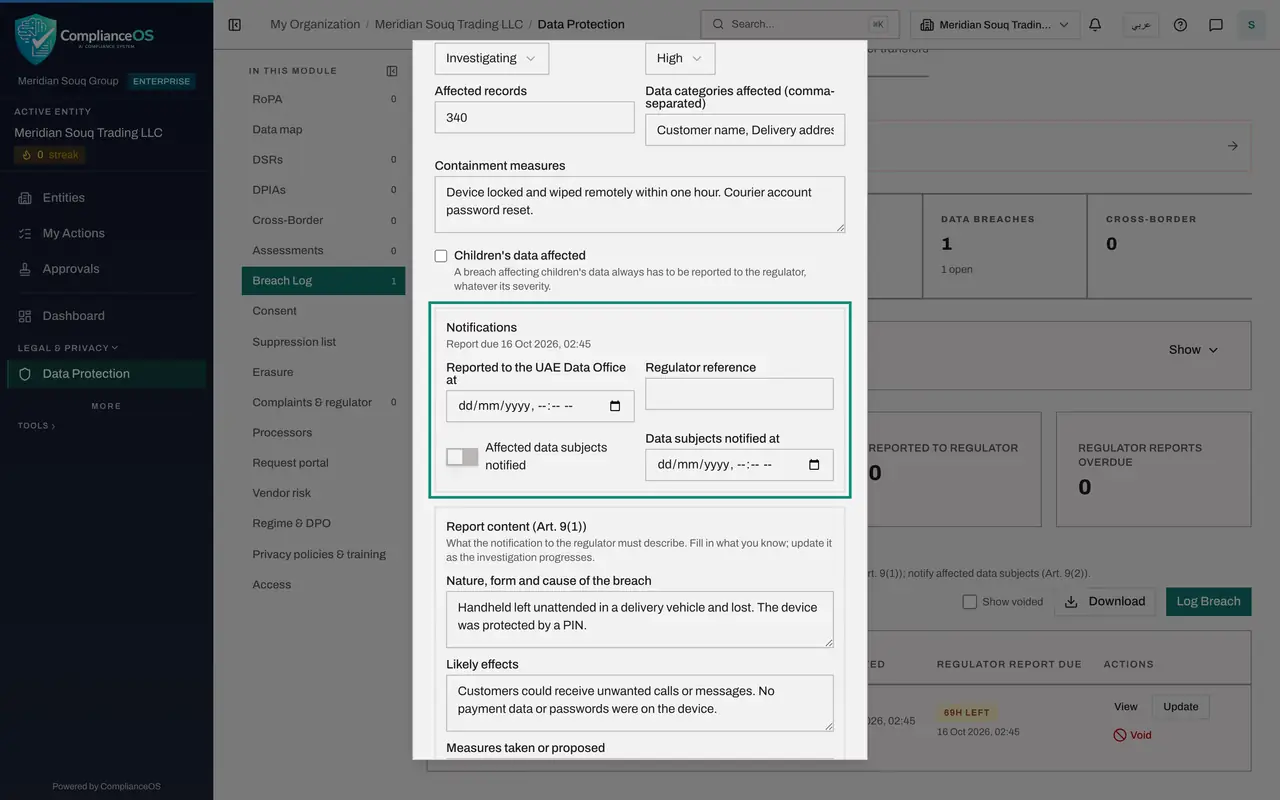
Look at the notification fields
The Notifications box shows when the report is due. It also holds the date the regulator was told, the regulator's reference, and whether and when the people affected were told. Leave these empty: they are filled in for you when you record each notice as sent.
- 7
Add the investigation findings and save
Scroll to Report content and, under Investigation findings, write what the investigation has found so far. Then select Save.
- Type Investigation findings:
The device has not been recovered. The device management system confir… - Select Save
- Type Investigation findings:
- 8
Log an entry by mistake
To see how a wrong entry is handled, suppose a colleague logs the same incident again. Select Log Breach, type a title and a description, and select Log Breach. The log now holds two breaches, and the tiles count two.
- Select Log Breach
- Type Title *:
Courier handheld lost (duplicate entry) - Type Description *:
Logged twice by mistake. The original entry holds the details. - Select Log Breach
- 9
Select Void on the wrong entry
Select Void on the duplicate. The window explains that Void is only for a record entered in error. The record stays in the audit trail but leaves the register, the downloads and the counters, and voiding cannot be undone.
- 10
Give the reason and confirm
Under Why was it entered in error, type the reason, at least three characters. Then select Void record.
- Type Why was it entered in error? *:
Duplicate of the breach logged earlier today. - Select Void record
- Type Why was it entered in error? *:
- 11
Tick Show voided
The duplicate has gone and the tiles count one breach again. Tick Show voided to see it, greyed out and tagged Voided. Hover over the tag to read the date and the reason.
- Select Show voided
- 12
Download the breach log
Select Download and choose CSV for a spreadsheet of the log, or JSON for another system. The download follows the year filter at the top of Data Protection and the Show voided box.
- Select Download
- Select CSV (Excel, all rows)
How to check it worked
The breach shows the status Investigating and the new investigation findings in its detail. The duplicate entry appears only when Show voided is ticked, greyed out and tagged Voided, and the tiles still count one breach.
Common mistakes
- Voiding a real breach to tidy the log. Void is only for a record entered in error. A real breach is closed with an explanation, never voided, and one already reported to the regulator cannot be voided at all.
- Typing the regulator notification date by hand in Update. Recording a notice as sent, covered in lesson seventeen, fills that date for you and keeps the notice with it.
- Leaving the status on Detected for days. Move it to Investigating and then Contained as the work progresses, so that anyone opening the log sees where things stand.
Check your understanding
1. What does the tag in the Regulator report due column show before you have reported?
- A.The severity
- B.The hours left until the deadline, or how many hours overdue
- C.The number of people affected
- D.The name of the regulator
Show answer
Answer: B. The hours left until the deadline, or how many hours overdue
The tag counts down the hours left, turns red when the deadline has passed, and changes to Reported once the notice is recorded as sent.
2. A colleague logged the same breach twice. What do you do with the second entry?
- A.Leave it
- B.Close it
- C.Void it, giving the reason
- D.Change its title
Show answer
Answer: C. Void it, giving the reason
Void removes a record entered in error from the register, the downloads and the counters, and keeps it in the audit trail with your reason.