Lesson 2 of 31
Make your own questionnaire from a library copy
What you will be able to do
This lesson is for the Data Protection Officer. You will copy a library questionnaire, rename it, add a question of your own with a weight and a critical control, and publish it so that it can be sent to vendors.
Before you start
- You are signed in with the Data Protection Officer role for the entity.
- You have looked through the questionnaire library, as in lesson one.
Steps
- 1
Open the Questionnaires tab
In Data Protection, select Vendor risk, then the Questionnaires tab. Your questionnaires is where your own versions are kept. New questionnaire starts an empty one. It is usually quicker to copy a library questionnaire and adapt it.
- 2
Select Copy on Sub-processor review
In the Library, find Sub-processor review and select Copy beside it. A draft opens with the same sections and questions, and the word custom added to its name. The buttons at the top are Save draft, Publish, Copy and Archive.
- Select Copy
- 3
Give the questionnaire its own name
In the Details box, replace the English name with one your team will recognise, here Courier sub-contractor review, and type the Arabic name beside it. Vendors see the name at the top of the questionnaire.
- 4
Describe what it is for
Replace the English description with one line that says when to use this questionnaire. The description is shown in the library list and helps colleagues choose the right one.
- 5
Check the type and choose the regime
Type says what kind of questionnaire this is and stays on Sub-processors. Under Regime, choose UAE PDPL, because this version is written for the federal Personal Data Protection Law, or PDPL.
- Select Any regime
- Choose UAE PDPL
- 6
Look at a section
Each section has a short identifier, a title in English and Arabic, and its questions. The arrows at the top right of a section or a question move it up or down, and the bin removes it.
- 7
Select Add question
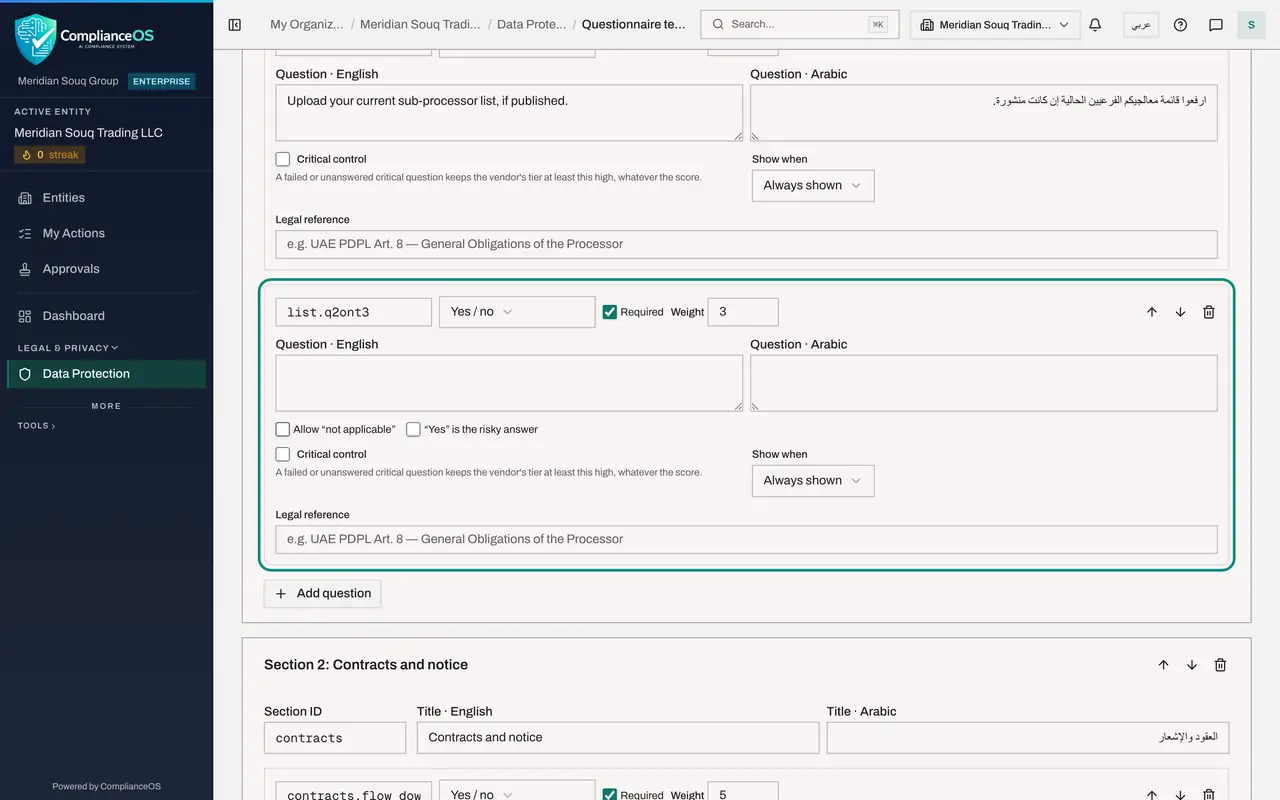
At the bottom of Section 1, select Add question. A new question appears at the end of the section. It starts as a Yes or no question, ticked as Required, with a weight of 3.
- Select Add question
- 8
Write the question in English and Arabic
Type the question under Question English, and the same question in Arabic beside it. Here the question asks whether sub-contracted drivers use their own phones to hold your delivery lists. Keep each question to one clear point that can be answered yes or no.
- 9
Set the answer type and the weight
The Answer type list offers Yes or no, Single choice, Multiple choice, Text, Number, Date and File evidence. Leave it on Yes or no. Change the weight to 4, so that this question counts more than an ordinary one. A text answer always has a weight of zero, because free text cannot be scored.
- 10
Tick “Yes” is the risky answer
For this question a Yes means more risk, so tick the box labelled “Yes” is the risky answer. The vendor then earns the marks for answering No. Allow not applicable lets the vendor skip a question that does not apply to them.
- Select “Yes” is the risky answer
- 11
Make it a critical control
Tick Critical control and, in the list that appears, choose Tier at least Medium. If a vendor fails this question or leaves it blank, its risk tier can never be lower than Medium.
- Select Critical control
- Select Minimum tier when failed
- Choose Tier at least Medium
- 12
Check Show when and the legal reference
Show when decides whether the question always appears, or only after a particular answer to an earlier question. Leave it on Always shown. Under Legal reference, type the article the question supports.
- Type e.g. UAE PDPL Art. 8 — General Obligations of the Processor:
UAE PDPL Art. 8 — General Obligations of the Processor
- Type e.g. UAE PDPL Art. 8 — General Obligations of the Processor:
- 13
Select Save draft, then Publish
Go back to the top and select Save draft. Then select Publish. If something is missing, a box titled Fix these before publishing lists it. Once published, the questionnaire is frozen, and the buttons change to New version, Copy and Archive.
- Select Save draft
- Select Publish
- 14
Find it under Your questionnaires
Select Back to vendor risk and open the Questionnaires tab again. Your questionnaire is listed as Published, with ten questions and three critical. It can now be chosen when you send a questionnaire to a vendor.
- Select Back to vendor risk
- Select Questionnaires
How to check it worked
Your questionnaire is listed under Your questionnaires with the status Published, and its question count is one higher than the library questionnaire you copied.
Common mistakes
- Publishing before the wording is final. A published version is frozen. To change it you must select New version, which starts a new draft and leaves earlier assessments on the version they were sent with.
- Leaving the Arabic text of a new question empty. Vendors who switch the questionnaire to Arabic would then see a blank question.
- Giving every question a high weight. Weights only matter relative to each other, so keep high weights for the answers that should move the score most.
Check your understanding
1. You want to change one question in a library questionnaire. What do you do?
- A.Edit it in the Library
- B.Select Copy and edit your own draft
- C.Ask the vendor to ignore the question
- D.Change it in Settings
Show answer
Answer: B. Select Copy and edit your own draft
Library questionnaires are read-only. Copy creates a draft under Your questionnaires that you can edit and publish.
2. On a yes or no question, what does ticking “Yes” is the risky answer do?
- A.It hides the question
- B.It makes the question required
- C.It scores a Yes as the bad answer and a No as the good one
- D.It marks the question as critical
Show answer
Answer: C. It scores a Yes as the bad answer and a No as the good one
Normally Yes earns the marks. For a question where Yes means more risk, the tick reverses the scoring.