Lesson 25 of 31
For every employee: acknowledge a policy and complete your training
What you will be able to do
This lesson is for every member of staff. You will open My privacy tasks, read a policy and confirm that you have understood it, take a short training with a quiz, see what happens when an answer is wrong, pass on the second attempt, and download your certificate.
Before you start
- Your organisation has asked you to acknowledge a policy and to complete a training. You see a number beside My privacy tasks in the left menu.
- You need no special role. Every signed-in person can complete their own privacy tasks.
Steps
- 1
Open My privacy tasks
In the left menu, select My privacy tasks. The number beside it is how many tasks are waiting for you. To do lists the policies you must read and the training you must complete, each with its due date. Items in red are overdue.
- Select My privacy tasks2
- 2
Select Read on the policy
Select Read beside the policy. The page shows which company and campaign asked you, the due date, the version you are being asked to acknowledge, and the full text.
- Select Read
- 3
Read it in Arabic if you prefer
The language buttons at the top right switch the policy between English and Arabic. Read it in the language you are most comfortable with. Your acknowledgement records which one you read.
- Select العربية
- Select English
- 4
Tick the confirmation
Read the policy to the end. Below it, tick the statement that you have read and understood it. Confirm stays greyed out until the box is ticked. The line underneath says what is recorded: the version, the time, your network address and your browser.
- 5
Select Confirm
Select Confirm. A line confirms that you acknowledged this version, with the date and time. The task is complete.
- Select Confirm
- 6
Go back and select Start on the training
Select My privacy tasks at the top to return to your list. The policy has moved to Completed. Select Start beside the training.
- Select My privacy tasks
- Select Start
- 7
Read the lesson
Read the lesson. If the training has a video, a Watch the video link appears above the text. The quiz is underneath, and its heading shows the pass mark you need.
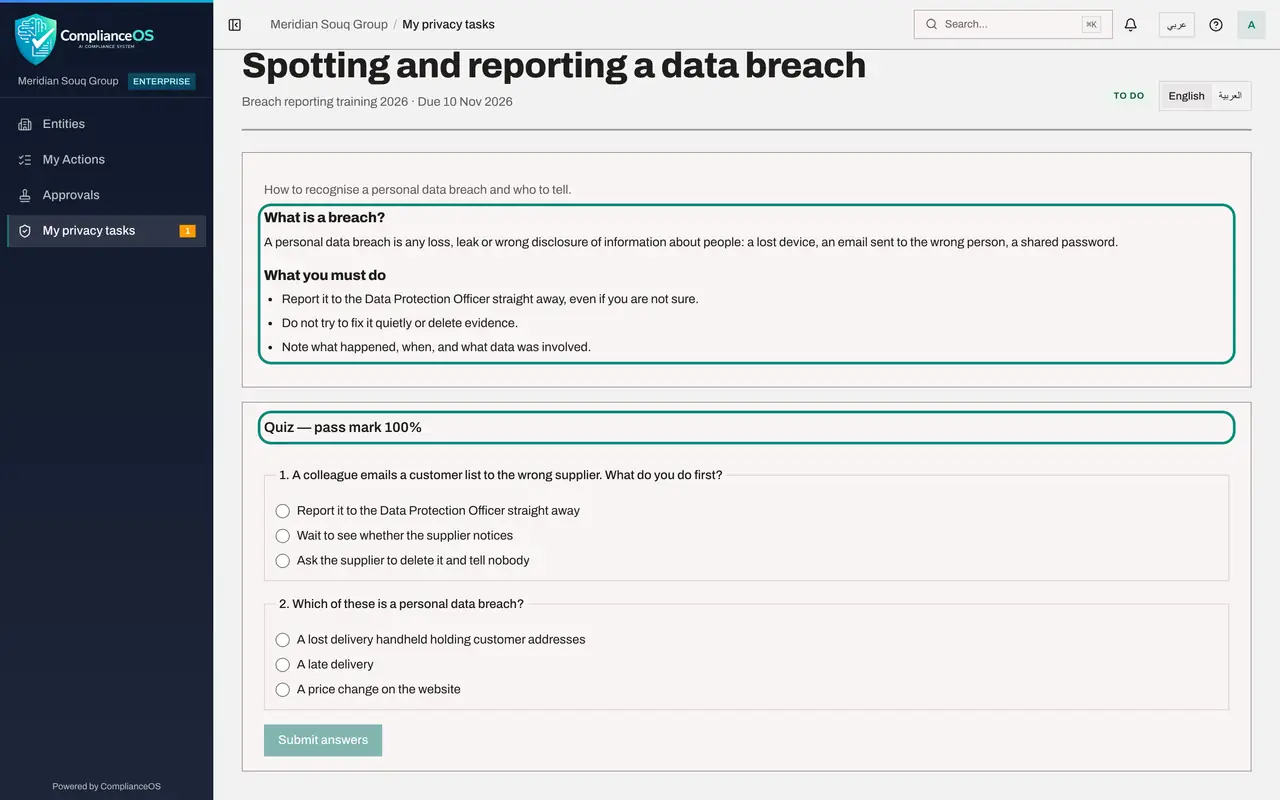
- 8
Answer the questions, one of them wrongly
Choose one answer for each question. To see what a failed attempt looks like, a wrong answer is chosen for the second question here. Then select Submit answers.
- Select A late delivery
- Select Submit answers
- 9
Read the result
The page marks each answer as Correct or Not quite. It shows your score and the pass mark that is needed, and asks you to review the lesson and try again. The button now reads Try again.
- 10
Correct the answer and select Try again
Change your answer to the second question and select Try again. This time the page shows Passed, with your score and the date.
- Select Try again
- 11
Download your certificate
Select Download certificate to save a PDF certificate with its number. Keep it for your records. Your organisation can see the same result.
- Select Download certificate PT-20261020-F6D26DEB
- 12
Check that nothing is left to do
Go back to My privacy tasks. To do says you are all caught up. Select Show under Completed to list what you finished and when. The Certificate button there downloads the certificate again at any time.
- Select My privacy tasks
- Select Show
- 13
See what an employee cannot open
Your tasks are all you need. If you open the Data Protection module itself, ComplianceOS says Module access required, names the permission you do not hold and the administrators who can grant it. The privacy team works there, and you do not need it to complete your own tasks.
How to check it worked
My privacy tasks shows that you are all caught up, and the Completed list shows the policy and the training with the date you finished them and a Certificate button beside the training.
Common mistakes
- Ticking the confirmation without reading the policy. Your acknowledgement is recorded with the version, the time, your network address and your browser.
- Closing the page after a failed quiz. Nothing is lost: review the lesson, select Try again and answer once more.
- Looking for Data Protection in the menu. As an employee you do not see that module. Your tasks are under My privacy tasks.
Check your understanding
1. You score below the pass mark. What happens?
- A.You are locked out
- B.You see your score and which answers were not right, and can try again
- C.Your manager must reset the quiz
- D.The training is marked as passed anyway
Show answer
Answer: B. You see your score and which answers were not right, and can try again
The page shows your score and the pass mark needed. Review the lesson and select Try again.
2. Where can you download your training certificate later?
- A.Only by e-mail
- B.From the Completed list in My privacy tasks
- C.From the Policy library
- D.It cannot be downloaded again
Show answer
Answer: B. From the Completed list in My privacy tasks
Select Show under Completed. Each passed training has a Certificate button.