Lesson 4 of 31
Send a vendor a due-diligence questionnaire by secure link
What you will be able to do
This lesson is for the Data Protection Officer. You will send a questionnaire to a vendor through a secure link, copy the link instead of e-mailing it, and learn how to follow the questionnaire and manage its link while the vendor is answering.
Before you start
- The vendor is in the Vendor risk register, as in lesson three.
- The vendor's profile holds the e-mail address of the person who will answer.
Steps
- 1
Find the vendor in the register
In Data Protection, select Vendor risk and find the vendor in the register. The Actions column stays in view at the right edge of the table, however wide the table is. It holds View and, for an active vendor, Send questionnaire.
- 2
Select Send questionnaire
Select Send questionnaire. The form explains that the vendor answers through a secure link and needs no account. The contact's e-mail address and name are filled in from the vendor's profile.
- Select Send questionnaire
- 3
Choose the questionnaire
Open the Questionnaire list. It shows every published questionnaire: the six from the library and any of your own, marked custom. Choose UAE PDPL processor due diligence. The vendor keeps the version you send, even if the questionnaire is updated later.
- Select Choose a published questionnaire
- Choose UAE PDPL processor due diligence · v1
- 4
Check the contact
Check Contact email and Contact name. Change them here if a different person should answer this time. The profile is not changed.
- 5
Set the due date
Due date starts two weeks ahead. Set the date by which you need the answers, here three weeks from today. Reminders go out automatically before that date.
- Type Due date:
2026-11-03
- Type Due date:
- 6
Add a short message for the vendor
Under Message to the vendor, say why you are asking and what to attach. The message appears at the top of the questionnaire. It is optional.
- Type Message to the vendor (optional):
As part of our yearly supplier review, please complete this questionna…
- Type Message to the vendor (optional):
- 7
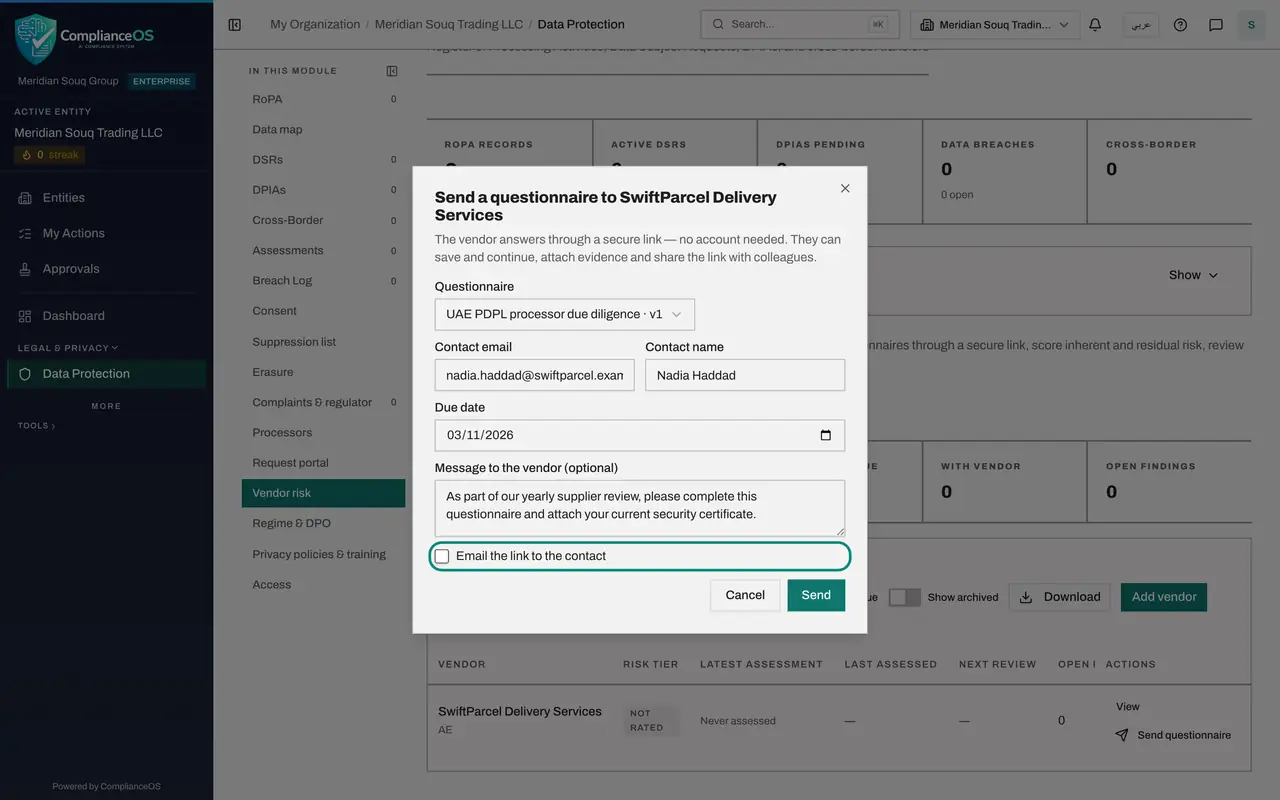
Clear the e-mail box to share the link yourself
Email the link to the contact is ticked to begin with, and ComplianceOS then e-mails the link for you. Clear the box when you prefer to pass the link on yourself, as in this lesson.
- Select Email the link to the contact
- 8
Select Send and copy the link
Select Send. The secure link is shown in full only now. Select Copy link, the button beside it, and pass the link to your contact. Anyone holding the link can answer for the vendor, so treat it like a password.
- Select Send
- Select Copy link
- 9
Select Done and check the register
Select Done. The vendor's row now shows Sent with the questionnaire's name, and the With vendor counter shows one until the answers come back.
- Select Done
- 10
Open the vendor's Assessment history
Select the vendor's name. Assessment history lists every questionnaire sent to this vendor, newest first, with its status, due date and how many questions are answered. Link live means the secure link still works.
- 11
Open the assessment
Select View on the questionnaire. The box at the top always says what happens next. For now it reads Waiting for the vendor to open the questionnaire.
- Select View
- 12
Copy the link again when you need it
Select Copy link. A window shows the secure link again, with the same copy button. Select Done to close it.
- Select Copy link
- Select Copy link
- Select Done
- 13
Know the three ways to stop a link
Issue a new link replaces the link and keeps the answers already saved. Withdraw link stops the link without replacing it. Cancel assessment closes the questionnaire for good, without a tier. Do not select them now.
- 14
Read the Timeline
The Timeline records who the questionnaire was sent to, the due date, when it was sent, when the vendor first opened it, when answers were last saved, how many reminders went out and when the link expires. In the next lesson you follow the vendor through the questionnaire.
How to check it worked
The vendor's row in the register shows Sent with the questionnaire's name, the With vendor counter shows one, and the vendor's Assessment history lists the questionnaire with the tag Link live.
Common mistakes
- Posting the link where other people can read it. Anyone who has the link can answer for the vendor, so treat it like a password and send it only to your contact.
- Closing the window before copying the link when the e-mail box is cleared. The link is shown in full only at that moment. If you miss it, open the assessment and select Copy link.
- Setting a due date that is too close. Reminders start before the due date, and the vendor may need time to collect certificates and contracts.
Check your understanding
1. The vendor says the link was forwarded to the wrong person. What do you do?
- A.Nothing, the link expires by itself
- B.Open the assessment and select Issue a new link, so the old one stops working
- C.Delete the vendor
- D.Send the same link again
Show answer
Answer: B. Open the assessment and select Issue a new link, so the old one stops working
Issue a new link stops the old link and keeps the answers already saved. Withdraw link stops it without issuing another.
2. Does the vendor need a ComplianceOS account to answer?
- A.Yes, an administrator must invite them
- B.No, the secure link opens the questionnaire without sign-in
- C.Only for uploading files
- D.Only for the Arabic version
Show answer
Answer: B. No, the secure link opens the questionnaire without sign-in
The vendor answers through the secure link with no account. They can save, come back later and share the link with colleagues.