Lesson 26 of 31
Track who has acknowledged and trained, and keep the records as evidence
What you will be able to do
This lesson is for the Data Protection Officer. Once staff have started on their tasks, you will read the Overview with its governance score, completion by org unit and by campaign, and the overdue list. You will then open a campaign to filter and search the people, download the records and a certificate, and save the completion records to the evidence vault for auditors.
Before you start
- An attestation campaign and a training campaign are live, as in lessons twenty-two and twenty-four.
- At least one person has completed their tasks, as in lesson twenty-five.
Steps
- 1
Open the Overview
In Data Protection, select Privacy policies and training. It opens on the Overview. Five tiles summarise the programme: the governance score, attestation completion, training completion, policies up to date, and overdue items.
- 2
Read the governance score
The governance score is the average of three figures: the share of acknowledgements completed, the share of training completed, and the share of policies that are published and within their review date. Under each tile is the count behind the percentage.
- 3
Read the notes under the tiles
The box under the tiles lists what needs your attention, such as policy versions awaiting approval, policies past their review date, and template-based policies that counsel has not yet reviewed.
- 4
Read Completion by org unit
Completion by org unit lists each org unit with the number of tasks assigned, the number overdue and a completion bar. This is where you see which part of the organisation is behind.
- 5
Read Completion by campaign
Completion by campaign lists every live campaign with its kind, the number overdue and its completion. The campaign's name is a link to its detail page.
- 6
Check the overdue list and its downloads
Overdue lists every late task with the person, the org unit, the item, the campaign, the due date, the days overdue and the follow-up so far. Nothing is overdue yet. Overdue list, CSV, and Attestation records, CSV, download those lists as spreadsheet files. Select Attestation records now.
- Select Attestation records (CSV)
- 7
Open the training campaign
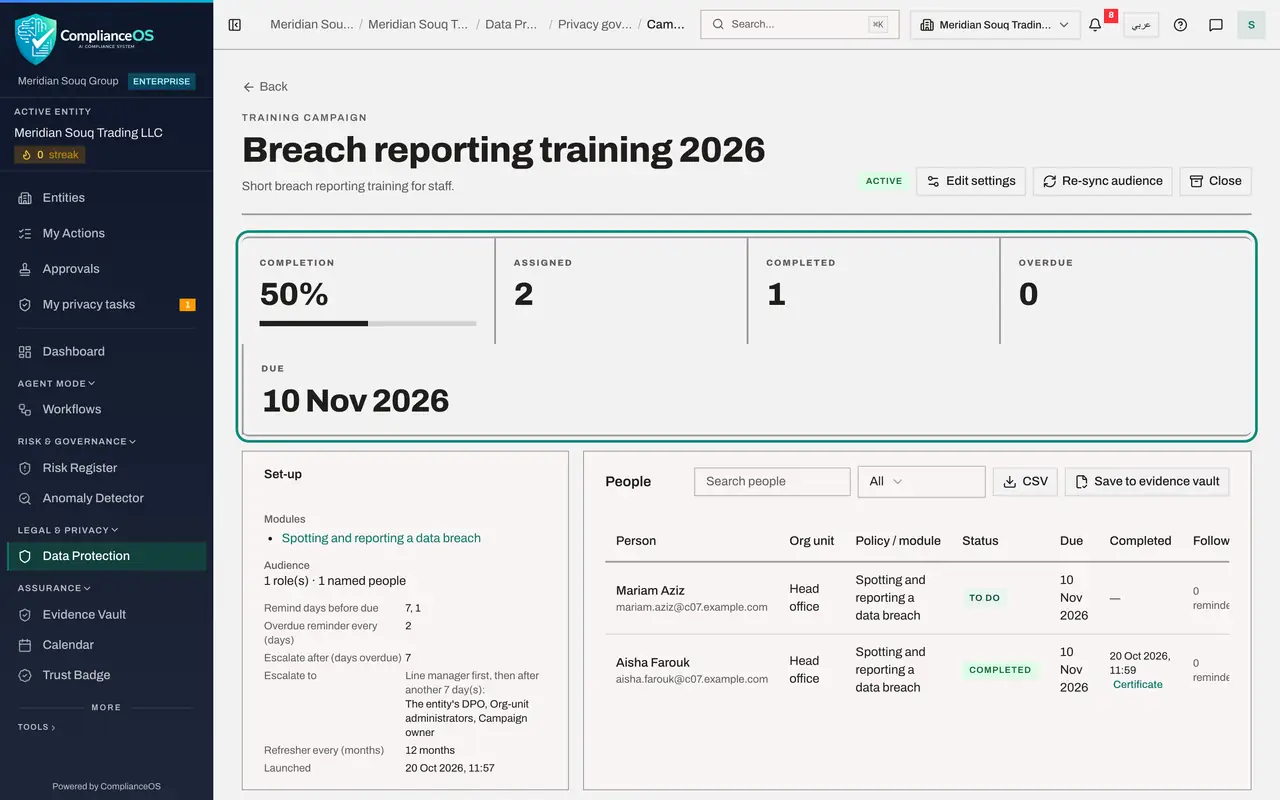
Go back up to Completion by campaign and select the training campaign's name. The tiles show 50 percent completion: two people were assigned and one has passed.
- Select Breach reporting training 2026
- 8
Filter the people
Open the filter above the list, which reads All, and choose Completed. Only people who have finished are listed, with the date and time they completed. The filter also offers To do and Overdue.
- Select Filter
- Choose Completed
- 9
Download a person's certificate
For a passed training, a Certificate button appears under the completion time. Select it to download that person's certificate as a PDF, for their personnel file or for an auditor.
- Select Certificate
- 10
Search for one person
Set the filter back to All and type a name in Search people. The list narrows to that person, with their org unit, the module, the status, the due date and the number of reminders sent so far.
- Select Filter
- Choose All
- Type Search people:
Mariam
- 11
Download the campaign records
Select CSV to download every row of the campaign: who was assigned what, their status and when they completed.
- Select CSV
- 12
Select Save to evidence vault
Select Save to evidence vault. The completion records are stored in the evidence vault as a sealed file with a fingerprint, and a message names the file. Auditors find it there, which the closing lessons show.
- Select Save to evidence vault
- 13
Check who has acknowledged the policy
Select Back, open Policy library and select the published policy. On the right, Attestations lists each person who has acknowledged it, with the version and the time.
- Select Meridian Souq acceptable use of personal data
How to check it worked
The Overview shows a governance score and a row for the org unit under Completion by org unit. The training campaign lists the person who passed as Completed with a Certificate button, and a message confirmed that the records were saved to the evidence vault.
Common mistakes
- Reading the governance score as a pass mark. It is the average of attestation completion, training completion and how many policies are up to date, so it rises as staff complete their tasks.
- Chasing people by hand before checking Follow-up. The campaign already sends reminders and escalates. The Follow-up column shows how many reminders each person has had.
- Saving to the evidence vault before anyone has completed. The button is greyed out until there is at least one completed record.
Check your understanding
1. Where do you see which org unit is behind on its privacy tasks?
- A.In the vendor register
- B.On the Overview, under Completion by org unit
- C.In the Breach Log
- D.In Settings
Show answer
Answer: B. On the Overview, under Completion by org unit
Completion by org unit lists each unit with the number assigned, the number overdue and a completion bar.
2. What does Save to evidence vault store?
- A.The policy text
- B.The campaign's completion records as a sealed file for auditors
- C.Everyone's quiz answers as a video
- D.Nothing: it only prints
Show answer
Answer: B. The campaign's completion records as a sealed file for auditors
It stores the completion records as a file with a fingerprint in the evidence vault, where auditors can find it.