Lesson 27 of 31
For administrators: privacy policies and training across the group
What you will be able to do
This lesson is for an organisation administrator or anyone who oversees more than one entity. You will open the group overview of privacy policies and training, compare the entities you can see, open the detail behind one entity's figures, filter the list, and drill down to that entity's completion by org unit.
Before you start
- You can view privacy policies or training for more than one entity. An organisation administrator can.
- At least one entity has live campaigns, as in the earlier lessons of this course.
Steps
- 1
Open the Insights panel of Privacy policies and training
Open any entity, select Data Protection and then Privacy policies and training. At the top right of the section, select Insights. A panel opens with a short explanation and two links.
- Select Show insights panel
- 2
Select All entities, group overview
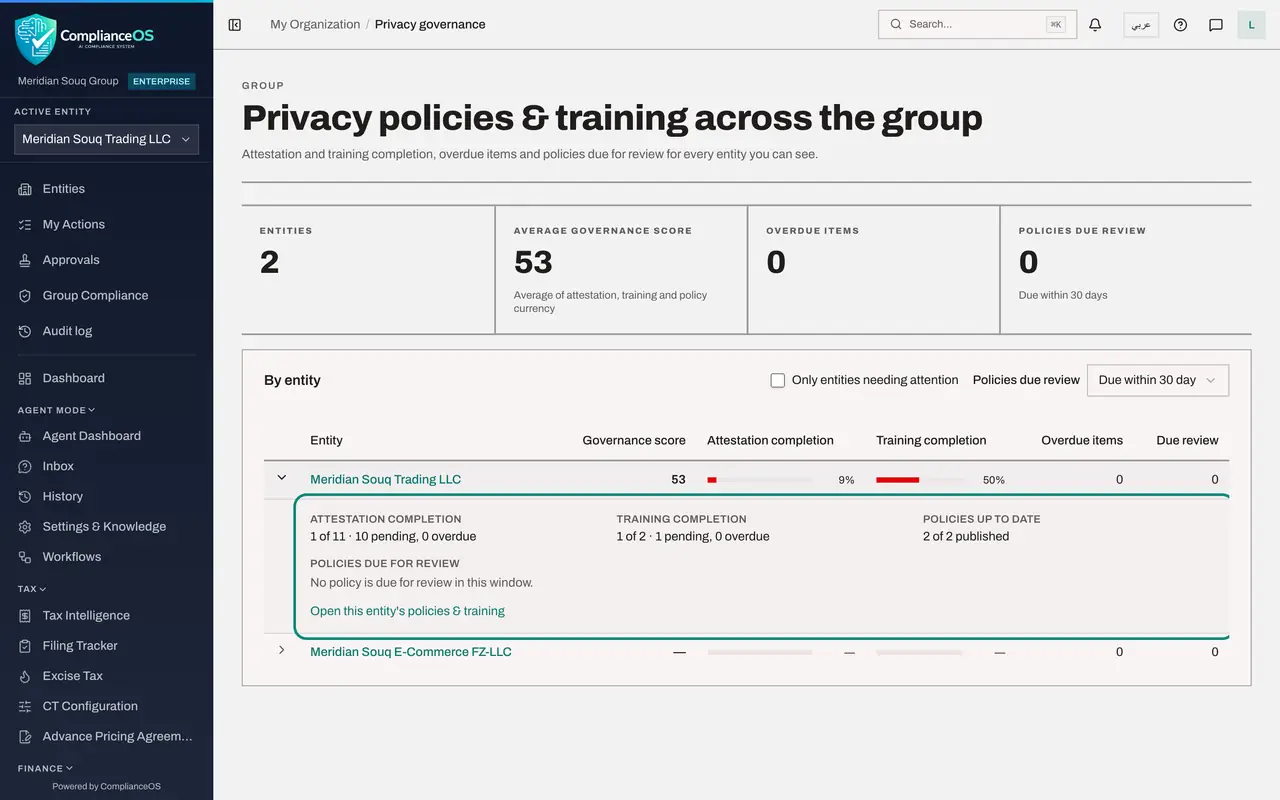
Select All entities, group overview. The page lists every entity whose privacy policies or training you can view. Four tiles summarise the group: the number of entities, the average governance score, the overdue items and the policies due for review.
- Select All entities (group overview)
- 3
Compare the entities
Each row is one entity, with its governance score, a bar for attestation completion, a bar for training completion, the number of overdue items and the number of policies due for review. The second entity shows dashes because nothing has been assigned there yet.
- 4
Open the detail behind one entity
Select the arrow at the start of the first row. The row opens to show the counts behind the bars: how many acknowledgements and trainings are done out of those assigned, how many are pending and overdue, and how many policies are published. Policies due for review are listed with their dates.
- Select Details for Meridian Souq Trading LLC
- 5
Change the review window
Open the list Policies due review and choose Due within 90 days. The last column and the fourth tile now look three months ahead. The list also offers Past their review date, for reviews that are already late.
- Select Due within 30 days
- Choose Due within 90 days
- 6
Show only entities needing attention
Switch on Only entities needing attention. The list keeps only entities with something overdue, an approval pending or a policy due for review. Here none qualifies, so the page says Nothing needs attention.
- Select Only entities needing attention
- 7
Drill down to one entity
Switch the filter off and select the entity's name. You land on that entity's Overview. Completion by org unit shows which org unit is behind, with the number assigned, the number overdue and a completion bar.
- Select Only entities needing attention
- Select Meridian Souq Trading LLC
- 8
Open the entity's Policy library
From the entity's Overview, every other section is one click away. Select Policy library. An organisation administrator sees the same library as the privacy team, with each policy's status, version, owner and next review date.
- Select Policy library
How to check it worked
The group overview lists both entities with their governance score, attestation and training completion, overdue items and policies due for review, and you have reached one entity's Completion by org unit from it.
Common mistakes
- Reading a dash as zero. A dash means the entity has nothing assigned yet, or that you cannot see that part of it. Zero percent means people were asked and none has finished.
- Leaving Only entities needing attention switched on and concluding an entity is missing. That switch hides entities with nothing overdue, pending or due for review.
- Looking for the group overview in the left menu. It is opened from the Insights panel of Privacy policies and training, with the link All entities, group overview.
Check your understanding
1. How do you open the figures behind one entity's row?
- A.Double-click the score
- B.Select the arrow at the start of the row
- C.Download a report
- D.Ask the entity's Data Protection Officer
Show answer
Answer: B. Select the arrow at the start of the row
The arrow expands the row to show the counts behind each percentage and the policies due for review.
2. What does the list Policies due review, set to Due within 30 days, change?
- A.The governance score
- B.Which policies are counted as due for review in the last column and the tile
- C.Who can see the page
- D.The due date of campaigns
Show answer
Answer: B. Which policies are counted as due for review in the last column and the tile
The window chooses how far ahead to look for policy reviews: within 30, 60 or 90 days, or only those already past their review date.